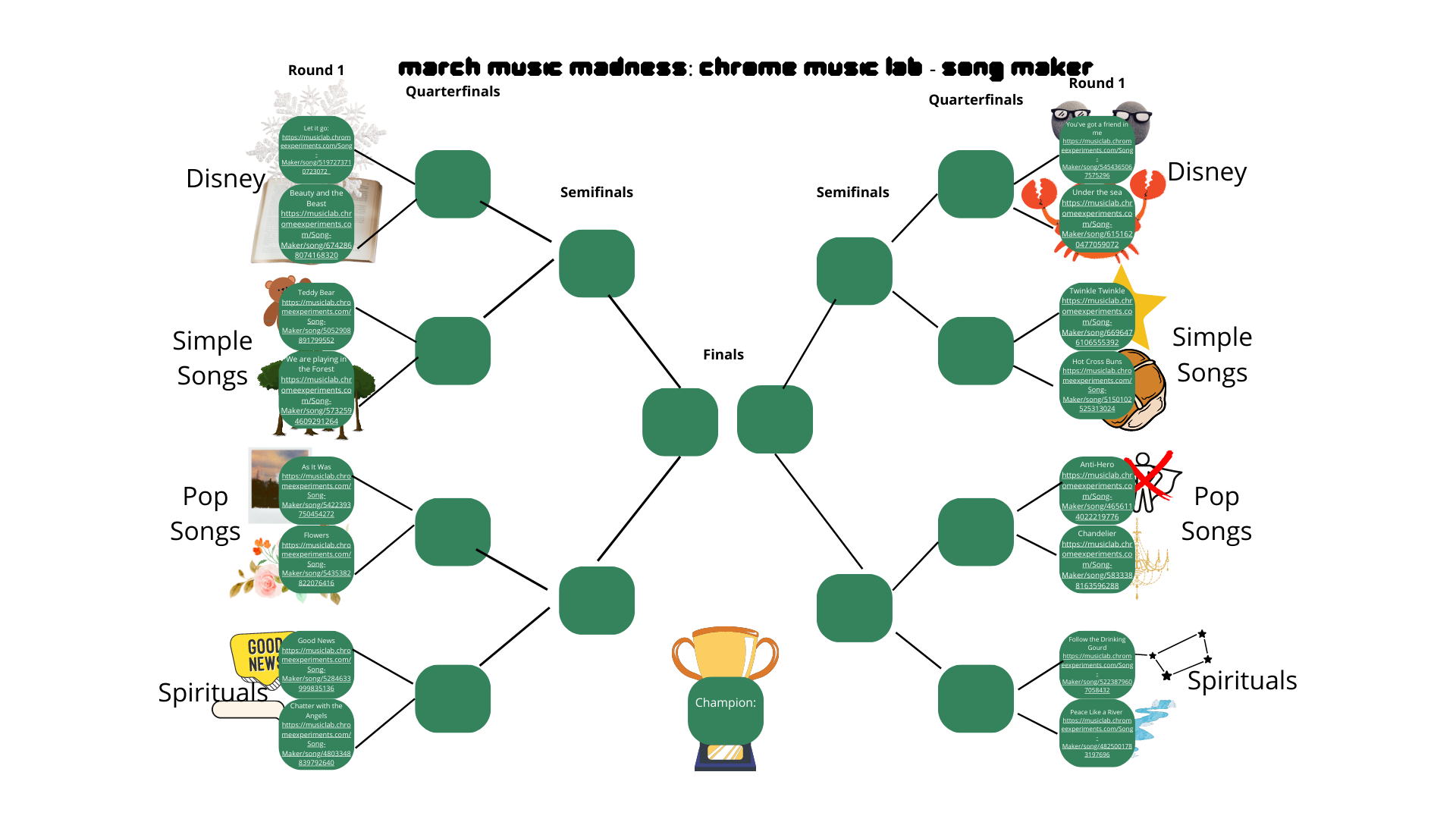
March Music Madness: Chrome Music Lab Edition!
March Music Madness with a creative focus using Chrome Music Lab Song Maker. Read through the post or watch the YouTube video to see how to use or adapt this for an elementary music class across grade levels. Like my resources? Please consider buying me a coffee at https://www.buymeacoffee.com/elmusedtech

File for March Music Madness
This summary was created by the YouTube Summarized Extension.
March Music Madness Chrome Music Lab Edition!
This video by Amy M. Burns provides an overview of her idea of March Music Madness, a tradition of bringing March Madness into the music classroom.
March Madness is a term used to refer to the NCAA men's and women's college basketball tournaments held between mid-March and the beginning of April.
Burns created an interactive whiteboard using Canva to make this activity span across grade levels.
She adapted some of the melodies so students can either fix them or create something completely new.
At the end of each class, students will vote on their favorite song.
Song Maker 01:27
Burns uses Chrome Music Lab's Song Maker to create her March Music Madness tournament.
She provides instructions to her students, such as adding a drum line or countermelody to the melody, or changing the melody around.
The students don't have to save and send their links but have the option to do so.
The goal is to be creative and express themselves through music.
Canva 02:44
Burns created an interactive whiteboard using Canva to display her March Music Madness tournament.
She suggests assigning themes to different grade levels and splitting classes into two groups to work on different songs simultaneously.
The students can then vote for the song they prefer at the end of the class period.
Once the tournament is complete, the winning song will be announced.
Introduction 04:52
The video demonstrates how to use Chrome Music Lab to create and share an interactive whiteboard project.
Chrome Music Lab allows users to create different types of music, such as spirituals and pop songs, with a few clicks of the mouse.
The video explains how to share the project with others, as well as how to use the "Zoom" feature to make it easier to view the project.
Adding Drumlines 06:03
Users can add a drumline to their project by clicking on the "Drumline" button.
The drumline will be added to the project but may sound a little off due to the way it was created.
Users can add a counter melody to make the drumline sound better.
Sharing the Project 06:37
Once the project is complete, users can click the "Save" button to save their work.
They can then copy the link for the project and share it with others.
Benefits of Using Chrome Music Lab 07:19
Chrome Music Lab makes it easy for users to create music with just a few clicks of the mouse.
It also allows users to zoom in and out of the project using their trackpad or a touch screen.
The video also explains how to find the link for the project, as well as how to find the summary of the video on the YouTube Summarized Chrome extension.
Great First Day at TMEA: TI:ME National Conference
Day 1 of TMEA: TI:ME National Music Technology/Education Conference. Click here to read about tow highlighted sessions from the day.

The Texas Music Educators Association started its annual music education conference today with the Technology in Music Education (TI:ME) National Conference. TI:ME was started in 1995 and was founded by John Dunphy, Tom Rudolph, and Floyd Richmond. The organization received funding from NAMM to provide assistance to music educators with integrating technology into their classrooms. The early years involved music notation. Nowadays, it includes everything from digital audio workstations to the integration of technology into the current music curriculum.
The TI:ME National Conference is a subset of the Texas Music Educators Association (TMEA) Annual Conference, which focuses specifically on the use of technology in music education. This conference provides music educators with an opportunity to explore new technologies, software, and hardware that can enhance music education in the classroom and beyond.
At the Technology in Music Education National Conference, attendees can participate in sessions and workshops led by experts in the field of music education technology. These sessions cover a range of topics, including the use of digital audio workstations, music notation software, and mobile devices for music education. Attendees can also see demonstrations of new and innovative technology products and services and learn about the latest trends and developments in the field.
Since I arrived later in the day, I wanted to highlight two sessions.
Using Social Media to Recruit and Advocate for Your Program
Brady McNeil did a great job showcasing tools to help music educators use social media effectively to advocate for their program. The five tips he gave were:
Let philosophy drive the content.
More engagement = stronger opportunity for influence.
Photo Composition
Rule of Thirds - eyes are driven to images divided into three.
Cropping
There are different sizes for cropping in various social media and that should be taken into consideration when you crop a photo to post.
Pixel sizes
Similar to cropping as different platforms require different pixel recommendations.
png files are better in pixelation than jpg files.
Establish (follow) your brand.
Create a brand or use the school colors so that your posts have consistency.
A couple of suggested tools to help you with this:
Chrome Color Picker Tool - gives you the eye dropper to select the color and hex code of anything on the screen.
Planoly shows what your picture will look like on a social media platform.
How Can I Create Play-Along Videos with Mostly Free Tools?
This was my session where I showed how to create a play-along video with free tools in two ways:
Using Canva, Katie Wardrobe’s Big Free Music Notation File, a song, a presentation tool like Keynote or Powerpoint, and a screen recording tool like Loom.
Using Canva, Katie Wardrobe’s Big Free Music Notation File, a song, a presentation tool like Keynote or Powerpoint, and a free video editing tool like Microsoft’s Clipchamp.
I showed them how to create this play-along video for Valentine’s Day from the song, That Thing You Do by Adam Schlesinger.
Go to https://wakelet.com/wake/CXbugb01E9PCIEeJlYEXc to find the resources used in this session!
A Simple Rhythm Play-Along For Valentine's Day and TMEA!
New! Valentine’s Rhythm Play-Along Video to That Thing You Do! Here is a fun, simple rhythm play-along video to the song, That Thing You Do, written by Adam Schlesinger. The song is performed by the fictional 1960s band The Wonders, who are the focus of the film with the same title. The song peaked at No. 41 on the Billboard Hot 100 and was nominated for an Academy Award and a Golden Globe Award for Best Original Song in 1997. The note values that are covered are quarter, eighth, and half notes, as well as quarter rests. It also includes a dance party in the middle of the song. This song will be featured in my TMEA/TI:ME session tomorrow where you can see how to create the video in two different ways using free tools! Have fun with this!
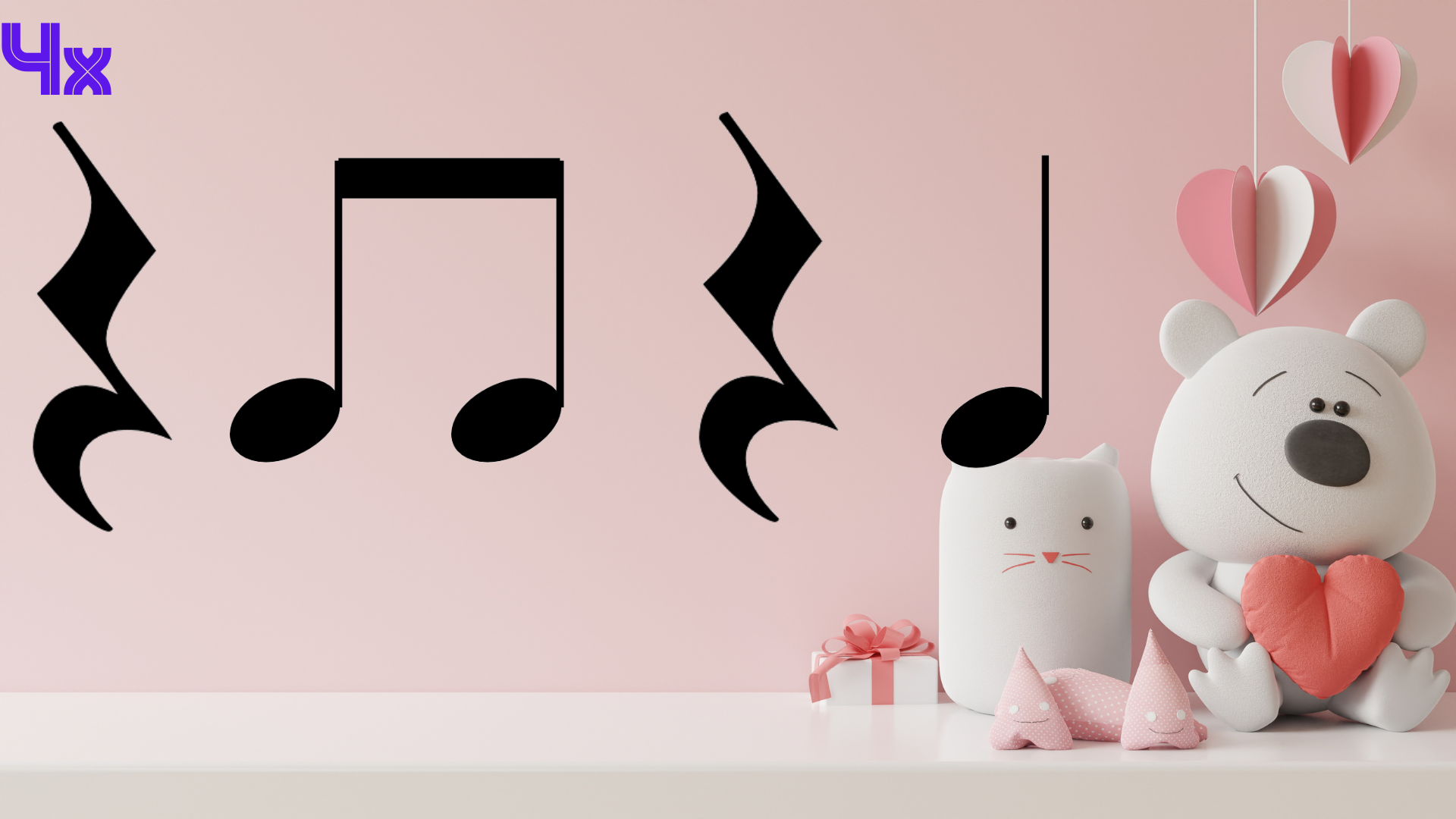
Tomorrow begins the annual TMEA/TI:ME (Technology in Music Education) National Conference. Held annually in San Antonio, Texas, this conference is the home to over 25,000 music educators, merchants, admin, clinicians, and more, for the span of four days. This conference is exciting. You can find sessions on mostly any topic in music education. You can also meet many of the gurus in music education like Denise Gagne. You can also attend the pre-conference where TI:ME holds its annual National Conference and brings in the best music technology and music education presenters from around the world.
Join me as I will blog daily and possibly, live podcast from the event. I look forward to seeing many of my music education friends that I have met over the past 25+ years. Katie Wardrobe from Midnight Music, based in Australia will be presenting, as well as fellow NJ music educator, Shawna Longo. TI:ME will celebrate their TI:ME Mike Kovins Teacher of the Year recipient, Heath Jones! This award has a special place in my heart as I have been a member of the TI:ME organization for years, and served as President over a decade ago. I was also the first recipient of the award in 2005. TI:ME has been around for over 30 years and has assisted music educators with integrating technology into their classrooms when the technology was only one computer with very complicated notation programs.
Join Me in TMEA!
My three sessions are:
How Can I Create Play-Along Videos with Mostly Free Tools? CC 214B Wednesday 3:00
Play-along videos have become popular because they can be used for meeting performance standards, for retrieval practice, and at times, just as fun musical activities before a break. But how can one be made so that it blends into your curriculum, using mostly free tools? Burns will show you how to create them so that they meet your curriculum.
Go to https://wakelet.com/wake/CXbugb01E9PCIEeJlYEXc to find the resources used in this session!
Help! Preschool and Kindergarten Have Been Added to My Schedule! Friday 8:30 am Grand Hyatt 4th Floor Texas DEF
If early childhood, PreK, and kindergarten music are on your schedule and you aren't confident with teaching at that level, this clinic is for you! Burns will share some of her activities, resources, and lessons she has used with her PreK students for the past 25 years.
Go to https://wakelet.com/wake/mLb0agEgETb4N7ROdHkwt to find the links to the routines, resources, activities, props, and tech tools.
Free Tech Resources for the Elementary General Music Teacher Saturday, 8:30 am CC212
This session will give elementary music educators numerous resources that they can immediately use in their classrooms. It will also leave with lesson ideas and student examples created from the free resources. Finally, there will also be resources that have free, limited access.
Go to https://wakelet.com/wake/qElej4Tm6D-MUCLmMx4Wu to follow along with the presentation.
New! Valentine’s Rhythm Play-Along Video to That Thing You Do!
Here is a fun, simple rhythm play-along video to the song, That Thing You Do, written by Adam Schlesinger. The song is performed by the fictional 1960s band The Wonders, who are the focus of the film with the same title. The song peaked at No. 41 on the Billboard Hot 100 and was nominated for an Academy Award and a Golden Globe Award for Best Original Song in 1997.
This song and play-along video will be featured in my session tomorrow where you can see how to create the video in two different ways using free tools!

Valentine Rhythm Play-Along Throwback Medley
Need a fun Valentine Medley Rhythm Play-Along with the teaching manipulatives? Check this out! If you enjoy my resources, please consider buying me a coffee at https://www.buymeacoffee.com/elmusedtech

Credit: unsplash-image-N8MDgWvUW-8.jpg
Updated February 2023
February has a lot of celebrations that can be explored and studied in elementary music class. The Lunar New Year sometimes begins in February, but this year, the year of the Rabbit, started on January 22, 2023. In my classroom, we will explore various songs, instruments, and books that celebrate the Lunar New Year. February 2 is Groundhog’s Day when my students look forward to finding out if we will have six more weeks of winter. In music class, we might write a short poem about the day and orchestrate our classroom instruments to enhance the poem.
February is also Black History Month where we can study numerous black musicians such as Ella Fitzgerald, Stevie Wonder, Ella Jenkins, Mahalia Jackson, James Brown, and so many more. However, in my classroom, I try to celebrate all musicians all year long and try to steer away from only celebrating black musicians in February, women musicians in March, etc. One way I do this is to begin each class by celebrating musicians’ birthdays that occur that week. I use https://www.onthisday.com/music/. This site has been a wonderful resource that updates often.
February can also be known for hosting the extra day of a leap year. And finally, Valentine’s Day can be celebrated on or around the 14th with songs, instruments, movement, and rhythm play-alongs.
Play-Along

This rhythm play-along is a medley of five fun, Valentine-like songs dating from 1963-1996. The rhythms involved are quarter notes, half notes, eighth notes, and quarter and half rests. The play-along ends with a dance break.
I was originally going to make the songs date from 1963 to 1976, but one of the original songs I chose was blocked by YouTube copyright policy. Therefore, I replaced it with a very similar song, That Thing You Do! This song was written by Adam Schlesinger for the movie, That Thing You Do! The artists that recorded the song are listed as The Wonders, but that was a fictional group created for the movie, and the only artists I could find listed for this song were Adam and Mike Viola. Adam unfortunately passed away in April of 2020 due to covid.
Medley

Garrett, L., Hardaway, L. M., Wonder, S., Wright, S. (1970). Signed, Sealed, Delivered I'm Yours. [Recorded by S. Wonder]. On Signed, Sealed & Delivered [Audio File]. Retrieved from https://www.youtube.com/watch?v=6To0fvX_wFA
Morrison, V. (1967). Brown Eyed Girl. On Blowin' Your Mind [Audio File]. Retrieved from https://www.youtube.com/watch?v=UfmkgQRmmeE
Schlesinger, A. (1996). That Thing You Do! [Recorded by The Wonders]. On That Thing You Do! [Audio File]. Retrieved from https://www.youtube.com/watch?v=BJn-Jl2ZeQU
d'Abo, M. Macaulay, T. (1968). Build Me Up Buttercup. [Recorded by The Foundations]. On Baby Now That I've Found You [Audio File]. Retrieved from https://www.youtube.com/watch?v=KbfJM7eMnBM
Anderson, S., Andersson, B., Ulvaeus, B. (1976). Dancing Queen. [Recorded by ABBA]. On Arrival [Audio File]. Retrieved from https://www.youtube.com/watch?v=P5AqvKYYQEE
Manipulatives
This year, I am including the teaching manipulatives so you can use them in your classroom.
Here is a Google Slide Presentation with the rhythm slides. You can use these to:
Teach them to the students.
Use https://wheelofnames.com/ to have the wheel randomly choose students to perform the rhythm patterns as you assess them.
Review the rhythms before you perform the play-along activity.
Print them out (black and white is suggested if you are using your own printer) and hand them to the students so they only play the pattern that is in front of them.
https://docs.google.com/presentation/u/1/d/1i4dYsEJswxUtzVKAJCRGmg7-S3W6GjJQE25GxLpo1kI/copy
Enjoy the play-along and if you like using my resources, please consider buying me a coffee at https://www.buymeacoffee.com/elmusedtech.
https://www.buymeacoffee.com/elmusedtech.

Countdown to 2023-10 Tech Tools or Tips for Elementary and Middle School General Music: #2 The trick of adding - between the t and the u in the URL
#2 The trick of adding - between the t and the u in the URL
This is a quick video for #2. And “oldie but goodie” tip.
This is a trick that sometimes works, but not all of the time. To make the YouTube video become full screen with no ads, no comments, and no videos that will play right after, take the YouTube video’s URL that you would like to show, add a - between the t and u, and refresh the screen.
There are a lot of other ways to do this. Another way is to load the YouTube video you would like to show, click on the share button, and click on embed. A large iframe code appears. Click copy and paste the iframe into a new tab. Look for where the https begins and the URL ends, usually with letters. Delete the other items so you have a URL in the tab. Click refresh and the video is now embedded onto the screen with no ads, comments, etc.
For the past few years, I have counted down to the new year with a top ten list. I begin on 12/23 and end on 1/1. The list is comprised of 10 tech tools or tips for elementary and middle school general music. This top ten list will have a tech tool or tip featured each day in a short video and blog post. When we reach number one, I will follow it with a video of all ten tools and tips. Therefore, you can follow me daily, or come back on New Year’s Day and catch all ten at once.
WHO AM I?
If you are new to this YouTube channel or my website or my buymeacoffee site, my name is Amy M. Burns and I have been teaching and integrating technology into the elementary music classroom for over 25 years at Far Hills Country Day School, a preschool through grade 8 private school in NJ. For the past two years, I have also worked for Katie Wardrobe in her Midnight Music Community as the Community Coordinator answering questions and giving out tech tips to the community. Finally, I am an author and clinician with four publications. My recent publication titled Using Technology with Elementary Music Approaches is published by Oxford University Press and can be purchased from OUP or Amazon today.
Each week on this website and my YouTube channel I post a play-along video, resource video, or a webisode about integrating technology into the music classroom. Please subscribe and click like to the video so that you can get weekly notifications about resources you can immediately use in your classroom. I am also working on my Teachers Pay Teachers page, but currently, it holds many free items. I hope to get that going more in 2023. If you like my resources, please consider buying me a coffee at https://www.buymeacoffee.com/elmusedtech
#2 The trick of adding - between the t and the u in the URL

This is a quick video for #2. And “oldie but goodie” tip.
This is a trick that sometimes works, but not all of the time. To make the YouTube video become full screen with no ads, no comments, and no videos that will play right after, take the YouTube video’s URL that you would like to show, add a - between the t and u, and refresh the screen.
There are a lot of other ways to do this. Another way is to load the YouTube video you would like to show, click on the share button, and click on embed. A large iframe code appears. Click copy and paste the iframe into a new tab. Look for where the https begins and the URL ends, usually with letters. Delete the other items so you have a URL in the tab. Click refresh and the video is now embedded onto the screen with no ads, comments, etc.
COME BACK TOMORROW FOR TECH TOOL OR TIP #1!
Check back tomorrow for tech tool or tip #1! You will see how you can create play-along videos using free tools!

Countdown to 2023-10 Tech Tools or Tips for Elementary and Middle School General Music: #3 Flat.io
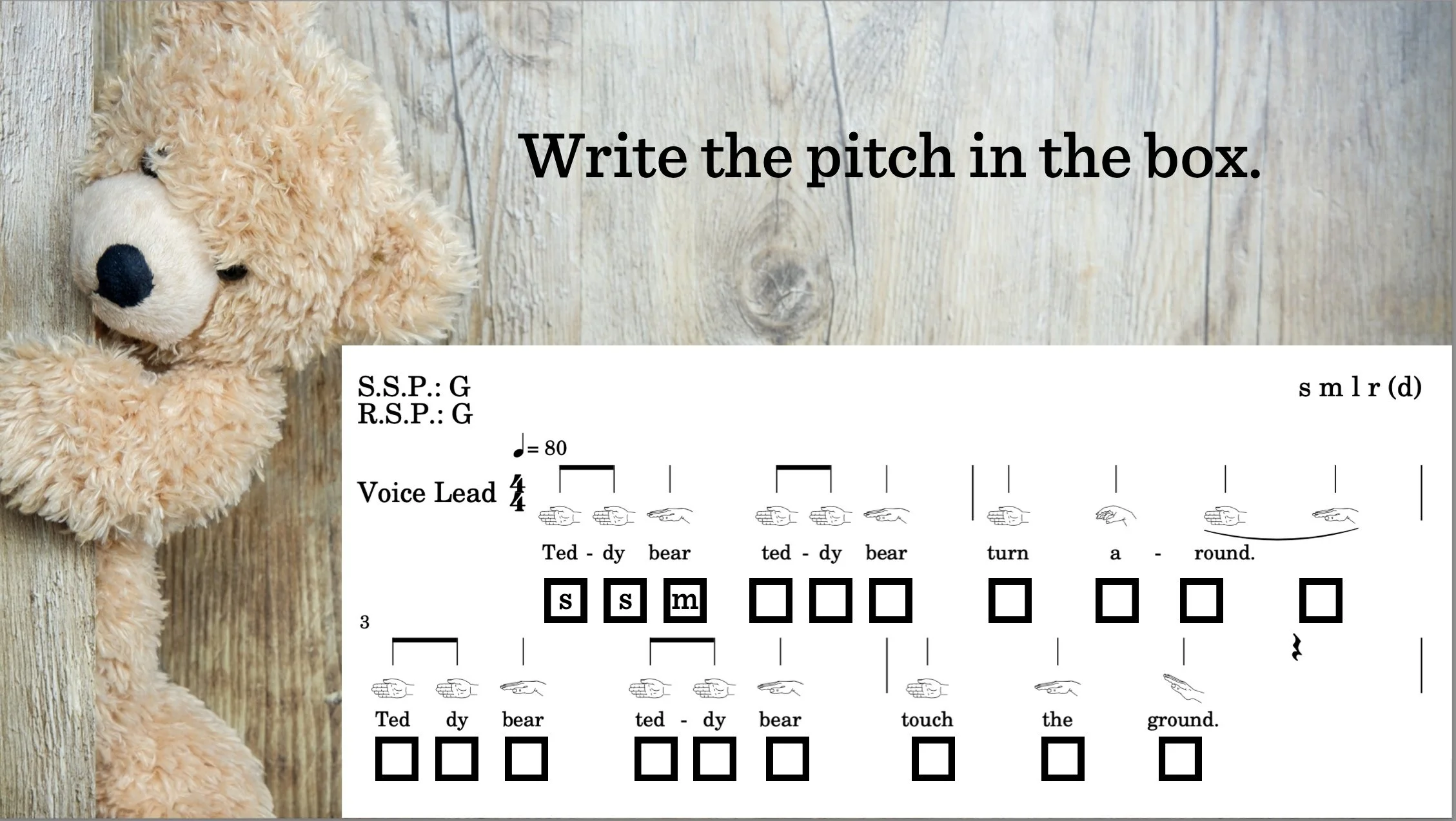
Tech Tip: Use Flat for Education and Canva to create a station in your classroom, or an interactive worksheet to add to a google classroom or Seesaw Activity, or just as a worksheet for retrieval practice or when you have a sub. This worksheet involves naming the pitches in the song Teddy Bear using Kodály hand signals.

#3: Flat.io - “Teddy Bear" Retrieval Practice with Flat for Education and Canva
This is a previous post from June of 2022.
Tech Tip: Use Flat for Education and Canva to create a station in your classroom, or an interactive worksheet to add to a google classroom or Seesaw Activity, or just as a worksheet for retrieval practice or when you have a sub. This worksheet involves naming the pitches in the song Teddy Bear using Kodály hand signals. Like my videos? Please consider buying me a coffee at https://www.buymeacoffee.com/elmusedtech.
PDF: https://drive.google.com/file/d/1zN-cwSbWZ_7aS1uhQ97olGHVgWJqUCaE/view?usp=sharing
Seesaw Activity: https://app.seesaw.me/pages/shared_activity?prompt_id=prompt.94b6a39f-69fc-4fa6-a085-95ccd833f87b&share_token=CcJl-lSFSAmbgCkOITwUNA
Flat for Education: https://flat.io/edu
Canva for Educators: https://www.canva.com/education/
COME BACK TOMORROW FOR TECH TOOL OR TIP #2!
Check back tomorrow for tech tool or tip #2!
Countdown to 2023-10 Tech Tools or Tips for Elementary and Middle School General Music: #6 Big Free Music Notation Image Library COMPLETE 2022
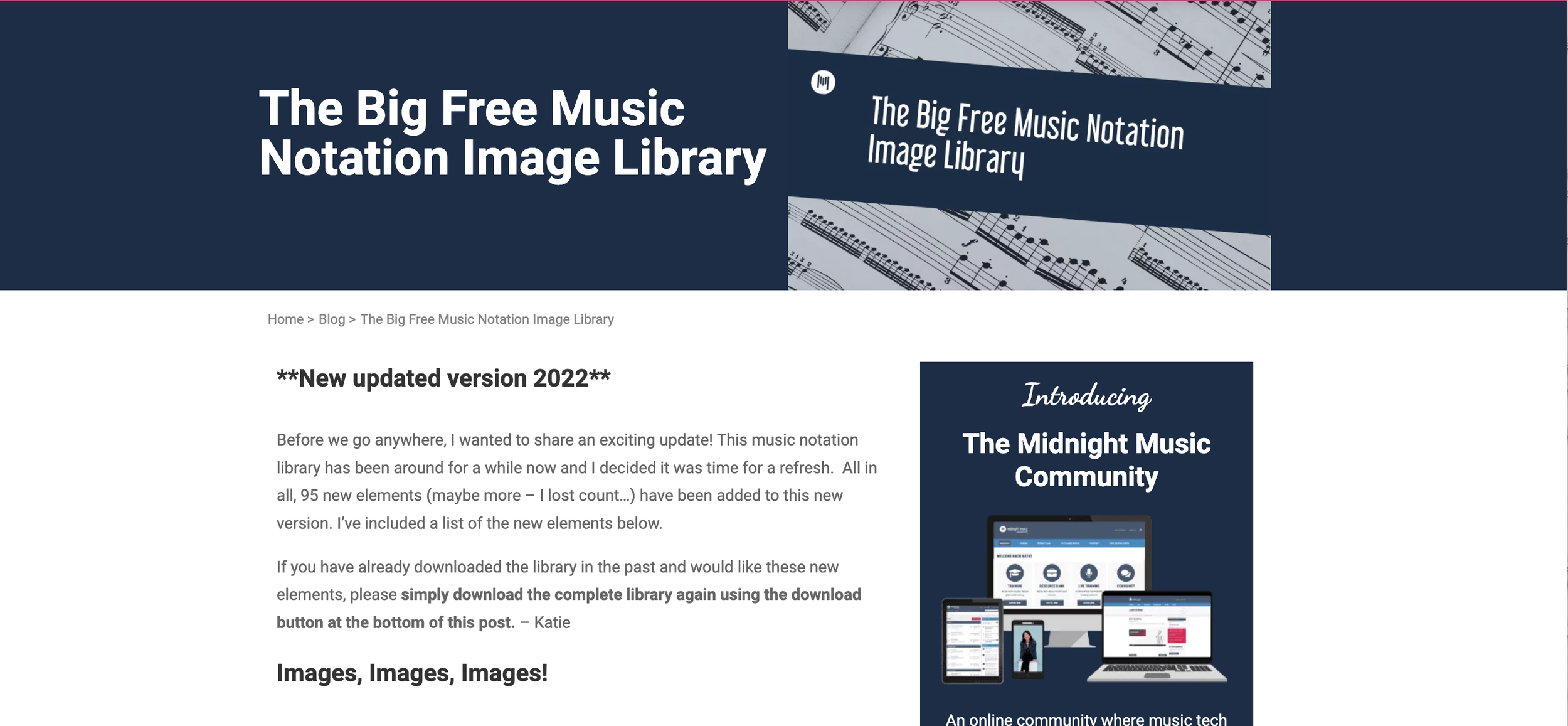
Have you ever needed free notation graphics that you could easily grab and use at a moment’s notice? Or have access to them to create manipulatives, presentations, worksheets, posters, and more? Look no further than Katie Wardrobe’s Midnight Music’s Big Free Music Notation Library COMPLETE 2022! Check out the webisode and blog about this great resource. Like my resources? Please consider buying me a coffee at https://www.buymeacoffee.com/elmusedtech

For the past few years, I have counted down to the new year with a top ten list. I begin on 12/23 and end on 1/1. The list is comprised of 10 tech tools or tips for elementary and middle school general music. This top ten list will have a tech tool or tip featured each day in a short video and blog post. When we reach number one, I will follow it with a video of all ten tools and tips. Therefore, you can follow me daily, or come back on New Year’s Day and catch all ten at once.
WHO AM I?
If you are new to this YouTube channel or my website or my buymeacoffee site, my name is Amy M. Burns and I have been teaching and integrating technology into the elementary music classroom for over 25 years at Far Hills Country Day School, a preschool through grade 8 private school in NJ. For the past two years, I have also worked for Katie Wardrobe in her Midnight Music Community as the Community Coordinator answering questions and giving out tech tips to the community. Finally, I am an author and clinician with four publications. My recent publication titled Using Technology with Elementary Music Approaches is published by Oxford University Press and can be purchased from OUP or Amazon today.
Each week on this website and my YouTube channel I post a play-along video, resource video, or a webisode about integrating technology into the music classroom. Please subscribe and click like to the video so that you can get weekly notifications about resources you can immediately use in your classroom. I am also working on my Teachers Pay Teachers page, but currently, it holds many free items. I hope to get that going more in 2023. If you like my resources, please consider buying me a coffee at https://www.buymeacoffee.com/elmusedtech
#6 Katie Wardrobe’s Midnight Music’s Big Free Music Notation Image Library COMPLETE 2022!
Have you ever needed notation graphics that you could easily grab and use at a moment’s notice? Or have access to them to create manipulatives, presentations, worksheets, posters, and more? Look no further than Katie Wardrobe’s Midnight Music’s Big Free Music Notation Library COMPLETE 2022!
Katie Wardrobe is the founder of Midnight Music and the Midnight Music Community. Katie created this community to help music educators with music technology in a simple way. She and her team help music educators to integrate music technology in the classroom through webinars, courses, training videos, and she also gives you lessons, ideas, and projects for any devices at any age level used in music classes.
At Midnight Music, we’re on a mission to demystify music technology for music educators worldwide with world-class resources, professional development tools, and expert support. I have worked as the Community Coordinator for the past two years and it has been a wonderful experience creating a safe place for music educators to ask questions about educational and music technology.
Big Free Music Notation Library COMPLETE 2022!

Back in 2015, Katie created a downloadable folder of notation, music symbols, accidentals, barlines, clefs, dynamics, rests, staves, and meters for anyone to download for free and to use in their classroom. In 2022, she updated it and it now has over 150 music notation images. She added articulation, pedal, ties, turns, trills, mordents, bowing, boomwhacker notation, 8va, 8vb, note stems only, noteheads only, groups for compound time, groups for simple time, repeats and fermata, and probably more that I am forgetting to mention.
Check out this great, free resource today! And if you feel compelled, visit her community. It is definitely worth checking out.


COME BACK TOMORROW FOR TECH TOOL OR TIP #5!
Check back tomorrow for tech tool or tip #5!
Countdown to 2023-10 Tech Tools or Tips for Elementary and Middle School General Music: #7 Vocal Remover
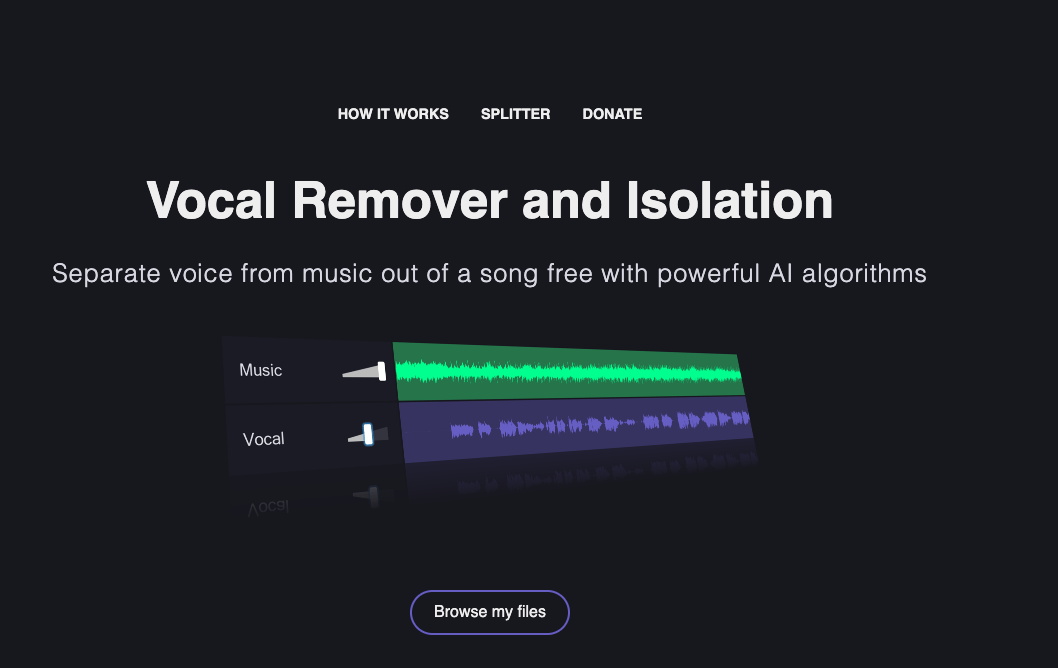
Many of my favorite music educators from Katie Wardrobe to Jim Frankel have spoken highly of the free website, Vocal Remover (https://vocalremover.org/) created by Melnik Dmitry. This site can do so many things that you need for your music classroom, and it can do it for free on various devices because it is web-based. You are not required to login to use this, but if you become a patron, you will be able to use the website often. Like my resources? Please consider buying me a coffee at https://www.buymeacoffee.com/elmusedtech.
Read more to find out how to remove vocals, split accompaniment tracks into separate, instrumental tracks, and so much more!

For the past few years, I have counted down to the new year with a top ten list. I begin on 12/23 and end on 1/1. The list is comprised of 10 tech tools or tips for elementary and middle school general music. This top ten list will have a tech tool or tip featured each day in a short video and blog post. When we reach number one, I will follow it with a video of all ten tools and tips. Therefore, you can follow me daily, or come back on New Year’s Day and catch all ten at once.
WHO AM I?
If you are new to this YouTube channel or my website or my buymeacoffee site, my name is Amy M. Burns and I have been teaching and integrating technology into the elementary music classroom for over 25 years at Far Hills Country Day School, a preschool through grade 8 private school in NJ. For the past two years, I have also worked for Katie Wardrobe in her Midnight Music Community as the Community Coordinator answering questions and giving out tech tips to the community. Finally, I am an author and clinician with four publications. My recent publication titled Using Technology with Elementary Music Approaches is published by Oxford University Press and can be purchased from OUP or Amazon today.
Each week on this website and my YouTube channel I post a play-along video, resource video, or a webisode about integrating technology into the music classroom. Please subscribe and click like to the video so that you can get weekly notifications about resources you can immediately use in your classroom. I am also working on my Teachers Pay Teachers page, but currently, it holds many free items. I hope to get that going more in 2023. If you like my resources, please consider buying me a coffee at https://www.buymeacoffee.com/elmusedtech
#7 Vocal Remover
Many of my favorite music educators from Katie Wardrobe to Jim Frankel have spoken highly of the free website, https://vocalremover.org/ created by Melnik Dmitry. This site can do so many things that you need for your music classroom, and it can do it for free on various devices because it is web-based. You are not required to login to use this, but if you become a patron, you will be able to use the website often.
Remove Vocals
Truly amazing! You can remove vocals in these easy steps:
Click on “Browse my files”
Find your file
I used a Swiftie song and it worked.
When finished, you can save it and it will download to your device (or you can probably save it to your drive).
One tip: If you are not a patron, and you use this too much at one time, you will get a warning that reads “Too many requests from your IP address. Please try again later or become a patron.”
Splitter
The splitter splits music into separated parts with AI-Powered algorithms.
Click on “Browse my files”
Find your file
I used an American Authors’s song to take out the guitar track so that a student could play along with the other tracks. It worked well.
When finished, you can save it and it will download to your device (or you can probably save it to your drive).
Other items:
Pitcher - Changes pitch and tempo of the song by adjusting musical key and bpm sliders
Cutter - Free editor to trim and cut any audio file online
Joiner - Join multiple audio tracks into one. Choose the audio files you want to merge
Recorder - Record yourself and download the recording.
Karaoke - Sing and record, tune voice, and save the complete song. Choose a karaoke track you want to sing with.
Key BPM Finder - Analyzes music and finds Key, Scale, and BPM for any song
Amazing free site! However, it will limit you greatly unless you become a monthly patron. I did give a one time donation since this site is so helpful.
COME BACK TOMORROW FOR TECH TOOL OR TIP #6!
Check back tomorrow for tech tool or tip #6!
Countdown to 2023-10 Tech Tools or Tips for Elementary and Middle School General Music: #08 Creatability
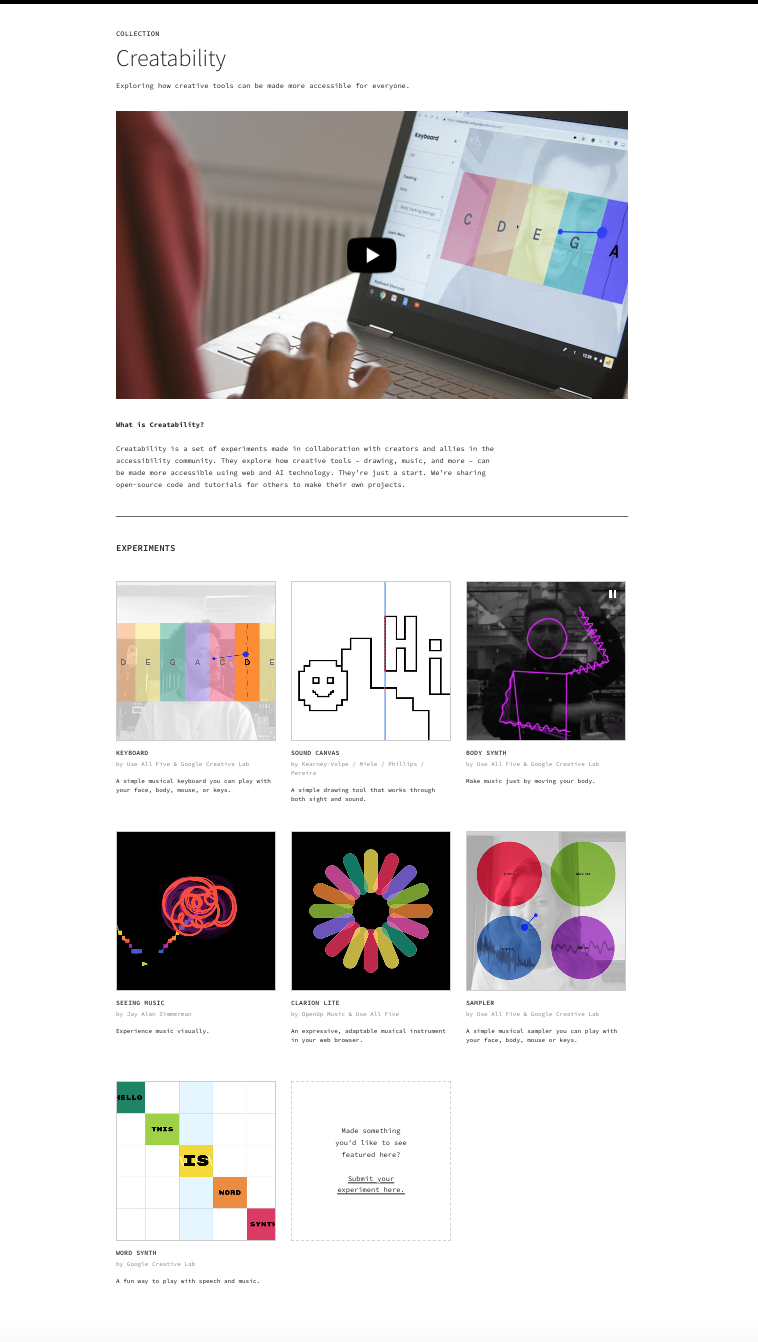
#8 Creatability from Google Experiments. Like my resources? Please consider buying me a coffee at https://www.buymeacoffee.com/elmusedtech
From the website: “Creatability is a set of experiments made in collaboration with creators and allies in the accessibility community. They explore how creative tools – drawing, music, and more – can be made more accessible using web and AI technology. They’re just a start. We’re sharing open-source code and tutorials for others to make their own projects.”
Use these three I show in the webisode to visualize pitch and dynamics and to give the opportunity for all of your students to make and create music.

For the past few years, I have counted down to the new year with a top ten list. I begin on 12/23 and end on 1/1. The list is comprised of 10 tech tools or tips for elementary and middle school general music. This top ten list will have a tech tool or tip featured each day in a short video and blog post. When we reach number one, I will follow it with a video of all ten tools and tips. Therefore, you can follow me daily, or come back on New Year’s Day and catch all ten at once.
WHO AM I?
If you are new to this YouTube channel or my website or my buymeacoffee site, my name is Amy M. Burns and I have been teaching and integrating technology into the elementary music classroom for over 25 years at Far Hills Country Day School, a preschool through grade 8 private school in NJ. For the past two years, I have also worked for Katie Wardrobe in her Midnight Music Community as the Community Coordinator answering questions and giving out tech tips to the community. Finally, I am an author and clinician with four publications. My recent publication titled Using Technology with Elementary Music Approaches is published by Oxford University Press and can be purchased from OUP or Amazon today.
Each week on this website and my YouTube channel I post a play-along video, resource video, or a webisode about integrating technology into the music classroom. Please subscribe and click like to the video so that you can get weekly notifications about resources you can immediately use in your classroom. I am also working on my Teachers Pay Teachers page, but currently, it holds many free items. I hope to get that going more in 2023. If you like my resources, please consider buying me a coffee at https://www.buymeacoffee.com/elmusedtech
It is Christmas Day today and this brings about a lot of cheer, thankfulness, and joy in our household. I hope that on this day, there was some joy and peace a part of it.
#8 Creatability

This is going to be a quick webisode as to get back to celebrating the holiday with the family.
What is Creatability?
From the website: “Creatability is a set of experiments made in collaboration with creators and allies in the accessibility community. They explore how creative tools – drawing, music, and more – can be made more accessible using web and AI technology. They’re just a start. We’re sharing open-source code and tutorials for others to make their own projects.”
Seeing Music
The keyboard is a great tool so that all of your students can make music. If they have a device where they move the trackpad or the mouse, they can play the virtual marimba. You can change the scales and instruments. And, the boomwhacker colors are present.
If you change the tracking into body tracking, and you allow the device’s camera to be used, you can now move the mallet with your head.
Body Synth
This experiment will access your camera so you can move your body to make music. You can change the sounds, the chords, and the sensitivity of the motion.
Both of these give all of your students access to make music. Check out the 1600+ other experiments happening at this site.
Seeing Music
I use this so the youngest of students can visualize high and low pitches, And yes, boomwhacker colors are back! You can change the visualization and bring scientific concepts into music class. Use the Waveform to also show and experiment with dynamics.
They also allow you to bring in an mp3 file of a recording you are using in class and it will show it in the visualization you are using. Finally, have the students record a simple song or melody that is under 30 seconds and this experiment will turn it into a piano roll that they can play along.
COME BACK TOMORROW FOR TECH TOOL OR TIP #7!
Check back tomorrow for tech tool or tip #7. I hope that you are on holiday break now and are finding time to relax and rest!
Countdown to 2023-10 Tech Tools or Tips for Elementary and Middle School General Music: #09 Wakelet
For the past few years, I have counted down to the new year with a top ten list. I begin on 12/23 and end on 1/1. The list is comprised of 10 tech tools or tips for elementary and middle school general music. This top ten list will have a tech tool or tip featured each day in a short video and blog post. When we reach number one, I will follow it with a video of all ten tools and tips. Therefore, you can follow me daily, or come back on New Year’s Day and catch all ten at once.
Read more…
Like my resources? Please buy me a coffee at https://www.buymeacoffee.com/elmusedtech
For the past few years, I have counted down to the new year with a top ten list. I begin on 12/23 and end on 1/1. The list is comprised of 10 tech tools or tips for elementary and middle school general music. This top ten list will have a tech tool or tip featured each day in a short video and blog post. When we reach number one, I will follow it with a video of all ten tools and tips. Therefore, you can follow me daily, or come back on New Year’s Day and catch all ten at once.
WHO AM I?
If you are new to this YouTube channel or my website or my buymeacoffee site, my name is Amy M. Burns and I have been teaching and integrating technology into the elementary music classroom for over 25 years at Far Hills Country Day School, a preschool through grade 8 private school in NJ. For the past two years, I have also worked for Katie Wardrobe in her Midnight Music Community as the Community Coordinator answering questions and giving out tech tips to the community. Finally, I am an author and clinician with four publications. My recent publication titled Using Technology with Elementary Music Approaches is published by Oxford University Press and can be purchased from OUP or Amazon today.
Each week on this website and my YouTube channel I post a play-along video, resource video, or a webisode about integrating technology into the music classroom. Please subscribe and click like to the video so that you can get weekly notifications about resources you can immediately use in your classroom. I am also working on my Teachers Pay Teachers page, but currently, it holds many free items. I hope to get that going more in 2023. If you like my resources, please consider buying me a coffee at https://www.buymeacoffee.com/elmusedtech
It’s Christmas Eve today and for those who celebrate, it brings along excitement for presents, visits to and from relatives, baking, cooking, wrapping, and possibly music for services. My daughter and I will be performing at our candlelight service, which is always a highlight for me when I get to perform with my daughter.
#09 Wakelet
WHAT IS WAKELET?
Wakelet is a free, digital organizational platform that lets educators and students arrange and sort a mix of content, from videos to articles, to tweets, to Flip videos, to Google Drive, to OneDrive, to images, to texts, for easy access.
SOME WAKELET TIPS:
Tip 1: Wakelet will play YouTube videos inside of its platform with no advertisements or having to leave Wakelet. Just click the full-screen icon for the video to appear fully on the screen.
Tip 2: You can follow Wakelet creators like teachers on Wakelet and make copies of their Wakelets so you can edit and use as your own. This is very intuitive as when a teacher makes a Wakelet public, you just click on the settings tool, click on “Copy to” and add it to your collections. This can now be edited by you without changing the creator’s original Wakelet.
Tip 3: When using other people’s Wakelet, please view the video or activity before using it in your classroom. My Wakelets include a variety of activities and videos found by many amazing music educators. However, just because the activity works well with their students in their classrooms, does not mean it will work well with your students in your classroom. You will have to look over the activity and decide if it is appropriate for your classroom.
Tip 4: When you add a lot to a Wakelet, it has the tendency to slow down your device. I have noticed this many times and have even had Wakelet give me a notification that it was running slower due to how many items I was adding. There are ways around this as you will see in this video.
Creating a Wakelet

It is very intuitive to create a Wakelet. Once you have created a free account, you can create your first Wakelet Collection. To do this, click “+Create Collection”. Then, title it and add a description. The design will default to Media, which allows you to display visual, interactive content within your collection. We can change the display by clicking on the paint brush, but I will come back to that once we have more content.
Adding Content


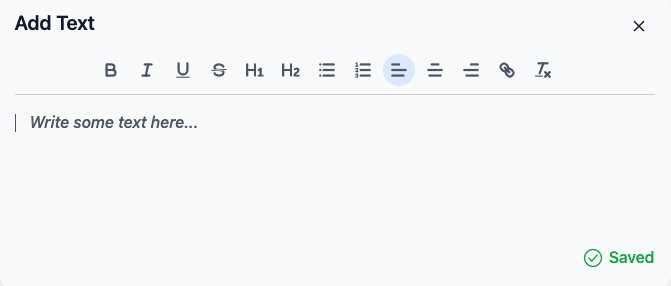


To add content, you paste a link address into the bar. You can add numerous links. When presented, this defaults to the Media Design, which creates one long column of the links you are adding. You will notice you can also add text to the bar and you can move that text to be placed under the video link by clicking on the three lines and dragging it to where you would like it to go.
The image tool lets you upload an image, or open Canva to design one, choose from their Giphy images, and choose from their Unsplash images. This is wonderful as you do not have to go out of Wakelet to find images that you are allowed to use.
The Bookmark tool gives you the option to bookmark the collection so you can organize your various Wakelets.
The PDF tool allows you to upload a PDF file.
Finally, Wakelet has many apps it integrates into its program. We have mentioned Canva, but it also integrates with Flip, YouTube, Google Drive, OneDrive, and Adobe Express, to name a few.
Designs


Let’s add a few more items so we can explore the design settings.
Compact - This will display your content as titles and descriptions. The descriptions come from the link itself and not from your own added text.
Grid View - Items here are displayed side by side in a grid.
Mood Board - Display your content in a visual and engaging “board view”.
Columns - Items are displayed side by side in a set of columns. I like this design as it allows me to organize and itemize my content so that it is easier to share with others.
Creating a Cover and Background
At the bottom of the design tool, you will find a place to add a cover and a background. you can upload your own cover or create and use a design from Canva, choose a Giphy, or choose from Unsplash. For your background image, Wakelet will only give you the option to upload an image or choose from Unsplash.
Settings


The settings tool allows you to copy other collections, move your collection between accounts, save it in a bookmark/collection/group collection/or other Wakelets you created, or export as a PDF, if possible.
The Advanced tool will let you click on the option for others to copy your collection. That defaults to be off, but if you want to share your collection, you can turn it on here.
It will also give you the option to delete the collection.
Some Other Tools


On the left side of the screen, you can see this toolbar or hide it. Inside of it, it lets you explore and find other collections and creators. It also displays your bookmark library, your collections, Wakelets that were shared with you, and create a classroom. This feature will give you the option to share a Wakelet with your students through Google Classroom, Microsoft, and Clever. It also allows you to enable the features you would like your students to use and to not use.
The bottom of the screen reads “+Add Space”. This gives you the opportunity to create a space like a Boomwhacker Space where you can then create collections that are for certain holidays, or solfege notes, or rhythms, etc. It gives you another way to organize.
Sharing a Collection


If you do not want to integrate into your Learning Management System (LMS), you can click the Share Button and go through the settings. These are:
Allow sharing - This will allow anyone with the link to see this collection. You need to turn this on if you want to share your Wakelet with other educators, parents, etc.
Publish to your profile - This is great because it allows your collections to be found in the search functions within the program.
Collaboration - You can invite people to collaborate on your collection and manage their permissions. This has been very helpful when I am working with other music educators on a presentation and we are using Wakelet as our handout for the resources. The other presenters can add their links at anytime.
Saving
Wakelet saves automatically!
Wakelet is a pretty amazing free tool. I encourage you to try it today!
Come Back Tomorrow for Tech Tool or Tip #8!
Check back tomorrow for tech tool or tip #8. I hope that you are on holiday break now and are finding time to relax and rest!


Countdown to 2023-10 Tech Tools or Tips for Elementary and Middle School General Music: #10 Two Important YouTube Tips
Countdown to 2023-10 Tech Tools or Tips for Elementary and Middle School General Music: #10 Two Important YouTube Tips
For the past few years, I have counted down to the new year with a top ten list. I begin on 12/23 and end on 1/1. The list is comprised of 10 tech tools or tips for elementary and middle school general music. This top ten list will have a tech tool or tip featured each day in a short video and blog post. When we reach number one, I will follow it with a video of all ten tools and tips. Therefore, you can follow me daily, or come back on New Year’s Day and catch all ten at once.
Read more…

For the past few years, I have counted down to the new year with a top ten list. I begin on 12/23 and end on 1/1. The list is comprised of 10 tech tools or tips for elementary and middle school general music. This top ten list will have a tech tool or tip featured each day in a short video and blog post. When we reach number one, I will follow it with a video of all ten tools and tips. Therefore, you can follow me daily, or come back on New Year’s Day and catch all ten at once.
Who Am I?
If you are new to this YouTube channel or my website or my buymeacoffee site, my name is Amy M. Burns and I have been teaching and integrating technology into the elementary music classroom for over 25 years at Far Hills Country Day School, a preschool through grade 8 private school in NJ. For the past two years, I have also worked for Katie Wardrobe in her Midnight Music Community as the Community Coordinator answering questions and giving out tech tips to the community. Finally, I am an author and clinician with four publications. My recent publication titled Using Technology with Elementary Music Approaches is published by Oxford University Press and can be purchased from OUP or Amazon today.
Each week on this website and my YouTube channel I post a play-along video, resource video, or a webisode about integrating technology into the music classroom. Please subscribe and click like to the video so that you can get weekly notifications about resources you can immediately use in your classroom. I am also working on my Teachers Pay Teachers page, but currently, it holds many free items. I hope to get that going more in 2023. If you like my resources, please consider buying me a coffee at https://www.buymeacoffee.com/elmusedtech
#10: Two Important YouTube Tips
YouTube can be a music educator’s best friend, or, unfortunately, a banned item in your school. Either way, you can use these two tips to assist you in the classroom.
#1: Place the link in a Wakelet or Google Slide to bypass the ads, comments, and upcoming videos thaT occur at the end.
If YouTube is banned in your classroom, you might be able to place the link into a Wakelet or Google Slide to bypass the ban. Wakelet will be featured later this week, so if you are not familiar with it, I will be showing it soon.
#2: Adding a video to a playlist when the “Save to Playlist” button is grayed out
If you can use YouTube in the classroom, then creating playlists are essential to organizing the videos you intend to use. You can create a playlist for boomwhacker play-along videos, music games, rhythm play-along videos, movement videos, and so much more. If the “Save to playlist” button is grayed out, there are some solutions to get around this. One is to click the like button under the video. Then, go to “Like videos” on the left side of the screen, click on it, and a list of your liked videos will appear. Choose one of the videos and click on the three dots to the right of the video. You can then scroll down to “Save to playlist” and you can now add that video to a playlist.
When YouTube creators click on “Yes, it’s made for kids”, it grays out the option for a watcher of the video to click on “Save to playlist”. However, many of us who are educators creating materials for other educators need to click on “Yes, it’s made for kids”. This little trick of liking the video allows you to save it to a playlist.
Would you like to see more tips? Check out my YouTube webisode titled, “5 YouTube Tips in 5 Minutes for Music Educators!”
Come Back Tomorrow for Tech Tool or Tip #9!
Check back. tomorrow for tech tool or tip #9. I hope that you are on holiday break now and are finding time to relax and rest!

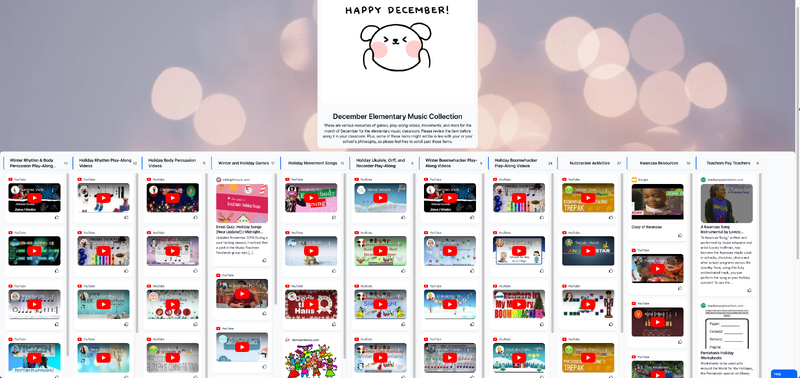
December Elementary Wakelet Music Collection
It’s beginning to look a lot like…
That time of year when we are about to approach a holiday break and we need activities to quickly and intuitively use in a class of elementary music students. There have been so many wonderful contributions from numerous elementary music educators that I wanted to make this Wakelet so these activities were all in one place.
Check out over 170 music activities to celebrate the winter or December holidays in those last few days before the holiday break! Like my resources? Please consider buying me a coffee at https://www.buymeacoffee.com/elmusedtech.

It’s beginning to look a lot like…
That time of year when we are about to approach a holiday break and we need activities to quickly and intuitively use in a class of elementary music students. There have been so many wonderful contributions from numerous elementary music educators that I wanted to make this Wakelet so these activities were all in one place.
WHAT IS WAKELET?
Wakelet is a digital organizational platform that lets educators and students arrange and sort a mix of content, from videos to articles, to tweets, to Flip videos, to Google Drive, to OneDrive, to images, to texts, for easy access.
SOME WAKELET TIPS:
Tip 1: Wakelet will play YouTube videos inside of its platform with no advertisements or having to leave Wakelet. Just click the full-screen icon for the video to appear fully on the screen.
Tip 2: When using this Wakelet, please view the video or activity before using it in your classroom. I included a variety of activities and videos found by many amazing music educators. However, just because the activity works well with their students in their classrooms, does not mean it will work well with your students in your classroom. You will have to look over the activity and decide if it is appropriate for your classroom.
Categories
The categories for this Wakelet are:
Winter Rhythm and Body Percussion Play-Along Videos
Holiday Rhythm Play-Along Videos
Holiday Body Percussion Videos
Winter and Holiday Games
Holiday Movement Songs
Holiday Ukulele, Orff, and Recorder Play-Along
Winter Boomwhacker Play-Along Videos
Holiday Boomwhacker Play-Along Videos
Nutcracker Activities
Kwanzaa Resources
Teachers Pay Teachers
The winter activities have no holidays attached to them. They include play-along videos or games to such songs as Let It Snow or Vivaldi’s Winter Movement. The Holiday Categories include rhythm, boomwhacker, ukulele, recorder, and Orff play-along videos that celebrate Christmas and Hanukkah. They also include popular YouTube channels such as Mr. Henry’s Music World, Swick’s Classroom, NewNew Channel, Mr. DelGaudio, Music with Mrs. Gibb, Music with Brielle, and my YouTube channel. I created a category with numerous Kwanzaa resources found in Music Ed with Missy’s Facebook group. The final category of Teachers Pay Teachers has some holiday activities from popular contributors.
Highlights from Each Category
Here are some highlights from each category.
Winter Rhythm and Body Percussion Play-Along Videos
In this category, check out Mr. Henry’s Winter Rap which includes body movements as well as basic rhythm reading and performing. Or Music with Mrs. Gibb’s Winter Beat Street which has the students helping the snowman travel to the steady beat down the street to get to the hill to go sledding. There are also some Vivaldi’s Winter play-along videos. Couple these Vivladi rhythm reading activities with the art teacher to collaborate with teaching Vivaldi’s Four Seasons where they learn about the season, they draw and paint about the season while listening to Vivaldi, and then finish with practicing reading and performing rhythms to the movements. Plus, the Netflix “Wednesday” series has brought back Vivaldi’s Winter as many students will recognize it from that show.
A tip: With Vivaldi’s play-along video shown below, remind the students that they begin their rhythm when the box touches the instrument box.
Holiday Rhythm Play-Along Videos
There is a lot to choose from in this category that musically celebrates Hanukkah, Christmas, and New Years. Some highlights are my boomwhacker and rhythm play-along of Trans-Siberian Orchestra’s Christmas Eve/Sarajevo, which features the Ukrainian Carol of the Bells. I adore Aileen Miracle’s play-along video to Auld Lang Syne. She includes sixteenth notes and patterns which will be wonderful for your older elementary students. Plus, there are a few Hanukkah play-along videos and a Scrooge medley from Mr. Henry.
Holiday Body Percussion Videos
Get your students moving as they have a lot of extra energy coming up for the holiday. A couple of highlights are Mrs. Gottschall’s Christmas Vacation Body Percussion Play-Along and Therese Myers’s Sleigh Ride Body Percussion Play-Along.
Winter and Holiday Games
These are great activities to use for that day before the break and your concert, informance, etc., is finished. One that stands out is Katie Wardrobe’s Midnight Music’s Emoji Holiday Song Quiz. A few years back, there was a Facebook Group post where we were trying to guess the song by only using emojis instead of words. Many of us decided to try this with our students and they loved it because they continuously converse and text with emojis. Also, check out her Holiday Song Maker Activities.
The other activity that stands out is Mr. Henry’s Holiday Edition of his Four Corners Game Show! Just follow along with the instructions and your students will love this. If you can use holiday songs in your music classroom, this game will be a hit!
Holiday Movement Songs
There are some wonderful movement activities as well as Dancing Freeze/Statue in the Park games. One movement activity I would like to highlight is Music with Mrs. Dunc’s Everybody Sing (Jingle Jangle) Instrument Play Along & Dance. If you are looking for an alternative to Jingle Bells, this song is a great choice.
Remaining Categories
This Wakelet has so many wonderful activities that this post will become too long trying to give more highlights. Use the categories to assist you in what you are looking for or as filters so you can focus on a few that will work this week before the holiday break. If you are teaching about the Nutcracker, I highly recommend looking at that category so you can bring in more activities that are interactive and give higher-order thinking skills to enhance the story or a video that you might be showing in your class.
The Kwanzaa resources come from a post in Music Ed with Missy’s Facebook group.
Finally, there is the Teachers Pay Teachers category to explore music educators’ created resources, worksheets, activities, and more, for this holiday and winter season.
Coming Next!
This past week I finished up with three very successful concerts. One was our band concert with our Grades 4-8 Philharmonic, the Grades 5-8 Jazz Band, and the 5th Grade Instrument Class. We then had our Preschool Holiday Concert which went very well as with the various ages groups of 2-5, my goals were that they could stand up and sing to memorize and sing songs with motions and their 5 voices. Our final concert was Grades K-8 coming back together after three years to perform. Alumni join us for the final song of the concert and I held back tears seeing so many wonderful alumni singing together again. It was pure joy.
Over the break, I will be counting down to the New Year with a daily tech tip for elementary and middle school general music beginning on 12/23. It will be a ten-day countdown leading to 2023. The tech tip videos will be short and will culminate with one large video at the end with all of the tech tips. Please subscribe to my channel so you can get notifications of when the videos come out and can catch them daily or at the end.
I wish you all a wonderful, safe, and peaceful holiday break!

Holiday Medley Rhythm Play-Along from 2021 with Downloadable Teaching Manipulatives
Last year, I created a mashup of popular holiday songs from holidays celebrated in the States during the month of December. This year, I include slides for you to teach the rhythm patterns and musical elements that are found in the play-along. Read for more and if you like my resources, please consider buying me a cup of coffee at https://www.buymeacoffee.com/elmusedtech
Last year, I created a mashup of popular holiday songs from holidays celebrated in the States during the month of December. This year, I include slides for you to teach the rhythm patterns and musical elements that are found in the play-along.
Musical Elements
The rhythm play-along includes:
4/4 meter
Whole notes
Half notes
Eighth notes
Dotted quarter notes
Quarter notes
Quarter rests
Fermatas
Repeat signs
Rolls
List of Songs
Music:
"All I Want for Christmas is You" written by Mariah Carey and Walter Afanasieff; Performed by Mariah Carey from Merry Christmas (1994) Columbia Records
"Rockin' Around the Christmas Tree" written by Johnny Marks; Performed by LeAnn Rimes from What a Wonderful World (2004) Asylum-CuRB Records
"Puppy for Hanukkah" written by Daveed Diggs with William Huston and Jonathan Snipes; Performed by Daveed Diggs (2020) published by Wonderland Music Company
“I Have a Little Dreidel,” written by Samuel Goldfarb; Performed by Maccabeats (2018)
“Happy Kwanzaa,” Performed by FANOKO SINGERS (2015) CD Baby (on behalf of Fanoko Singers); ASCAP, CD Baby Pro (Publishing), and 2 Music Rights Societies
"Have Yourself a Merry Little Christmas" written by Hugh Martin and Ralph Blaine; Performed by Shawn Colvin from Acoustic Christmas (1990)
"Blue Christmas" written by Billy Hayes and Jay W. Johnson; Performed by Elvis Presley from Elvis's Christmas Album (1964) RCA Victor
Slides for Teaching Manipulatives


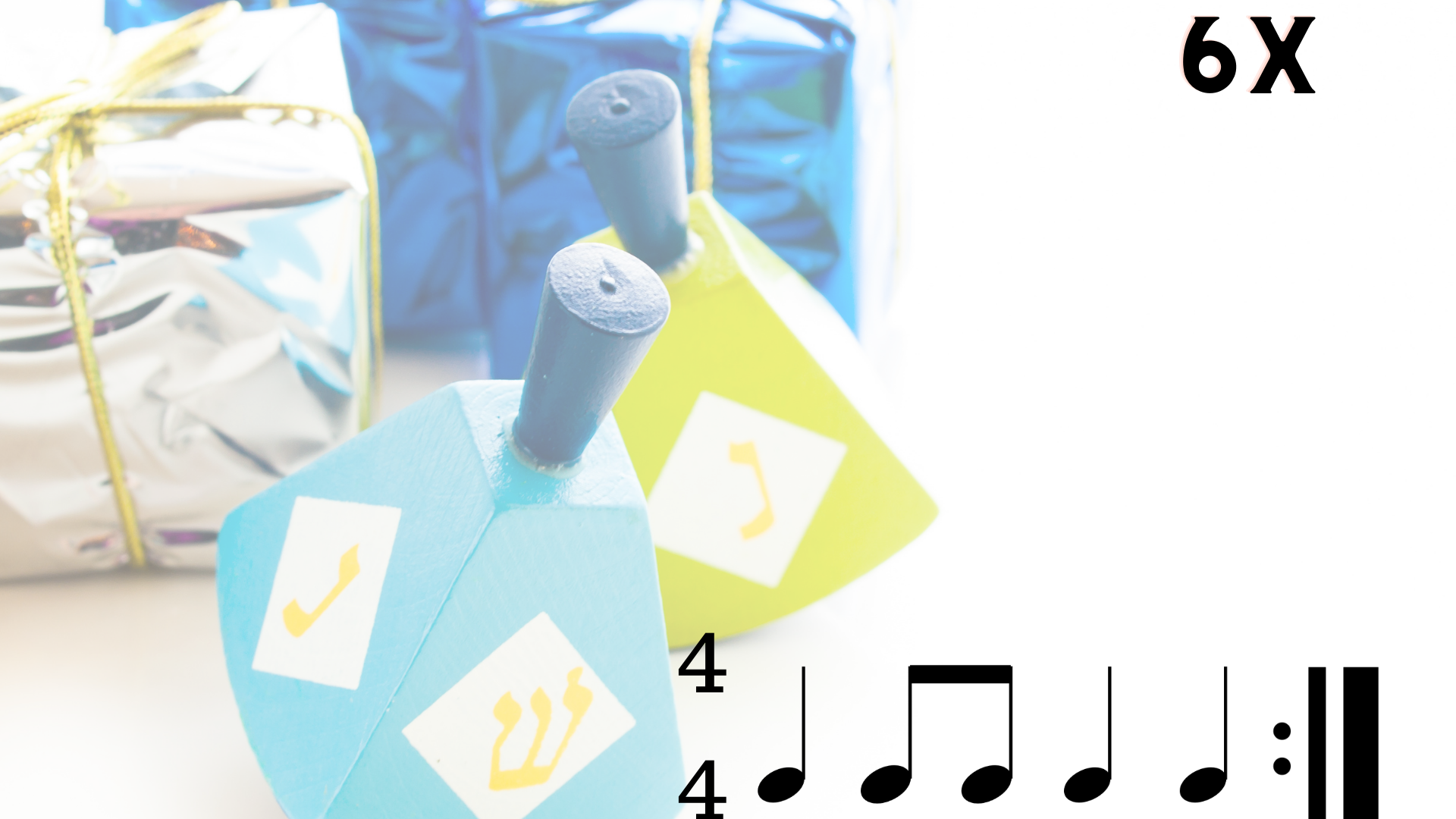

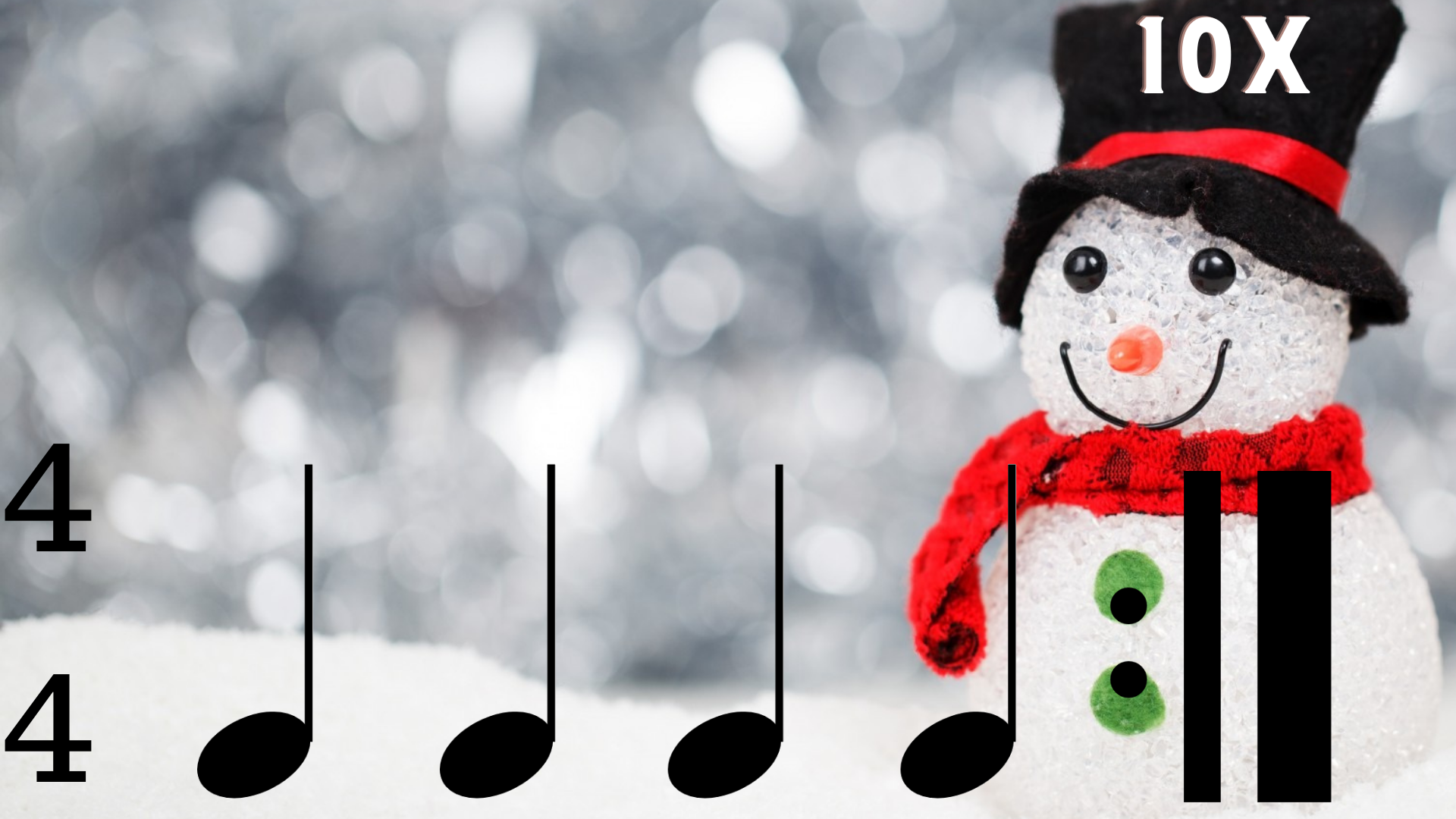

The slides shown above can be downloaded to use in your classroom as teaching manipulatives. Ways that they can be used, but are not limited to:
Prepare or present the new musical concepts
Practice the rhythm patterns found in the song
Have students volunteer to demonstrate the pattern using rhythm sticks or body percussion
Use the Wheel of Names website to choose a student to perform the pattern they or you choose. This way you can assess their reading and performance abilities for their student learning goals.
Download the slides here as a .zip file.
Check back for more play-along videos this month!

Being Thankful/Giving Thanks/Thanksgiving Music Activities
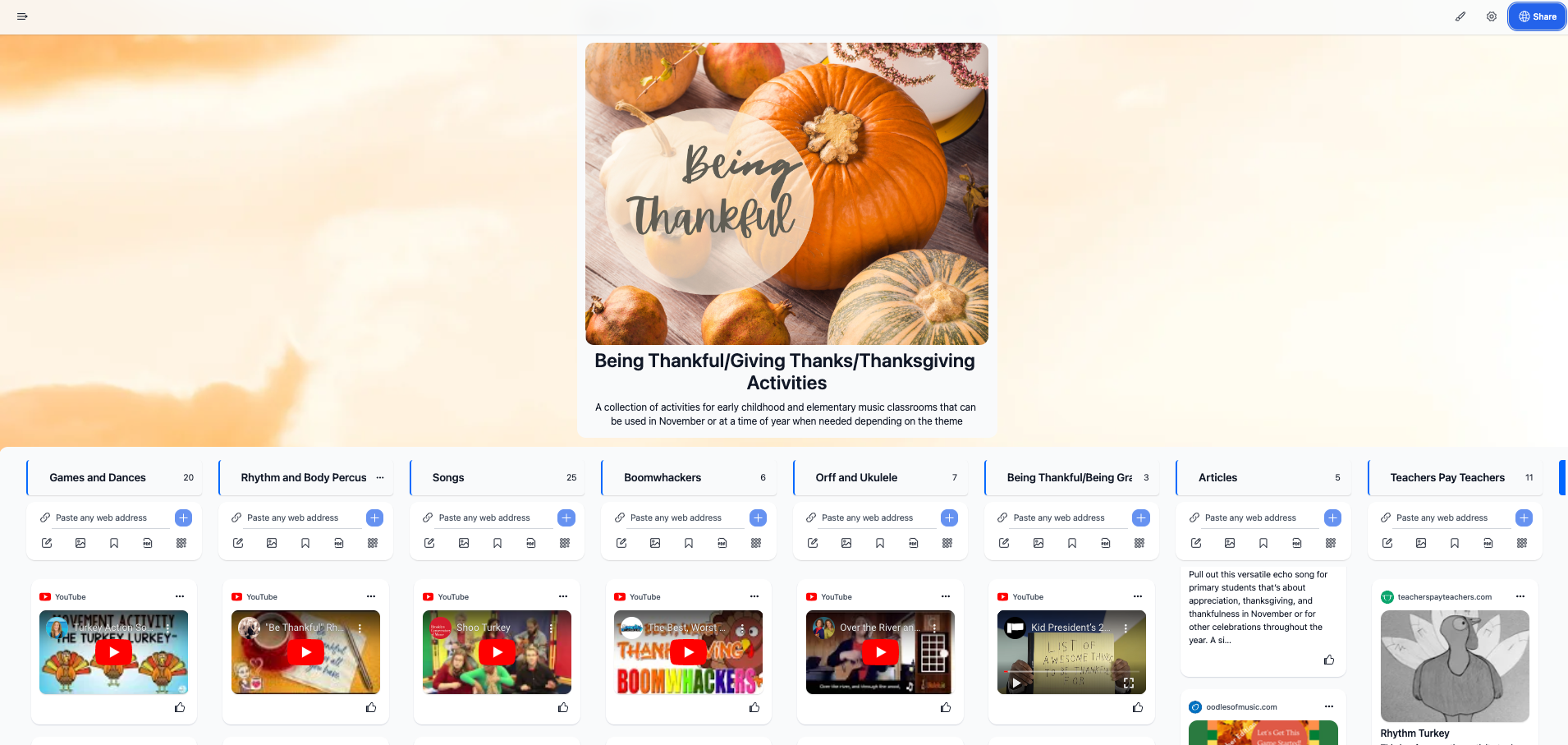
Need musical activities for early childhood and elementary classes for this shortened week? Take a look at the Being Thankful/Giving Thanks/Thanksgiving Music Activities Wakelet (https://wakelet.com/wake/zeVd8qvk_TuEbRCXzbL4I) and read the blog to see some of the highlights from the Wakelet!
In the States, we are coming up to the shortened week where many of us teach for two or two-and-a-half days before we have a break for the Thanksgiving Holiday. Some of us are preparing for an upcoming concert but would like to have an activity that might center around the events that occur in November. Others just finished a Veteran’s Day Concert and would like activities that are musically fun. While others know that the students will be excited about the upcoming time off, so activities that can handle their extra energy are ideal.
For these reasons, I decided to jump back into Wakelet after the October (Fall) Videos for Elementary Music Class 2022 Edition and follow it up with Being Thankful/Giving Thanks/Thanksgiving Activities Wakelet. This Wakelet is a collection of activities for early childhood and elementary music classrooms that can be used in November or at a time of year when needed depending on the theme. I performed a deep-dive into many of the elementary music education networks to find the activities that came highly recommended.
What is Wakelet?
Wakelet is a digital organizational platform that lets educators and students arrange and sort a mix of content, from videos to articles, to tweets, to Flip videos, to Google Drive, to OneDrive, to images, to texts, for easy access.
Some Wakelet Tips:
Tip 1: Wakelet will play YouTube videos inside of its platform with no advertisements or having to leave Wakelet. Just click the full-screen icon for the video to appear fully on the screen.
Tip 2: When using this Wakelet, please view the video or activity before using it in your classroom. I included a variety of activities and videos found by many amazing music educators. However, just because the activity works well with their students in their classrooms, does not mean it will work well with your students in your classroom. You will have to look over the activity and decide if it is appropriate for your classroom.
Categories
I created eight categories for this Wakelet. They are:
Games and Dances
Rhythm and Body Percussion Play-Along Videos
Songs
Boomwhackers
Orff and Ukulele
Being Thankful/Being Grateful
Articles
Teachers Pay Teachers
I will highlight at least a couple of activities in each category below. I chose these categories for a variety of reasons. There are activities that specifically focus on a feast and family celebrations. There are also ones that focus on being thankful and giving thanks. And, there are ones that highlight resources for you to find more themed activities.
Finally, I felt that placing musical activities that celebrate Native American Heritage Month should be its own separate Wakelet and not lumped into a Thanksgiving Wakelet. I did include the Smithsonian article about the myths of the Thanksgiving Story and a video of Ms. P from “Music with Ms. P” performing a ReadAloud and drumming activity to the book, We Are Grateful, by Traci Sorell, a book about the way the Cherokee people show gratitude throughout all seasons of the year.
I encourage you to research your local Native American tribes (in some parts of the States, they refer to themselves by other terms than Native Americans, which is important to find out), talk to them, and invite them in (virtually or in-person) to share Native music authentically with your students. I always appreciate that the fourth-grade teachers in my school have the students research our local Native American tribe, visit with them, and in years past, they have brought in a musician to share music with the students.
Games and Dances
This category includes dances, movements with props, and music games. The Turkey Lurkey Game by Mr. Henry is a great one to do as its own activity or to utilize the extra resources found in the description links in the video or listed underneath this video in the Wakelet. This game features dynamics. By playing the entire video, Mr. Henry explains the game and the musical concept of dynamics. This can also be a great and quick sub-plan when needed. Finally, it has the melody projected as a play-along during the video where you can have your students play along with boomwhackers.
Pass the Turkey found at O For Tuna by Aimee is a very fun music circle game that includes singing, passing on the beat, and a turkey whistle. You can read about the game on the link to her website as well as view a video to see how it is performed. Finally, inspired by Dr. Missy Strong, I included links to a turkey-call app so you do not have to buy the whistle if funds would not allow for that.
There are also Turkey Freeze Dances and a scarf dance to name a few in this category. One that is always a good time is done by The Learning Station.
Rhythm and Body Percussion Play-Along Videos
I begin with one of my own that I created last year. This is a rhythm play-along, along with a separate body percussion play-along video, that includes a medley of five songs that approach the topic of being thankful. They include We Are Family by Bernard Edwards and Nile Rodgers, Performed by Sister Sledge; Vince Guaraldi Trio - Thanksgiving Theme; Home by Drew Pearson and Greg Holden, Performed by Phillip Phillips; Kind and Generous by Natalie Merchant; and Count on Me by Bruno Mars. The concepts performed are triple and duple meters, quarter rest, quarter, eighth, half, and whole notes.
Another body percussion play-along video is to the song, “Gobble Gobble” by Matthew West, and the video is created by Mrs. Gottschall. This song is infectious as it was created to give everyone a Thanksgiving song so that it could be sung before the holiday songs take over the airwaves. The problem I personally had in my teaching situation was that the video was not appropriate for me to play in my classroom. I am so thankful that Mrs. Gottschall created this play-along video so I can use the song in my classroom without having to show the video.
Songs
The songs included in this category cover Thanksgiving and holiday food. However, I also included songs that solely focused on being thankful and grateful for what we have, as opposed to food. The first one to highlight is “Shoo Turkey” performed by Brooklyn Conservatory of Music. This call-and-response song is perfect for preschool and kindergarten musicians. And this performance is excellent. I encourage you to listen to this recording and use it in your classroom.
There is also the version from Lynn Kleiner listed underneath this video in the Wakelet. While you continue exploring the category, you will find more songs. One is from a music teacher in the music education networks that she created herself because she couldn’t find songs about being thankful that did not involve food or the holiday. Finally, this is another popular song that is all about being thankful.
Boomwhackers
The video I highlight in this category is Swick’s Classroom’s “The Best, Worst Thanksgiving”. This song is very catchy. It is also extremely funny. It is a rock song that has a turkey running around loose with the song ending with revealing who let the turkey free. It is the best, worst Thanksgiving because the turkey got away (best), but they didn’t have anything to eat (worst). The video also includes the xylophone play-along for the melody with the Boomwhacker play-along chords, and the ukulele chords at the beginning.
Orff and Ukulele
This category has a few songs that include ukulele play-along videos or Orff play-along videos. The first one listed is a ukulele play-along video to the popular song, “Over the River and Through the Woods” in the ukulele-friendly key of C. This video has a tutorial before the play-along. Great for a sub-plan.
Being Thankful/Being Grateful
This category gives you the Read-Aloud mentioned above as well as two inspirational gratitude videos. One is by my students’ favorite presidents: Kid President. He gives us 25 awesome things he is thankful for. I adore that he has music on his list. In addition, a “thank you” video where the speakers, like Denzel Washington, remind us what to be thankful for. “Say thank you in advance for what is already yours” - Denzel Washington.
Articles
This category features lesson activities, ideas, resources, and articles pertaining to the activities listed in the Wakelet. It begins with this blog.
Teachers Pay Teachers
This category lists numerous Teachers Pay Teachers Thanksgiving-themed musical activities you can purchase and download from the website.
My Hope
My hope this week is for you all to be able to find an activity that you can use to support your curriculum, or save your voice, or give quickly to a sub, or enhance your classroom, or allow you to ease up on your planning time. My wish is that you have some free time over the four-day weekend to take care of yourself and to remind yourself that you are doing well, you mean a lot to your students, and you are important. Without you, your students would not have a musical experience or have one class where they feel good about themselves.

Zoomerang app to create boomwhacker videos
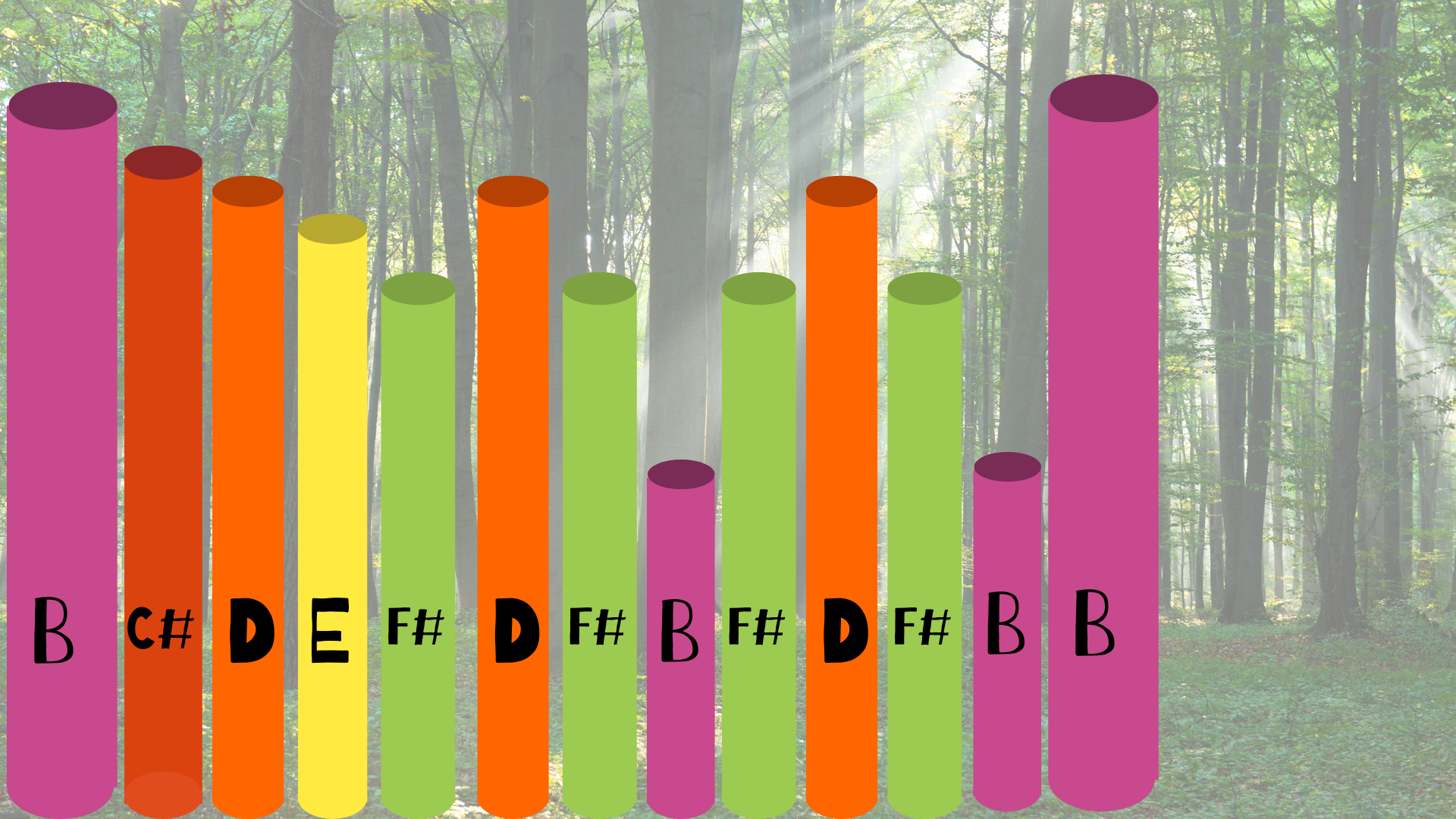
What happens when you can use Zoomerang to create quick boomwhacker snippets? Currently, a work-in-progress, hopefully by the end of the week, I will find out!

I have always been in awe of The Chromatic Music Teacher, who has these great videos of her playing the boomwhackers along with the music. My daughter Sarah found the Zoomerang app (https://apps.apple.com/us/app/zoomerang-music-video-editor/id1361030006) which has a #Fly template where you can video one second of motion, around 15 times in a row. I did this, then took out the pre-recorded song and placed it into a video editing program to create a play-along to Grieg's "In the Hall of the Mountain King". It is not as good as The Chromatic Music Teacher's videos, but it is a fun, work-in-progress. I hope to have it completed by the end of the week.

The Zoomerang app is free to use, or pay the subscription to download and the share the videos without having to screen record. It gives the user many options to create music videos quickly and intuitively.
October Elementary Music Wakelet: Pumpkins, Corn, and Play-Alongs, Oh My!
Need an elementary fall-themed video for preschool through grades 4? Or a Halloween-themed video? Rhythm Play-along? Boomwhacker? Song? Games? Look no further! Here is a Wakelet, along with a YouTube webisode and blog to give examples of how they can be used in the classroom this season!
In the States, especially in areas where seasons change, it is October and time for fall. Though many companies introduce their pumpkin spice items in August, the fall motifs become real on October 1. Those who teach early childhood and elementary music classes begin to bring in fall-themed activities. I have researched YouTube and there are hundreds of songs, activities, play-alongs, movement videos, and more, all fall and Halloween-themed. I picked some and placed them in this Wakelet. Please feel free to use it, copy it, etc.

What is Wakelet?
Wakelet is a digital organizational platform that lets educators and students arrange and sort a mix of content, from videos to articles, to tweets, to Flip videos, to Google Drive, to OneDrive, to images, to texts, for easy access.
Pros of Wakelet
Wakelet can be easily and intuitively shared with others. The platform looks nice and is web-based, so it works on various devices and there is an iOS app as well. You can set it up to have it displayed in columns, grids, moods, compact, and media views. Wakelet integrates Giphy and Unsplash so you can add a cover image and a background image. It also connects to your Canva account so you could create your own cover and background images. Plus, you can safely play YouTube videos inside Wakelet without having to leave the app or program.
Cons of Wakelet
With the new look of Wakelet, it appears to no longer allow you to write in a description for your YouTube videos. Or at least it is that way with the column view. Therefore, you can include a text box under the YouTube box if you want to have a description for the YouTube video. Finally, Wakelet uses a significant amount of your device’s energy. When using my Macbook Pro, this site slows it down significantly. So much so that if I use the Safari web browser, Safari lets me know that the webpage is slowing down the responsiveness of the Mac.

Credit: unsplash-image-O6N9RV2rzX8.jpg
Fall and Halloween-Themed Videos for Elementary Music Ed
Here are some highlights of the Wakelet.
It’s Corn! (Featuring the C D G and Em Chords)
The first column is devoted to many resources for the popular fall-seasonal hit, “It’s Corn!” This adorable boy loves corn on a stick. He was interviewed about how much he loves corn and the video went viral. My students were walking around school quoting several catchphrases from, “it has the juice” to “I mean look at this thing. When I tried it with butter, everything changed!” The Wakelet includes numerous play-along videos from boomwhackers, to rhythms, to ukuleles. My students’ favorite was this ukulele play-along with just four chords. They learned each chord separately. Those who wanted to level up their challenge would play two or more chords. When we had learned all four chords, the students chose which chord they would play in the song. Some chose one chord while many others chose two or more chords. It was corntastic!
Preschool/Kindergarten (PS/K) Fall-Themed Play-Along Videos
Many elementary music educators would like to include a fall-themed activity, but not have it associated with Halloween. This column has videos featured for preschoolers and kindergartners. They include steady-beat activities and short songs. Some highlights are:
Elementary Groove Tracks Five Little Pumpkins Choreography. Cameron creates original choreography for this favorite October song. He also has so many wonderful videos besides this one, so definitely check out his channel.
And Sarafina’s Fall Rhythm Play-Along (Use for steady beat practice as well as rhythm/syllable practice)
Elementary Fall-Themed Play-Along Videos
This column features fall-themed body percussion, rhythm-reading, and boomwhacker play-along videos for elementary music class. Some of the videos in this column also appear in other columns because even though the music is not about Halloween, there are images that appear in the video. Therefore, always check the video before you play it in class.
Some highlights from this column are:
Body Percussion/Rhythm Autumn Play-Along I created. This video has several pop songs about Autumn included in it. (Quarter, eighth, whole, dotted quarter, one eighth, and half notes as well as a quarter rest.)
And Ready GO Music’s Autumn Trail. The music on this video is beautiful. (Easy Mode: quarter, eighth, whole, and half notes, as well as a quarter rest.)
PS/K Halloween-Themed Play-Along Videos
These are videos that highlight Halloween-themed songs or play-along steady-beat videos. Some highlights are:
This is from my channel for you to use if you have to sing songs for a PS/K parade. There are movement and counting songs.
Elizabeth’s Halloween Steady Beat Play-Along Video. I love the music she uses in this video!
Elementary Halloween Rhythm and Body Percussion Play-Along Videos
In this column, I have the rhythm play-along videos on the top half and the body percussion play-along videos on the bottom half. Some highlights include…
This was one of my favorite medley videos I created last year. It is the October Rhythm Play-Along featuring some fun, popular songs of the month from Ghostbusters to Addams Family. (Meters of 3 and 4, as well as quarter, half, dotted half, whole, and eighth notes, along with a quarter rest.)
Mr. Henry’s Music World’s newly debuted Hocus Pocus Rhythm Play-Along for all of us Hocus Pocus (and now Hocus Pocus 2) fans! (Quarter and eighth notes and a quarter rest.)
Miss Chesterman’s “This is Halloween” body percussion play-along. I like that she shows herself performing the body percussion movements so that there is no question as to what the movements should be. (Movements with quarter, eighth, and sixteenth notes, as well as whole, half, and quarter rests.)
There are so many in this column from numerous, wonderful, and reliable resources such as Musication, Mr. Henry, Mrs. Gibbs, Elementary Groove Tracks, ItzMusicTime!, and so many more.
Elementary Halloween-Themed Boomwhacker Play-Along Videos
This column features wonderful boomwhacker play-along videos with a Halloween theme. Some highlights are…
The always popular Swick’s Classroom “I Put a Spell on You.”
Aud Marrit Larsen’s “Harry Potter.”
The ever popular Musication’s “Ghostbusters”.
And I created a playlist of Kodály/Orff Schulwerk-inspired play-along videos. This one is in it and it is the popular “Skin and Bones” that includes the vocals, xylophones, percussion instruments, boomwhackers, and movements.
Elementary Halloween Games
This column features videos that have the purpose of being a rhythmic or singing assessment game. Some highlights are:
My version of “Pass the Pumpkin,” includes the game and the play-along parts.
Musical Drewby’s “The Addams Family Cup Passing Game.”
Highlights
This column features blog posts and webisodes about these popular videos. A highlight is MidnightMusic’s article titled “11 MORE Awesome Halloween Play Along Videos for Music Classes”.

Things to Remember
When using the Wakelet, here are some things to remember:
Wakelet can slow down your device
Test all videos before you use them in class
Check out the video creator’s channel for more videos to use throughout the year
Many of these videos have several versions from easy to challenging so you can use them with younger to older elementary grades
If you use a lot of the video creator’s materials and they have a page where you can sponsor or donate a cup of coffee to them (like buymeacoffee.com), please consider doing so
This Wakelet does not include all of the fall-themed and Halloween-themed play-along videos out there
If my columns do not match your curriculum, please feel free to make a copy and rearrange it to your liking
Have an amazing October!
Everything is AWESOME! Rhythm Play-Along
It is the start of a new school year here in NJ and I am looking at a song that will describe the feeling of starting a school year with a more normal feel. I chose the Lego Movie’s Everything is AWESOME by Tagan and Sara featuring The Lonely Island. Here is a rhythm play-along to the song.

It is the start of a new school year here in NJ and I am looking at a song that will describe the feeling of starting a school year with a more normal feel. I chose the Lego Movie’s Everything is AWESOME by Tagan and Sara featuring The Lonely Island.
Tempo
This song is at a quick tempo, but it has a strong steady beat. It is a good one to see if your students have a well-established steady beat or if they need to focus on activities to assist with that.
Even though I and my youngest daughter tested positive for covid right before school started and delayed our start for the school year, I still feel that the start of this school year is awesome!
Rhythm Patterns
This rhythm play-along includes quarter, half, and eighth notes, as well as quarter and half rests. It also has a dance break in the middle. It is a fun song to get the students moving, reading, and performing music.
One Final Tip
It is on the faster side and I did not slow the tempo down. You can always use the settings in YouTube to make the video play at a slow speed.

Settings
Use YouTube’s playback speed settings to change the tempo.

Creating Interactive Activities for Assessment and Creativity
The pandemic caused more technology to be introduced into every subject area. Some of this technology has a lot of benefits for elementary music classes. Especially those that foster creativity and those that provide assessments.
This week’s episode shows how to use multiple apps that are mostly free to create interactive activities that promote creativity and assessment. Learn how to use Canva, Google Slides, Seesaw, or Interactive Whiteboard apps to create amazing manipulatives, interactive assessments, and creative musical activities.
Resources
Blog: http://amymburns.com/elmusedtech/creativeactivities
Shareable Zip File: Creating Interactive Activities for Assessment and Creativity Zip File
Canva. (2022, March 1). [archive] free media license agreement - CANVA. [Archive] Free Media License Agreement. Retrieved July 31, 2022, from https://www.canva.com/policies/free-media-license-agreement-2022-01-03/
Flat for Education: https://flat.io/edu
Canva for Education: https://www.canva.com/education/
Seesaw: app.seesaw.me
Midnight Music Free Notation Files: https://midnightmusic.com/2013/06/the-big-free-music-notation-image-library/
Mote Extension: https://chrome.google.com/webstore/detail/mote-voice-notes-feedback/ajphlblkfpppdpkgokiejbjfohfohhmk?hl=en-US
Midnight Music Clipart Body Percussion Library: https://midnightmusic.com/2020/12/midnight-musics-body-percussion-clipart-library/
The pandemic caused more technology to be introduced into every subject area. Some of this technology has a lot of benefits for elementary music classes. Especially those that foster creativity and those that provide assessments.
This week’s episode shows how to use multiple apps to create interactive activities that promote creativity and assessment.
Using Canva for Education to Create the Activities
One of the best educational creative tools out there is Canva for Education. Canva has a variety of versions from free, to education, to pro. The major difference between the three is that the education version is free for educators and gives you many of the pro’s tools. To access the free Canva for Education program, go to https://www.canva.com/education/, sign up using your education email address, or upload proof of your employment. Once you are approved, you will receive a verification notice via email. There is also a free version, but the educational free version gives you more access to the program. Many educators start out with the free version and then get upgraded to the educational version once they're verified.

Canva has many templates to choose from as well as gives you many resources to create original designs. One of the best things about Canva is that it is a “one-stop shop”. When you want to find a template for a badge, certificate, or program, Canva has it. If you want to create an original educational presentation, you can click on the setup so it will automatically fit your screen and you can choose from Canva’s enormous library of images, clipart, borders, fonts, videos, audio, and more! And, all of Canva’s free photos, music, and video files can be used for free or commercial and noncommercial use. Note: Check the image, music, or video source. If the content comes from Pixabay please refer to the Pixabay License; if the content comes from Pexels, please refer to the Pexels License. All other free images, music, and video files within Canva are covered by the license outlined on their website (2022).
Once I have finished creating the activities in Canva, I cannot currently share them so that they are a “forced copy”. I can easily share them to a Learning Management System (LMS) like Google Classroom or Microsoft Teams. However, it will not force a copy. Currently, for me to do this, I would share a link and remind them in the LMS’s instructions or on the first page of the Canva activity to create their own copy. If not, they will edit your original copy.

Creating Interactive Activities
Canva
In Canva, you can create a compositional or body percussion activity by creating boxes on the bottom and notation, hand signal, body percussion, instruments, etc., and pictures on the top. You can copy and paste them multiple times so that it looks like you infinitely cloned them. The students can then drag and drop them into the box and use Canva’s Uploads tool to record themselves performing their new composition.

You can also use Canva as an assessment tool. You can create a melody of a simple song using pictures and backgrounds and have the students use the Uploads tool to record themselves singing the song.
However, since I am not using the Pro paid version, I cannot share the file with them without all of them editing it or hoping that they all create their own copy. I can use Canva on one screen or an Interactive Whiteboard and have the students come up and interact with the board or device. That would work well for younger students or a class with a small number of children. But, I can use these manipulatives created in Canva and convert them to Google Slides, Seesaw, or an Interactive White Board app like SMART Notebook, and send them out individually to the students.


Google Slides
The activities you created in Canva will be the foundation of your Google Slides. We can export them as png files and make them the background images for Google Slides. If you leave the moving objects off the slides, export them as png files, and upload them to Google Slides as the background images, you now have locked images on your Google Slides.
In Canva, create separate slides with the moveable objects and export them with transparent backgrounds as png files. Remember that Canva for education has a built-in background remover tool so if the objects need more editing, you can use that tool to help you.
Once you export them from Canva, bring them into your Google Slides activity. Copy and paste the item several times, highlight the ones you just copied and pasted, align horizontally to the center, align vertically to the middle, and then clean up as needed. You now have objects that are infinitely-cloned to perform the creative activity.
When wanting to assess with a recording, ask your IT to add the Mote Extension. This extension gives your students the opportunity to record their voices directly into Google Slides.
Finally, share the Google Slides as an assignment in Google Classroom so that it will force a copy for each student. If you cannot do that, you can share the Google Slides by sharing the link and editing the URL so that where it reads “edit” and whatever follows it, you replace it with “copy” (no quotations are needed). This new link will force a copy of the original file for whomever you share it with. It will not disturb your original file. Also note that Google Slides exports as Powerpoint files so if you like to use Powerpoint, you can intuitively use your Google Slides file as a Powerpoint file.

Seesaw
Seesaw is similar to Google Slides where you will bring in the png files and lock them as your background. You can then bring in the moveable objects and copy and paste them many times. You will have to manually align them. However, since Seesaw has built-in video and audio recording tools, you can create this activity, share it with the class, and they will automatically receive their own copy, they can use the audio tool to sing or the video tool to show their work, and then turn it in.

Interactive Whiteboard Programs
You can use your Canva files again to create a locked background for the activities or they usually have their own library that you can access. You can then use the moveable object png files to bring them into the program. Finally, programs like SMART Notebook have the infinite cloning tool built in it so you do not need to copy and paste the moveable objects.
The Interactive Whiteboards also now have their own type of LMS tools so that you can share your file with your students through their LMS and are web-based so you can access the program from multiple devices.

Credit: unsplash-image-N1gUD_dCvJE.jpg
Shareable Zip File
If you like the items I showed, I have created this shareable zip file with png images of the backgrounds and the moveable objects. The ones that are used for moveable objects have transparent backgrounds. You can add these to Canva, Google Slides, Seesaw, Notebook, Powerpoint, Keynote, etc., whatever you use to create your manipulatives, assessments, interactive activities, and more.
Creating Interactive Activities for Assessment and Creativity Zip File

Resources
Canva. (2022, March 1). [archive] free media license agreement - CANVA. [Archive] Free Media License Agreement. Retrieved July 31, 2022, from https://www.canva.com/policies/free-media-license-agreement-2022-01-03/
Flat for Education: https://flat.io/edu
Canva for Education: https://www.canva.com/education/
Seesaw: app.seesaw.me
Midnight Music Free Notation Files: https://midnightmusic.com/2013/06/the-big-free-music-notation-image-library/
Mote Extension: https://chrome.google.com/webstore/detail/mote-voice-notes-feedback/ajphlblkfpppdpkgokiejbjfohfohhmk?hl=en-US
Midnight Music Clipart Body Percussion Library: https://midnightmusic.com/2020/12/midnight-musics-body-percussion-clipart-library/

#Elmused Tech Tip: Book Creator
This week's installment is a Tech Tip featuring Book Creator (https://bookcreator.com/)! Like my videos and resources? I am proud to say that I am a Book Creator Ambassador as I believe in this product and the way it helps my #elmused students' creativity and confidence. Learn more in this video and check out this blog post with examples.

What is Book Creator?
Book Creator is an amazing #edtech tool that gives your music students the ability to intuitively create multimedia ebooks. Students can add photos, use the pen tool to illustrate, change the paper to music paper, use the pixabay search tool for images, add audio recordings, add video, app-smash with Bitmoji, Canva, Giphy, and so much more. It has an iOS app as well as is web-based to work on multiple devices. To learn more, watch this week’s episode.
https://youtu.be/rwZc4KhV4Bw
My Students’ Musical eBooks:
My students have created numerous ebooks together in music class to showcase what they have learned, to give them a creative outlet to perform, to give them more opportunities to write and draw, and so much more. We have shared them by screen-recording videos of the ebooks or publishing them online and sharing the link through their classroom sharing platform such as Seesaw. Check out some of our publications below!

I am very proud to say that I did complete the ambassador training for Book Creator because I believe in this product so much.
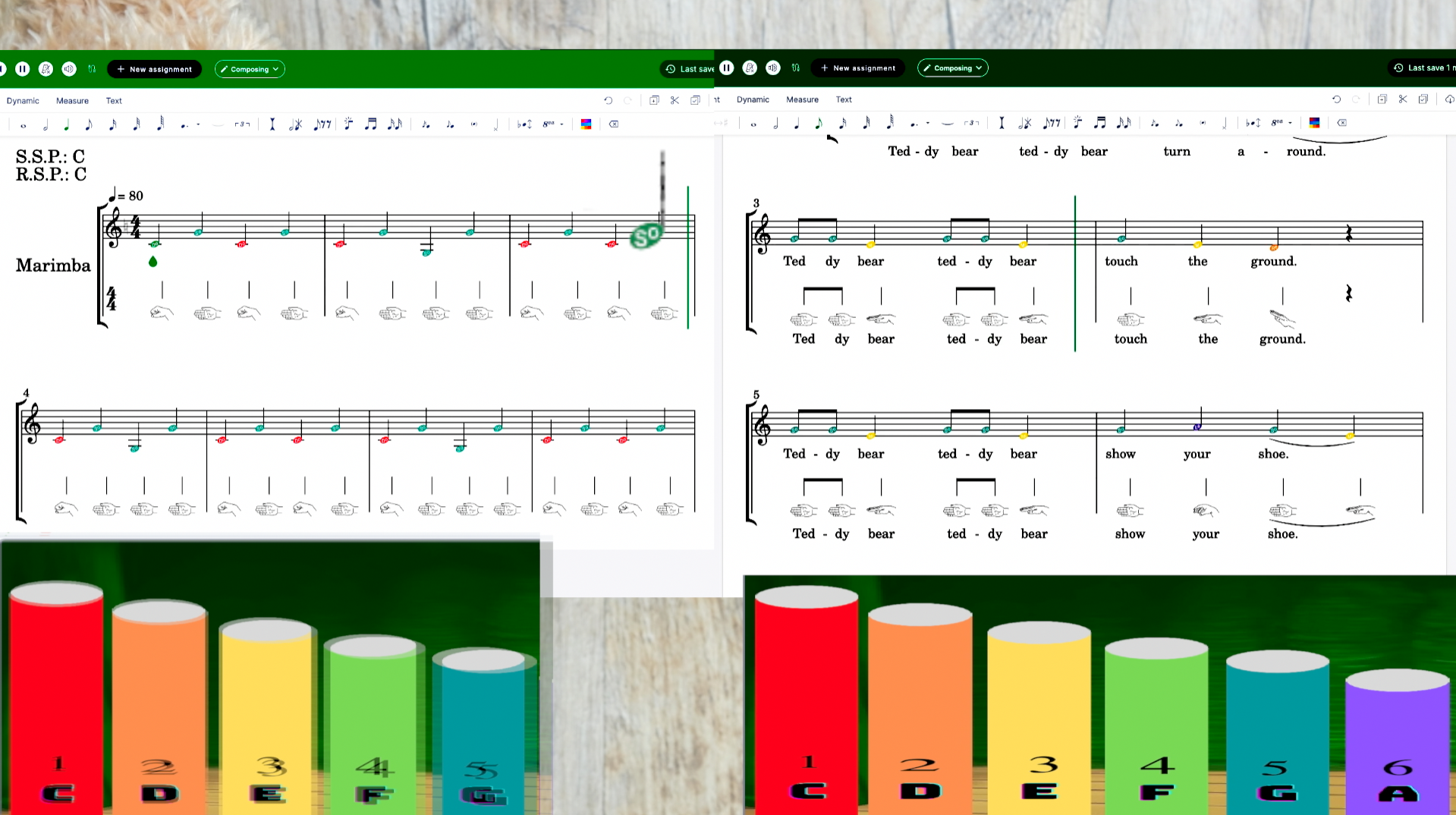
Teddy Bear Play-Along Video and Manipulatives
This is the third installment of my summer project of creating play-along videos of songs and concepts found in the Kodály and Orff Schulwerk approaches. This week, I feature the Teddy Bear Play-Along video to go with the retrieval practice worksheet (https://drive.google.com/file/d/1zN-cwSbWZ_7aS1uhQ97olGHVgWJqUCaE/view?usp=sharing) that I posted earlier this week.
This is the third installment of my summer project of creating play-along videos of songs and concepts found in the Kodály and Orff Schulwerk approaches. This week, I feature the Teddy Bear Play-Along video to go with the retrieval practice worksheet that I posted earlier this week.
Each video (found on my YouTube page) will be accompanied by lesson manipulatives. The lesson manipulatives can be found on my Teachers Pay Teachers page starting in July. Up until then, you can have them for free (as seen below). This gives you the opportunity to use the video for free to work well with your classroom approach or purchase the lesson that goes along with the video on my TPT page. Either way, the videos are free to use in your classroom.
Teddy Bear (meter of 4, quarter/eighth/half notes and quarter rests, s-m-l-d-r tonal pattern)
The third play-along video is “Teddy Bear” and the lesson is included in this blog. Teddy Bear is a traditional melody that includes a movement activity and a retrieval practice worksheet or Seesaw Activity. It focuses on the sol-mi-la-do-re tonal pattern and the rhythm values are quarter, half, and eighth notes in a duple meter.
The accompaniment is simple as it is just a melody line and a bass line of a separated bordun of Do and Sol and Sol and Sol, (do sol do sol do sol sol, sol do sol do sol do sol do__). The melody line is introduced first, followed by the bass line, and finished with both lines performed together.
Melody
I have performed this activity and song with Kindergarten and above. Even my older elementary will beg to grab a beanie baby and perform this song and activity again. To begin, we warm up with call and response patterns of sol, mi, la, do, re, and sol, (optional sol,). If the hand signals are being introduced by transferring body percussion to hand signals, then we convert sol by tapping the head, mi by tapping the shoulders, la by tapping the air above our heads, do by tapping the waist, and re by tapping the ribs and then converting them to hand signals. We transfer that to the mi-sol-la-do-re-low sol hand signals.

These hand signals were found as a member of Midnight Music.
We then learn the melody. As with Lemonade and Doggie, Doggie, I teach it by call and response on solfege using the hand signals. We increase the call and response to two phrases at a time, and then to the whole melody of verse 1. We do the same for verse 2.


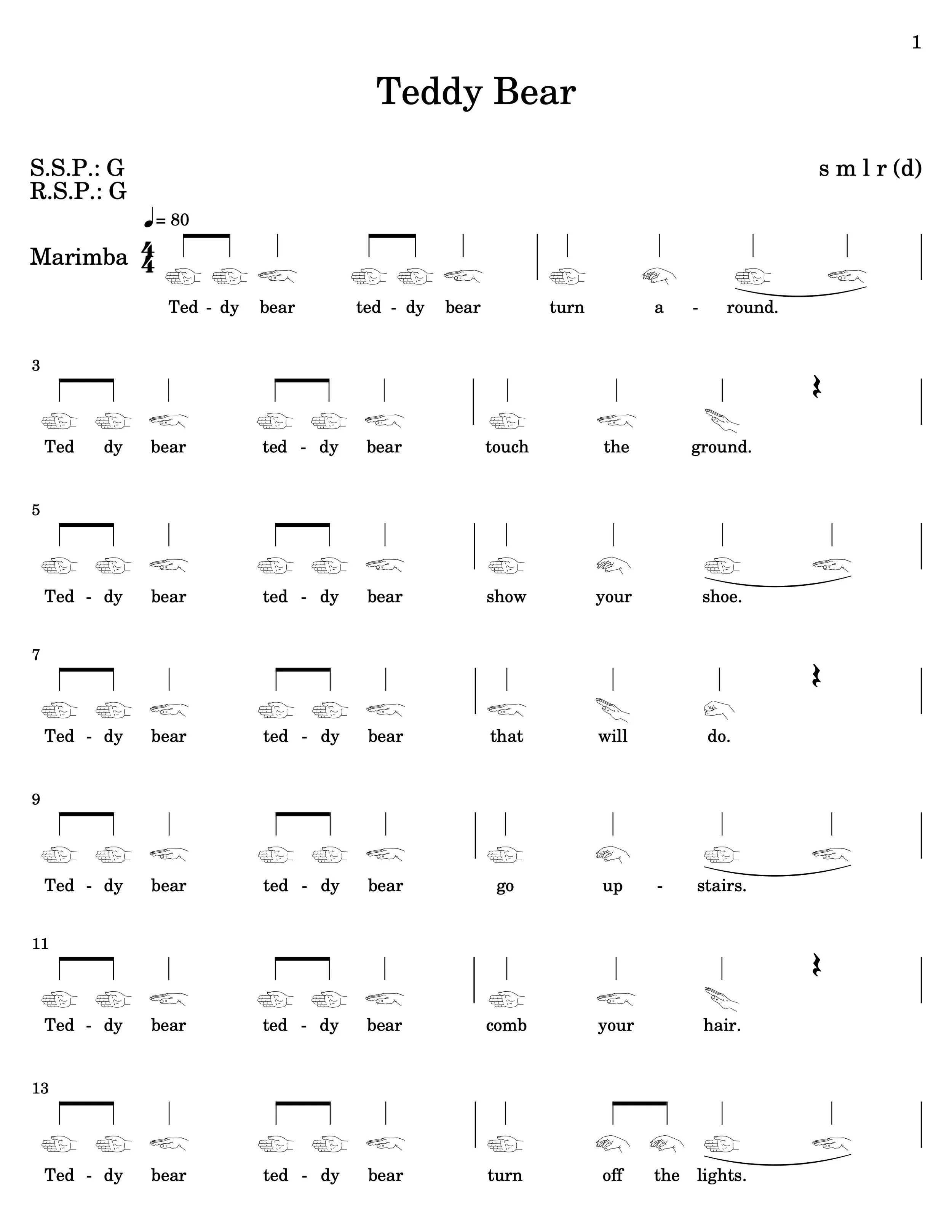

Movement Activity
To reinforce the lyrics, we use our beanie babies, teddy bears, objects, beat buddies, etc. to perform the actions sung in the melody of the song. I also emphasize the melodic direction by having their teddy bears perform their movements to the melodic direction of the melody.
These are the movements we have used, but you can adapt them to what works best for your students:

Perform the Activity:
Give each child a stuffy or object or have them bring in their own teddy bear.
Go over the motions:
turn around
touch the ground
show your shoe
that will do (wag finger)
go upstairs
comb your hair
turn off the light
say goodnight
Pretend to go to sleep with the object, stuffy, or teddy bear.
Performing the Melody on Boomwhackers and Xylophones

I love using Flat.io (education version) to create the visuals because you can create Kodály rhythm stick notation under the staff notation. And, you can include boomwhacker colors. Flat.io is available from their website and from great music dealers like MusicFirst.
As with Lemonade and Doggie, Doggie, in the next class, we learn the melody of Teddy Bear. After reviewing the song on hand signals and then lyrics, we transfer sol to the right hand and mi to the left hand so that they tap the rhythm on their laps. When we get to la, depending on the skills of your students, I have them perform s-s m s-s m s l s m as r-r l r-r l r r r l. If your students are ready for a crossover pattern, you can teach them r-r l r-r l r l r l. This occurs again in the second line with the words, “touch the ground.” You can have them play the s m r (rest) pattern as r l l (rest) or the crossover pattern of r l r (rest). On the last line with the pattern of s-s m s-s m m r d (rest) you can choose to teach them with the sticking of r-r l r-r l l l l (rest), or r-r l r-r l l r l (rest).
If the students have trouble identifying left from right, which is normal, I give them a scrunchy or rubber band to put on their right wrist to help with this.
What If You Don’t Have Enough Instruments for Your Students?
That is where this lesson can be accomplished with xylophones, boomwhackers, tone chimes, tone bars, and virtual instruments. Since the melody has two pitches, you can supplement instruments that can play high and low, or the pitches of G and E, so that more students can perform. Virtual websites like Playxylo.com, my Scratch Boomwhackers site, and Dr. Musik’s website help when you might not have enough instruments, but you do have access to devices. This also helps students who cannot hold mallets in a traditional way so that they can make music alongside their classmates.
Bass Part

Very similar to Lemonade and Doggie, Doggie, during the next class, we will learn the bass part. I begin with the students performing the steady beat on their laps with both of their hands patting together. Then, I ask them to separate with the first steady beat being performed with their left hand tapping their left leg, then their right hand tapping their right leg, and alternating after that. If they have trouble with lefts and rights, I can give them a scrunchy. We then transfer that to the C (left hand) and G (right hand) bars on the xylophones. Again, this can also be played with higher-pitched xylophones, virtual instruments, tone chimes, tone bars, and boomwhackers.
They all play the alternating bordun (C G C G C G G, G C G C G C G C__ repeat), and I sing and play the melody on my instrument. To reinforce the G, G pattern, I will have them move in the melodic direction to help them feel when the Low G will come in during this long pattern.
BOTH PARTS

The next class brings both parts together as I review with the students how to play the melody and then the bass line. I divide the class in half and they play the parts together. If there are students without an instrument, they can perform the movement game and we switch throughout the class. We continue until all students have played the bass part, the melody, and the movement game.
RHYTHM
I did not approach the quarter and eighth note rhythm patterns in this lesson as I kept it focusing on singing, melody, pitches, and movement. However, the rhythm can be prepared in this lesson and presented with another song. Finally, it can be practiced via performing it on the instruments or creating their own B portion of the song Teddy Bear with the quarter and eighth notes.
Retrieval Practice

To reinforce the pitches, I created this retrieval practice that can be used as a station, a class activity, an interactive activity (especially if your students are using chromebooks and have Kami, or as a Seesaw Activity.
MANIPULATIVES
The manipulatives reinforce the lesson process as well as use the worksheet to master the pitches to the melody.
The manipulatives below are for the taking and include Google Slides, Seesaw Activity, and pdf files so that you can download and use them in the way that works best for your class.
Google slides: https://docs.google.com/presentation/d/1LldvmYhLRDJAxvrWLGtPfx9d8VJPrKlvEbm8J5D5Esw/copy
PDF: https://drive.google.com/file/d/1R1qpKhXkUElPSheR16VhIdqVksMuvgmJ/view?usp=sharing