Elementary Music + Book Creator = Showcasing Cross-Curricular Connections!
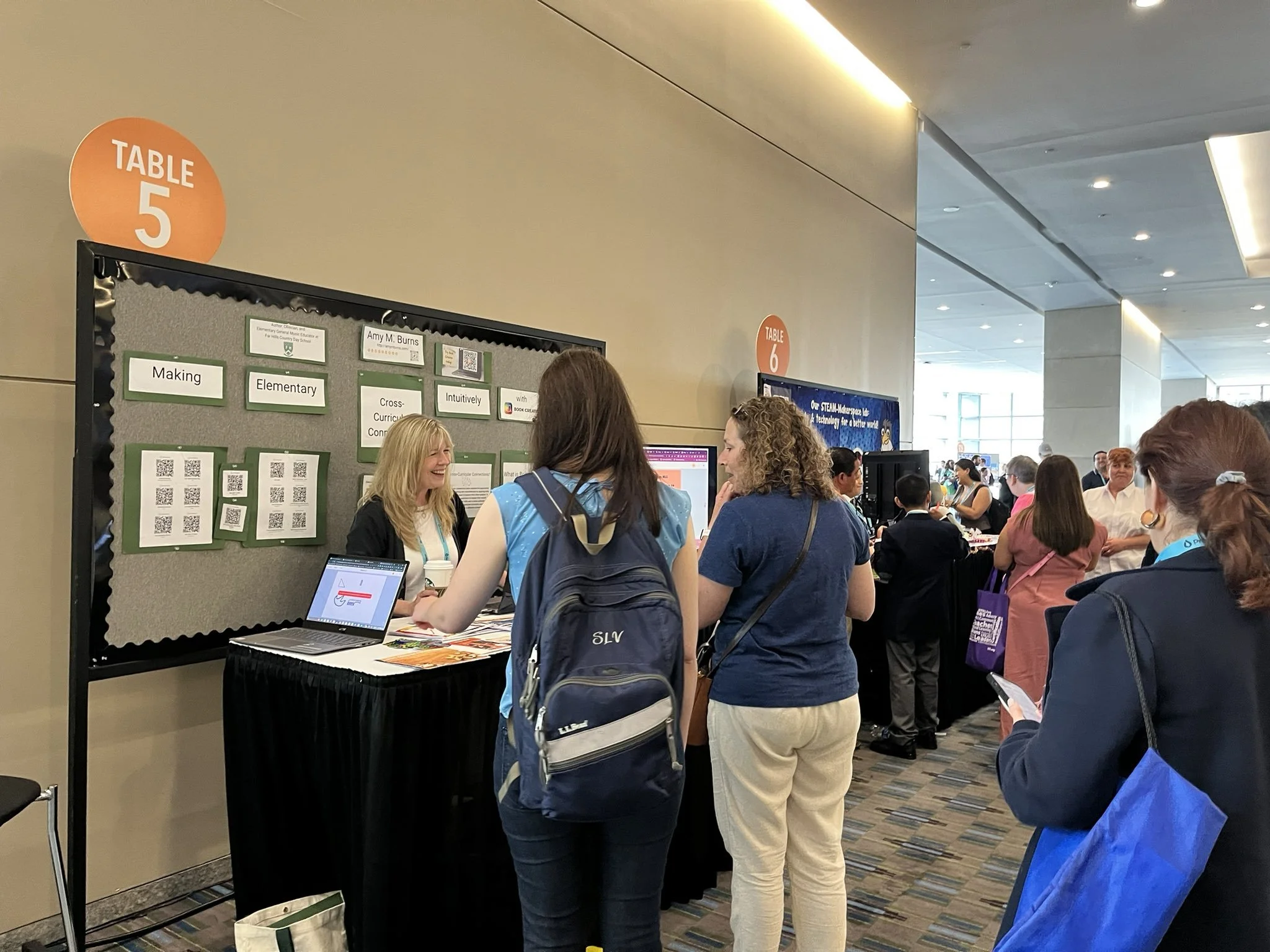
Last month, I was thrilled to be able to present at the ISTE Live23 Conference in Philadelphia, PA. I presented a poster session titled “Making Elementary Cross-Curricular Connections Intuitively With Book Creator”. It was a 90-minute session that explored the following:
“Elementary special subject areas like music, STEAM, and more have numerous cross-curricular connections. However, showcasing those connections to administrators and parents can be challenging. Book Creator gives educators ways to achieve cross-curricular connections and allows students to use multiple modalities to showcase their work.”
Check out the webinar and the blog post. Like my resources? Please consider buying me a coffee at https://www.buymeacoffee.com/elmusedtech.
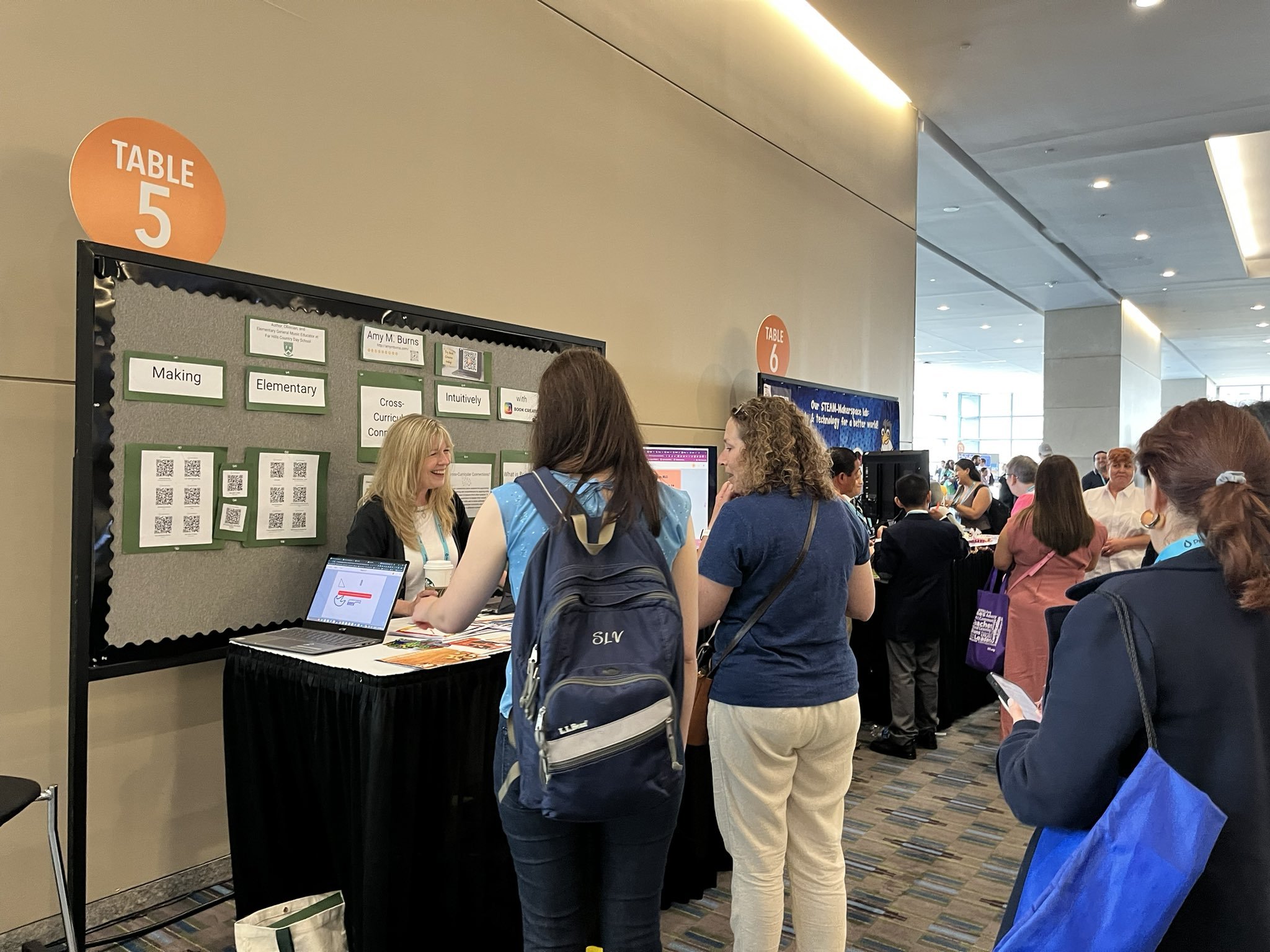
Last month, I was thrilled to be able to present at the ISTE Live23 Conference in Philadelphia, PA. I presented a poster session titled “Making Elementary Cross-Curricular Connections Intuitively With Book Creator”. It was a 90-minute session that explored the following:
“Elementary special subject areas like music, STEAM, and more have numerous cross-curricular connections. However, showcasing those connections to administrators and parents can be challenging. Book Creator gives educators ways to achieve cross-curricular connections and allows students to use multiple modalities to showcase their work.”


What is Book Creator?
Book Creator is an innovative digital tool that empowers both educators and students to unleash their creativity and bring their ideas to life. Starting as an iOS app, Book Creator exploded into a web-based app that gave students the opportunity to showcase, create, design, and publish their own interactive ebooks. Its intuitive interface allows for easy customization of texts, images, audio, and video, enabling a truly multimedia experience.
How do Students use Book Creator?


Book Creator is very intuitive. In this quick tutorial, my students are able to learn how to use the tools and then they quickly take off with their creativity as I give them some guidelines to complete.
Tools
There are wonderful tools that give your students numerous opportunities to create. Let’s begin with the Media Tools:
Images 🔎🏞️- Students can use Book Creator’s image search tools powered by Pixabay with filters to pick age-appropriate images to add with citations, or they can upload files from their devices (like images, audio files, video files, etc) to their ebooks.
Camera 📷- They can use their device’s camera tool to take pictures or videos to add to the pages.
Pen ✐- Use the pen tool to draw. There are plenty of colors from solid to patterns to glitter. There are also stamps and the wonderful auto tool that will give you the opportunity to draw something imitating anything and it will translate that and give you options to enter what you would like that drawing to be.
Text 💬- The text tool gives students multiple ways to enter text from typing to recording themselves and allowing the AI tool to interpret their voice to text. Or your students could use the drawing tool to write on the page.
Record 🎤- Students can record themselves singing or reading the works on the page, as two examples of how to use the audio recording tool. Multiple recordings can be inserted onto one page.
Shapes and More…
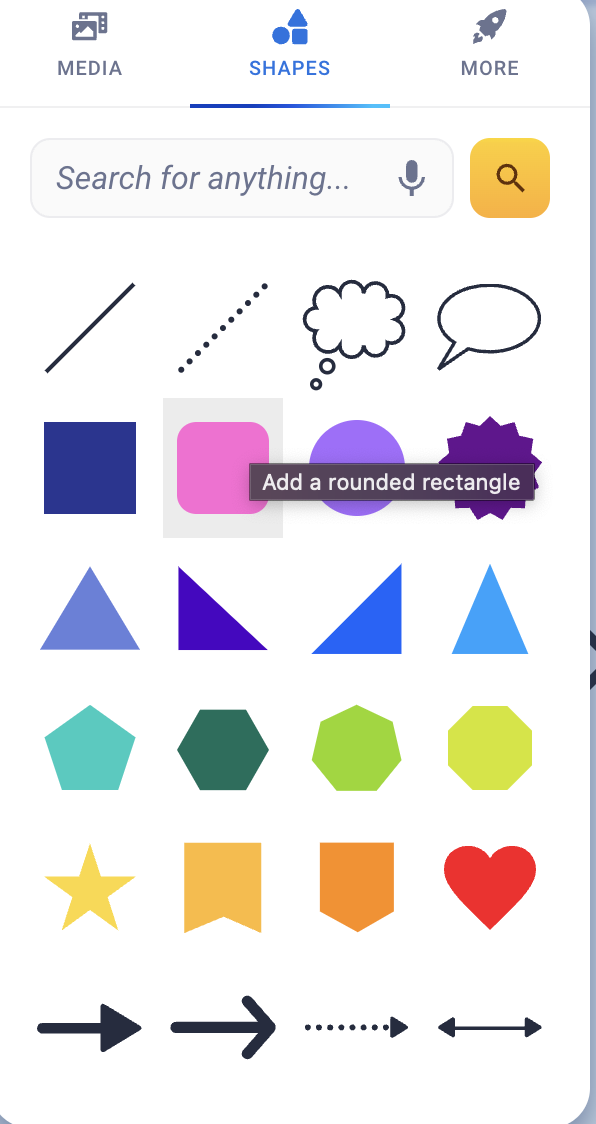
The Shapes Tool 🟣🟦🔺 gives your students the opportunity to add various shapes, speech bubbles, or even a trumpet (as seen below in the video) by inputting the shape you are trying to add, onto the page.

Apps for Book Creator: Power up your Book Creator experience with these fantastic apps.
Keep control - you decide whether these apps are enabled just for you or can be accessed by students too.
The More Tool 🚀 connects Book Creator to various apps like Canva, Giphy, and Bitmoji, to name a few. When you connect Canva to Book Creator, you can open Canva within Book Creator to design a cover. Once created, it will be inserted into Book Creator without ever leaving the app. Currently, nine apps can be connected with Book Creator, including the newest Graphic Organizers App!
Plus, you can add files with the More Tool and you can embed them into the page using iFrame codes.
Collaborate
Book Creator has a free version where you can create up to 40 books. However, the free version will not let your students collaborate together.
If you subscribe, you can have your students collaborate by using their devices and entering a library that you create with a code that you provide. For example:


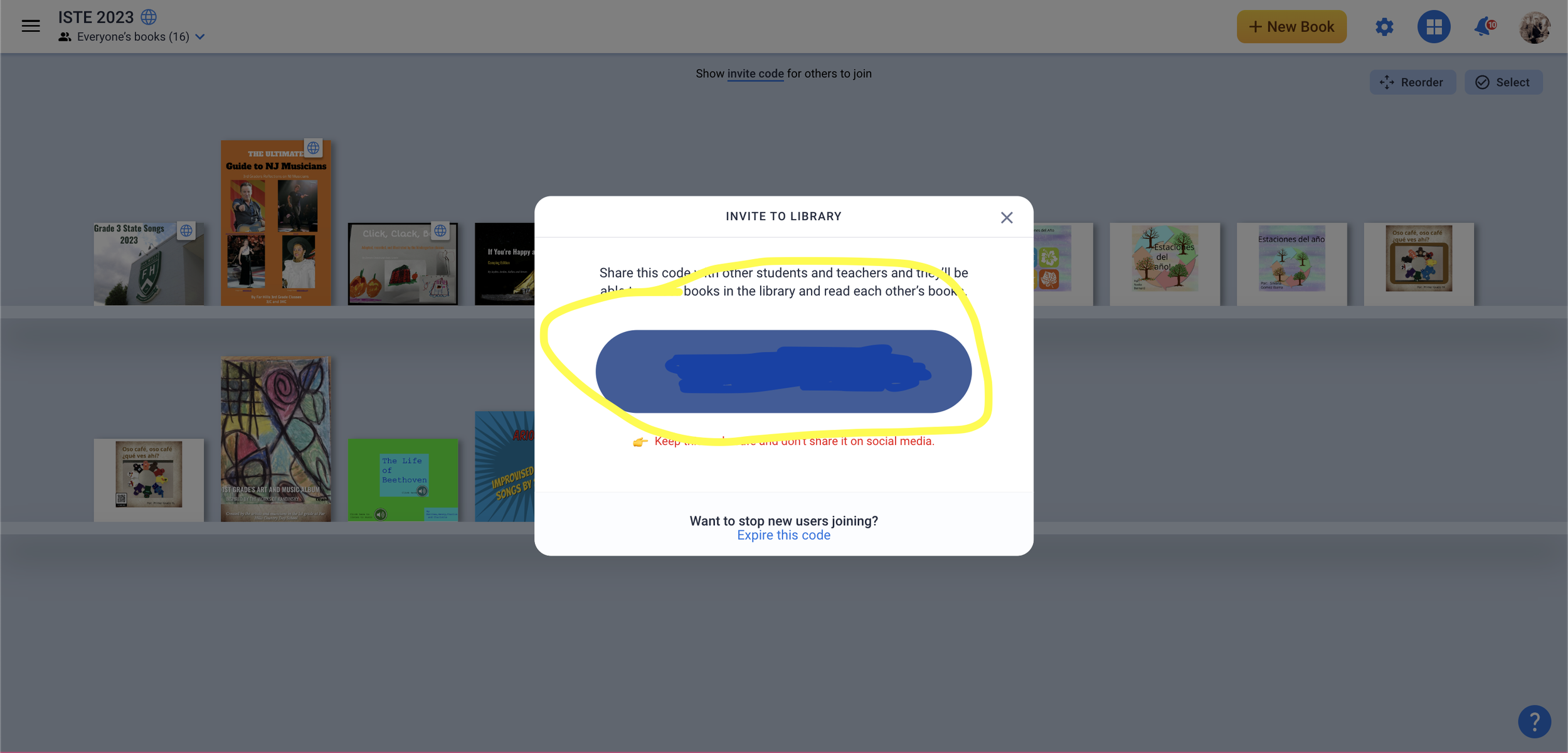


Create a library like the one I created titled ISTE Live 23.
Add books to it by moving the ones you have already created here or by clicking on “+ New Book” and starting a template. I did this with the Recorder Tips Book and then gave each student a page to create with guidelines, such as they could not show their faces. They then created the ebook together.
Once the ebook is created that you want your students to join, click on the three dots on the bottom right-hand side, click on “Share”, click on “Collaborate”, and then click on “Start Collaboration.”
An icon is added to the upper right-hand side of the ebook to let you and your students know that they can edit it together.
To have them join your library, have them go to https://app.bookcreator.com/sign-in and they can sign in using their Google Accounts, Clever, Microsoft, or a QR Code.
Tip: If your students do not have email addresses, create a QR code by going to your account profile at the top right-hand corner of the page, clicking on it, and scrolling down to Student Logins. This will let you add students and create QR codes or links for them to join the library and edit the ebook.
Once they have logged in, they will need the code to join the ISTE 23 Live Library. They click on the three horizontal lines (the hamburger) and they click on “Join a Library”. The code you can give them is at the top of the screen. When they enter the code, they can now find the editable book in the library.
Tip: If you feel that your students would have challenges trying to collaborate together, then have them create their own books and when completed, you can merge them together.

Why Elementary Music and Book Creator?
If you teach elementary general music, you have probably experienced a time during the school year when your curriculum is based around the preparation of a concert. This is a usual occurrence and one where we utilize concert preparation to achieve our national music and core arts standards. This is also what families and caregivers see most often with the arts as most of the student’s cumulative works are produced on stage or in concert form.
However, I have always taught with the approach that music is not a stand-alone subject. It is not isolated in the music room or auditorium. Music is all-encompassing. With each lesson, music educators help students experience and realize how history, language, reading, writing, creativity, mathematics, science, physical education, art, technology, and more, are all connected in music class. With that said, how does a music educator go about showcasing this when concerts and productions are what is focused on in their subject?
This is where Book Creator is one tool that helps me bring our music curriculum and all of its cross-curricular connections to the families’ smartphones. In the following examples, I have had the students use Book Creator for retrieval practice, showcasing what they learned in other subjects and how that enhanced their music creativity, their writing skills, their rhyming skills, and exploring a wonderful connection between music and art.
Retrieval Practice
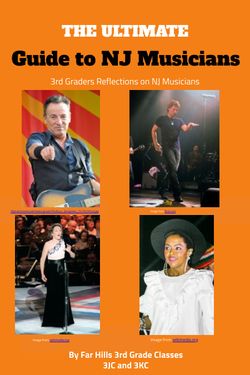
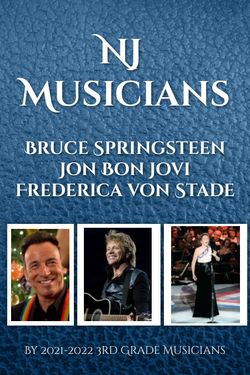
Each year, my third-grade students study our home state as a part of the state’s standards. When they study this, we research and learn about four musicians who were born in our state. In this ebook, the students and I created a Fast Facts about each musician as a part of their retrieval practice of what they learned. They collected their facts using a Thinking Circle Map and then decided on the pictures to use with the Media Tools. Finally, we chose a specific template provided by Book Creator as it lent itself to how we wanted to publish our book.
Showcasing What They Learned in Other Subjects and How That Enhanced Their Music Creativity
The third-grade musicians expanded this cross-curricular connection as the students were assigned a state that they studied individually and presented to an audience on a specific day. As they were researching their assigned state, in music class, they took those facts and used Flat.io EDU to create an 8-measure melody. They were able to use the notes that they could read and perform on their recorders. Flat EDU is also a very intuitive web-based notation program that I use with my students from second grade and up. I can create a template and guidelines of rhythms and notes that they can use for their melodies and share it as an assignment through the learning management system like Google Classroom, or create a classroom within Flat and share their links through their Seesaw Learning Journals.
The student musicians composed their melodies, added lyrics based on what they researched about their states, and then we shared it with Soundtrap EDU (a web-based digital audio workstation-DAW) so that they could add instruments that could enhance their music.
Writing Skills
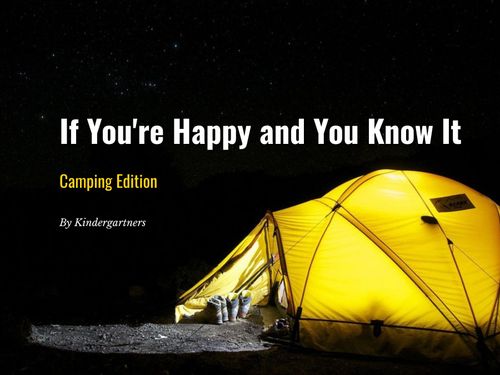
The kindergarten musicians created a book inspired by If You’re Happy and You Know It by James Warhola. The students illustrated and wrote the book. In this example, they did this by using paper and markers. We then took pictures of their work and added them to each page. However, this also could have been done using the drawing tools in Book Creator.
Rhyming Skills
In this example, the preschool musicians created new verses to the traditional children’s song, “Down By The Bay”. They then illustrated their new rhyming words. We then took pictures of their illustrations and added them to Book Creator (but you could have them use the drawing tool). I had each student come up to my device and I used the record tool to have them sing their new verse. The ebook came out beautifully!

Music and Art
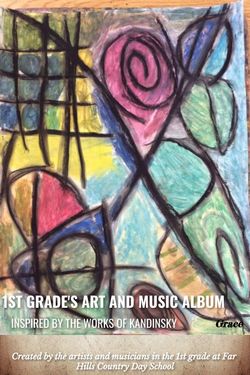
My art colleague and I collaborated together to have the student musicians and artists learn about the life of the Russian painter, Wassily Kandinsky. In music class, we read The Noisy Paintbox by Barb Rosenstock. I videoed myself reading it and added music to the book that was inspired by Kandinsky’s love for music. In art class, they studied his paintings and then created paintings inspired by his artistic style. When they returned to music with their paintings, we took pictures of them to add to our ebook using the camera tool in Book Creator.
The student musicians then used the Kandinsky app found in Chrome Music Lab to recreate their artwork. From there, they continued to create music using the app and I videoed the process. We added the videos to their ebook using the image tool in Book Creator or the More tool>Files.
Sharing


To share their ebooks so that families and caregivers can view them, you can do this by clicking on the three dots at the bottom right-hand side of the book, scrolling to Share, and then you will find a few options.
Print 🖨️ You can print the book, but anything that is interactive will not translate to a printed copy of the book.
Download ⬇️ You can download it as an ebook. This will download as an epub file. The format can be opened on all major eBook software including readers, third-party software, and browsers. Some of these include the Google Play Books app (available for iOS and Android devices), Apple's iBooks app (available for Mac and iOS devices), and Adobe Digital Editions, among other applications.
Publish Online 🌐 This is the most popular option because you will be able to share it intuitively on most devices. When you publish it online, Book Creator will give you a link so that anyone can access it. The book is interactive so the videos, links, audio files, etc., will work like they do in the app. You can make the link public or private. If it is public, it will appear in Google searches. You can also allow remixes of your book where readers can download the book and edit it for their own reuse. If you edit the book after it is published, the edits will appear in the published book. When you want to stop publishing the book, just click on the 🌐 symbol on the book and click on “Stop publishing”. Finally, you can decide if you want your students to publish online when you set up a library.
iOS version ⎚ This is very similar to the web-based version with some differences. In Book Creator for iPad, only teachers can publish, and it is limited to 10 books published online at once. You cannot make books remixable and at the moment you can only publish privately.

Check out Book Creator today! You can use the free version to create 40 books in one library. You cannot have your students collaborate together, but your students can access the tools, app smash, publish online, and so much more. It would be a great way to experience the app and see if it would be something the school would pay for you to use in your classroom.
Stay Tuned!

Credit: Unsplash
I am officially on summer break which means check back here and on my YouTube channel weekly. I will have videos that will involve tech tips, play-along videos, or move-along videos, peaks into MusicFirst Elementary, updates about Midnight Music Community, and more!
TMEA/TI:ME Day 3 2023

Another fabulous day at TMEA/TI:ME National Conference! Here are some more highlights from today.
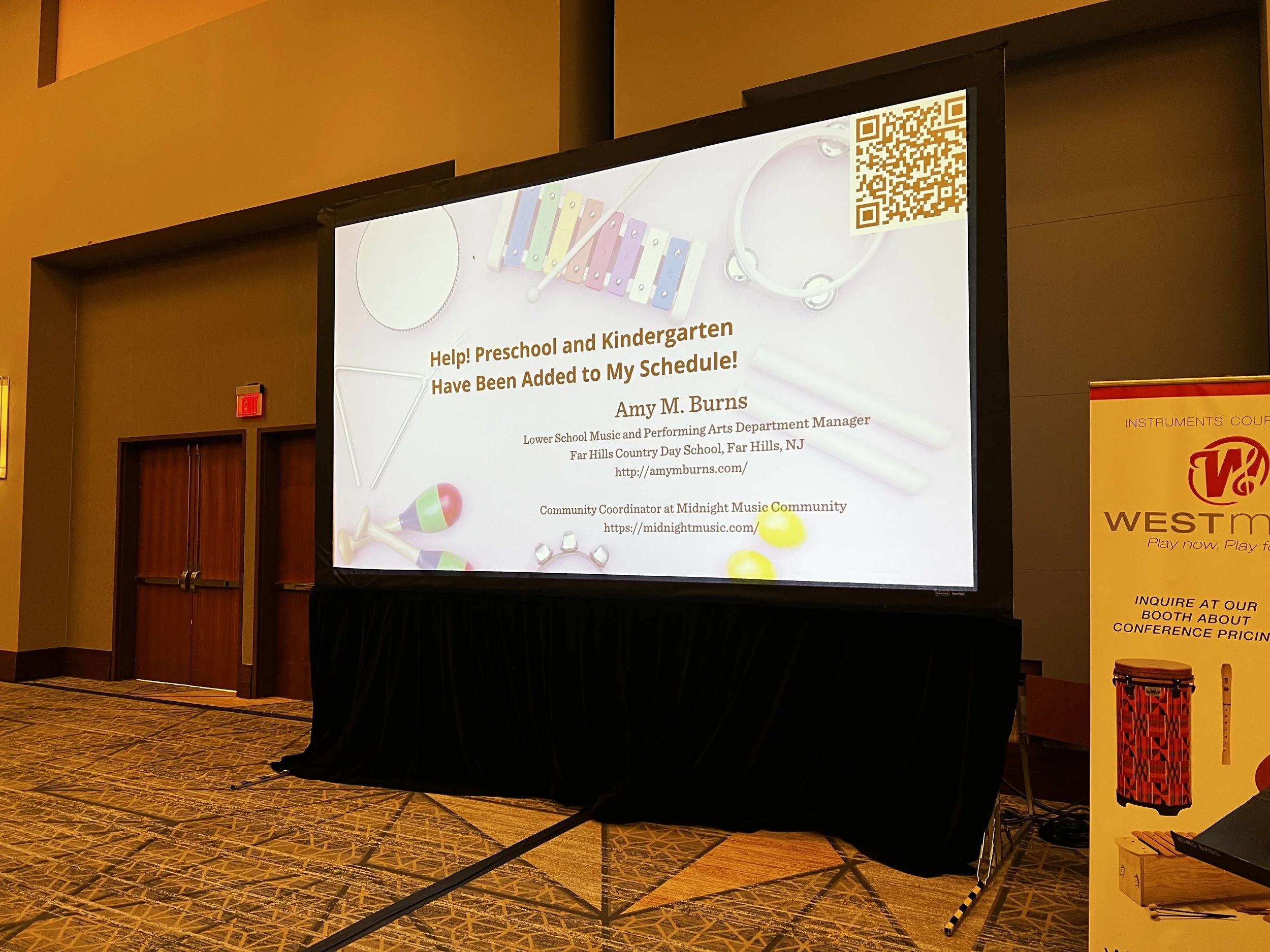
“Help! Preschool/Kindergarten Has Been Added to My Schedule!”
The day started out with an 8:30 am session in the Hyatt Ballroom titled, “Help! Preschool/Kindergarten Has Been Added to My Schedule!” It was so wonderful to see so many music educators at this session, participating, and asking me some excellent questions at the end.
The link to the Wakelet, which has the handout as well as the resources, can be found here.

The session included activities and routines to help music educators teach the youngest learners at their schools. Some items that were included here:
Using Dr. Feierabend’s 8-step workout from First Steps for Preschool Music and Beyond.
Creating your own workout based on his workout.
Gathering activities from that series as well as Denise Gagne’s Musicplay and Music Together.
Taking classes with those methods to deep dive into their materials and activities.
Going on a theory that activities are around the one-minute per age. For example, a class of three-year-olds would have around three-minute activities. This is a theory that some educators use to base their plans and the pace of the classroom.
Pacing movement, singing, songtale/book, instruments, steady beat, props, stuffies/puppets, throughout the class to help with the pacing.
Questions that were asked at the end?
What is the right pace?
It depends on your students, how many there are, their age group, and the time of day. If they are late in the day or before lunch, you will probably pace a little faster because they are tired and hungry. And then leave more time for the songtale so that they can relax after the quick pace until the teacher comes to pick them up.
I have 30+ young students. Do you have any tips for handing out instruments?
It is always a challenge when we have numerous young students and no assistant to help us. It will limit how often we use props because of the time it takes to hand them out. Plus, if you do not have the same item for each, you might have students with behavioral challenges that cannot handle yet how to cope with not getting what they want. My advice is to limit activities at this time that have props and instruments and incorporate them slowly into the activities over the next few months so that the students learn the expectations of what to do when the instruments are passed out.
How do you handle misbehaving students?
At this age, I tend to redirect more often than not. Obviously, if a child is hitting another child, then you have to stop the class and you will pivot. However, if it is not a behavior involving this, then I will try the following with these popular encounters in our classroom:
Bathroom: Unless they are doing the “potty dance”, I tell them that they can go in a few minutes. They will usually forget and not ask again. If you have one who always goes during your class, you will have to ask the classroom teacher to assist in either making sure that they go to the bathroom before the class, or the teacher stays.
Won’t participate: The first class, I let that go if they will stand up when we are moving. After that, I tend to encourage them, even if it is a baby step into our activity. I do go the encouragement route because they can set off other students to not participate. I also ask the classroom teacher what their strategies are when a child will not participate in their class and follow that for consistency.
A lot of students: Again, I pace quickly, pass out fewer items, and have the brain break videos of GoNoodle and others, so that I can press play and they follow the teacher on the screen while I set up for the next activity.
Think Outside the Box: Fun, Relevant Movement in Music Class
This session was presented by the 2023 NJ Master Music Teacher Award Recipient, Dr. Missy Strong. In a packed ballroom, she presented movement activities that lived up to the title of the session. She showcased Dr. Franklin Willis’s stick routine (which is a favorite in many music classrooms), and movement cards to the song Happy by C2C (featuring Derek Martin). She also showed us the dance of tinikling, a Philippine folk dance involving bamboo poles, two people beating, tapping, and sliding the poles, while one or more dancers dance between the poles.
Missy reminded us of her expectations for her students. They are to be musical and never cross the line. Plus, she asked us to consider moving away from only using classical music. She encouraged us to branch out our music so that all of our students are represented in the music that we play in the classroom.
It was a fantastic session that I enjoyed thoroughly!
Teaching K-5 General Music with a Focus on SEL
Shawna Longo gave a session on how to use the Essential Elements Classroom (EEC) by Hal Leonard to promote social-emotional learning in your music class. This session gave wonderful ideas with excellent activities and questions to promote student awareness of their social-emotional learning. Though the EEC is not necessary when you want to include SEL in your music classroom, this program does help many music educators who are new to the field or those who are not sure how to incorporate SEL into their classroom.
I Feel Like Funkin’ It Up: Black Music Aesthetics in Elementary General Music.
This session was amazing. It was led by their featured elementary music clinician, Dr. Loneka Wilkinson Battiste. She spoke about what Black Music Aesthetics is and talked about the heterogenous sound is ideal in African American music. She also spoke to Black music being about the way that it’s performed and the way that it’s listened to. She did a wonderful job connecting with everyone in her audience. For me, the “aha” moment was when she spoke about the folk song, Lil’ Liza Jane. She told us how when she was in elementary school, her music teacher had the students perform a ta ti-ti rhythm pattern with the song. When they performed it, it was very simple and the rhythms made the music very straightforward, and almost march-like.
Once you change the accompaniment rhythm with syncopation, polyrhythms, melodic embellishment, and body movement, the song took on a whole new sound and meaning.
She finished with a “Now you wild out” rap game where there are two teams and there is a hip-hop beat playing. One group throws humorous shade at the other group in the style of rap and ends with, “Now you wild out”. The other group has to throw humorous shade back at the first group, and end again with “Now you wild out”. She introduced this with a game-show-style clip. This would hook in your shyest of students and get them thinking ahead, rapping to rhythm, and participating as an ensemble. and improvising. It was a definite keeper!
One more day to go!

Creating Your Own Songtale Book
Need to create a quick ebook or songtale manipulatives? Canva and Book Creator have got you covered!

There are many times I would like to make a quick book to go along with a songtale or a longer song. Whether I am trying to project images to help the students learn the song or I want to have the words on the screen so the students can read it better than if they were in a book, being able to have an ebook is helpful. However, what if there isn’t a songtale or ebook available for the song that you are teaching?
Canva

Canva can be a wonderful solution! There is a free version of Canva that gives you limited access to all of the digital content in Canva. However, if you are an educator, you can use your educator’s email address to sign up for Canva for Education - a pro version of Canva for free! You then have access to many of the pro version’s items like photos, videos, audio, and graphics, and you can integrate Learning Management Systems (LMS) like Google Classroom so you can share assignments and activities with your students.
Mittens And Gloves
Mittens And Gloves by Anne Ellsworth/Teresa Jennings can be found in Music K8 Volume 22/2. This song is very cute and perfect for winter for your youngest singers. However, since my youngest singers are beginner readers or not yet reading, the movements that are included with the song help them learn to sing it. However, I wanted to begin this song as a songtale that I would sing at the end of the class. I then wanted to introduce it with pictures or a book. Since I could not find one, I created one using Canva.
I wanted to project it onto the screen so all of the students could see it well. In order for it to look and act like an ebook (seeing the pages turn, etc), I used Book Creator and placed the images from Canva into Book Creator. To do that, I downloaded the images from Canva as png files. I then opened Book Creator and created a blank ebook template instead of using one of the premade templates. I uploaded each image onto a page and voila! Instant ebook!
The images were intuitive to find in Canva. I just put in the search tool some of the keywords from the lyrics and the images were there. It took very little time. Once uploaded to Book Creator, I finished the ebook by publishing it to a private link.
Book Creator

I have written about Book Creator numerous times. My students and I love creating ebooks about musicians, songs, instruments, how-to books, and so much more, by using Book Creator. You can begin with the free version and create up to 40 ebooks. When you want to do more, like publish more books and have students collaborate together, then the subscription would be a better fit.
I am a Book Creator Ambassador and have used the app since 2015.
Process (in bulleted points)
I started with Canva for Education and found pictures to go along with the lyrics.
I typed in the lyrics.
I downloaded the file as png files.
I opened Book Creator and started a book with a blank template.
I dragged and dropped each image onto each page.
When finished, I published the ebook so I could use it in any classroom that I am teaching.
End Product
Here is how the book turned out. I did not add the music as I want to promote going to Music K8 to purchase it as a single or a part of Volume 22.
Book Creator, Kindergartners, and Soundtrap = Making an ebook Come to Life!
Book Creator is a web-based app that gives your students the opportunity to create ebooks using traditional and digital methods. In this case, we read the story by Cronin and Lewin, Click, Clack, Boo! This popular story is about how Farmer Brown does not like Halloween and tried to sleep through the evening so he does not have to listen to the sounds and see the Jack-o’-Lanterns. However, the barn animals have a different idea and decide to throw a party in the barn.

I have written many times about how great Book Creator is in the elementary music classroom. I am a certified educator of Book Creator and have been using it since 2014. This week, my kindergartners and I used Book Creator and Soundtrap to make a book come to life.
Book Creator

Book Creator is a web-based app that gives your students the opportunity to create ebooks using traditional and digital methods. In this case, we read the story by Cronin and Lewin, Click, Clack, Boo! This popular story is about how Farmer Brown does not like Halloween and tried to sleep through the evening so he does not have to listen to the sounds and see the Jack-o’-Lanterns. However, the barn animals have a different idea and decide to throw a party in the barn.
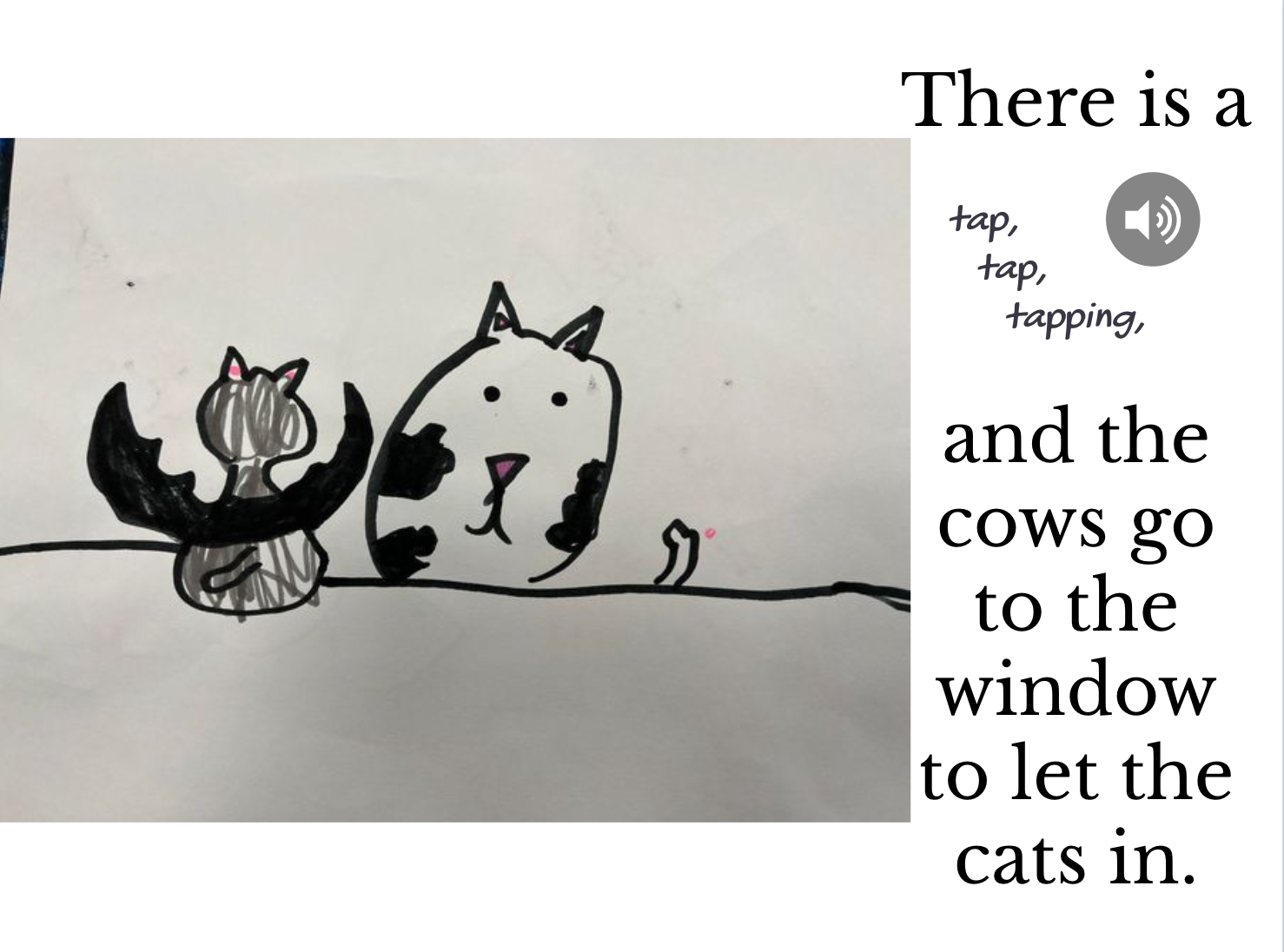
Throughout the book, there are consistent sounds that are repeated many times: creak, tap, crunch, and quack. The students first listened to the story and spoke about what they comprehended from the plot of the book. Then, they drew pictures from the book. We took the pictures, photographed them, and added them to Book Creator using the template for a photo album.
Soundtrap

Once they illustrated the ebook, they used the instruments found in their instrument kits to create sound effects for the words: creak, tap, crunch, and quack. Their kits consist of small xylophones, egg shakers, sticks, scarves, bells, and a bean bag. Most of the students decided to use the xylophones for creak, the sticks for tap, the egg shakers for crunch, and their voices and bells for quack. I used Soundtrap to record and mix their sound effects. I downloaded it as .wav files and uploaded them to Book Creator to play on the pages where the words appeared. Book Creator creates an audio icon to playback the sound effects when you read the book, or have the book read to you.

Final Product
The final product was excellent. I am so proud of the kindergartners! We published it through a private link in Book Creator because you can publish your works and share them via a link. Since this book is copyrighted, we published it privately so the students could see the final product in their music classes and we could share that with their classroom teachers.
Book Creator is free for 40 ebooks and Soundtrap, if you the teacher is using it by yourself and not having the students access it, then you can use the free version. If you would like to use Soundtrap with your students, there is a paid EDU subscription which I use with my students in grades 2 through 5. It is very intuitive to use and they love creating and recording original music with it.
What can your students create with these tools in your music classroom?

#Elmused Tech Tip: Book Creator
This week's installment is a Tech Tip featuring Book Creator (https://bookcreator.com/)! Like my videos and resources? I am proud to say that I am a Book Creator Ambassador as I believe in this product and the way it helps my #elmused students' creativity and confidence. Learn more in this video and check out this blog post with examples.

What is Book Creator?
Book Creator is an amazing #edtech tool that gives your music students the ability to intuitively create multimedia ebooks. Students can add photos, use the pen tool to illustrate, change the paper to music paper, use the pixabay search tool for images, add audio recordings, add video, app-smash with Bitmoji, Canva, Giphy, and so much more. It has an iOS app as well as is web-based to work on multiple devices. To learn more, watch this week’s episode.
https://youtu.be/rwZc4KhV4Bw
My Students’ Musical eBooks:
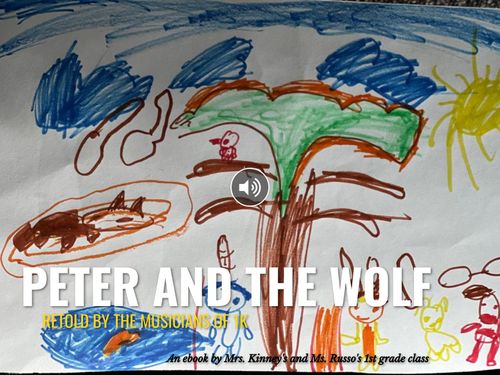
My students have created numerous ebooks together in music class to showcase what they have learned, to give them a creative outlet to perform, to give them more opportunities to write and draw, and so much more. We have shared them by screen-recording videos of the ebooks or publishing them online and sharing the link through their classroom sharing platform such as Seesaw. Check out some of our publications below!
I am very proud to say that I did complete the ambassador training for Book Creator because I believe in this product so much.