One Song, Multiple Ways to Play: Explore MFE’s New Boomwhacker and Barred-Instrument Apps
What if the same play-along could help students understand chords, practice reading traditional notation, and perform successfully—even when your classroom does not have enough pitched percussion instruments for everyone?
MusicFirst Elementary (MFE) recently introduced several teacher-requested updates, including new Boomwhacker and barred-instrument apps. These additions give elementary music teachers more ways to differentiate instruction, support visual learners, and get every student actively making music.
I have used MFE as a supplemental resource in my music classroom for the past three years. These updates have saved me time because I do not have to search the internet for additional play-alongs and age-appropriate resources. More importantly, my students enjoy using them! I can see their enthusiasm for music class shine through as they play, read, and perform together.
Play-Alongs Built into the Lessons
The new Boomwhacker and barred-instrument apps can be found within the activity sections of many MFE lessons.
This makes the play-alongs easy to incorporate into your existing lesson. Students can move directly from learning a musical concept to applying it through an engaging performance activity.
Boomwhacker Play-Alongs: Vertical or Horizontal
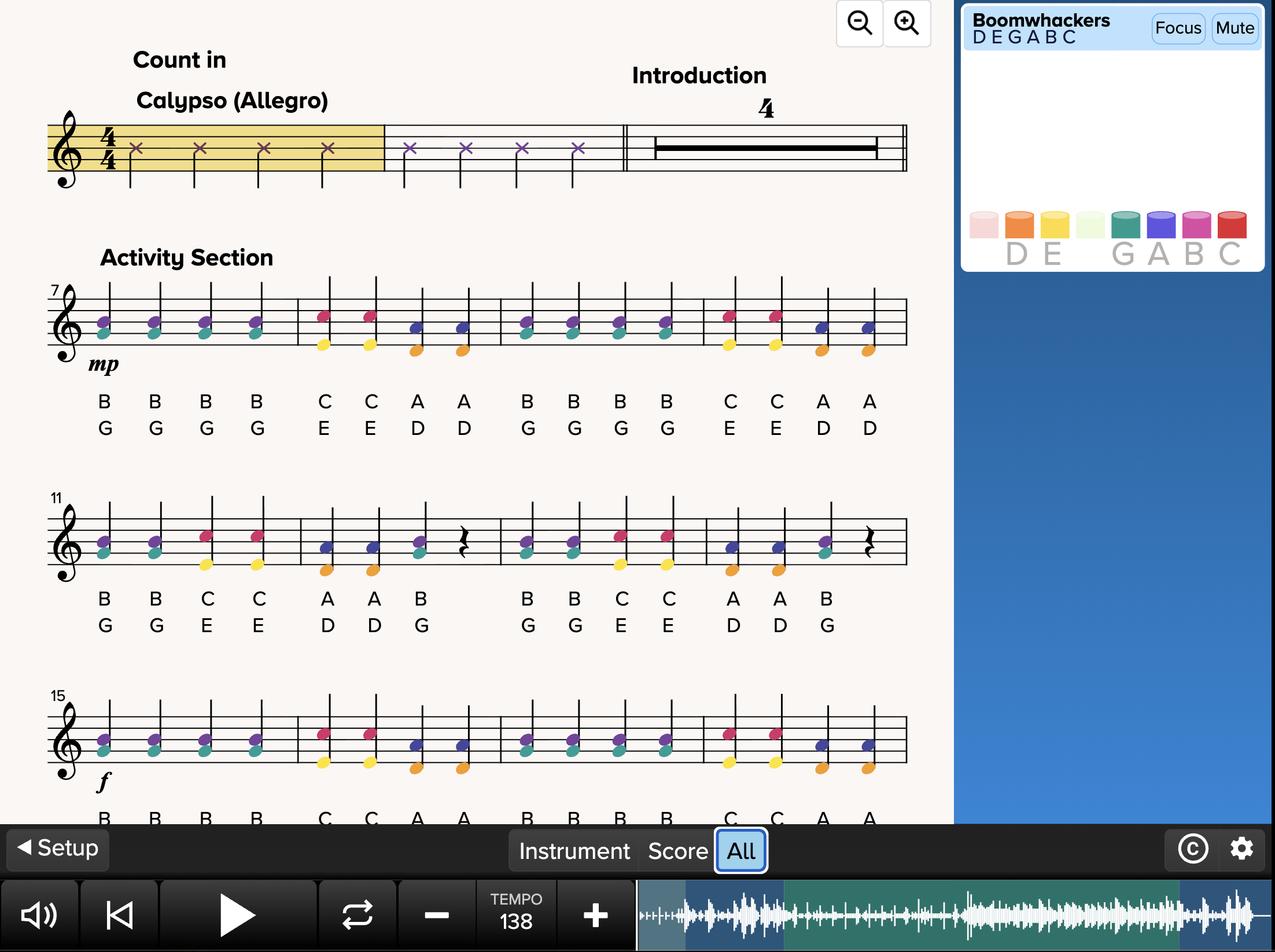
All View in the Boomwhacker App
The Boomwhacker app offers both vertical and horizontal play-along views.
In the vertical view, the notes are stacked so students can clearly see which pitches sound together. This is an excellent option when teaching students about chords and harmony.
The horizontal view presents the music in a more traditional format, helping students practice following notation as it moves from left to right.
Teachers can choose the view that best matches the objective of the lesson:
Use the vertical view to explore chords and notes that sound together.
Use the horizontal view to reinforce traditional music reading.
Use the all view to differentiate instruction to meet the learning needs of their students.
Bring the Boomwhacker Sound Forward
Focus and Mute Buttons
Another useful feature is the ability to adjust the audio so students can hear the Boomwhackers more prominently than the accompaniment track.
This makes it easier for students to identify their part, hear how it fits into the music, and stay together as an ensemble. It can be especially helpful when students are learning a piece for the first time.
Barred-Instrument Play-Alongs: Instrument or Score View
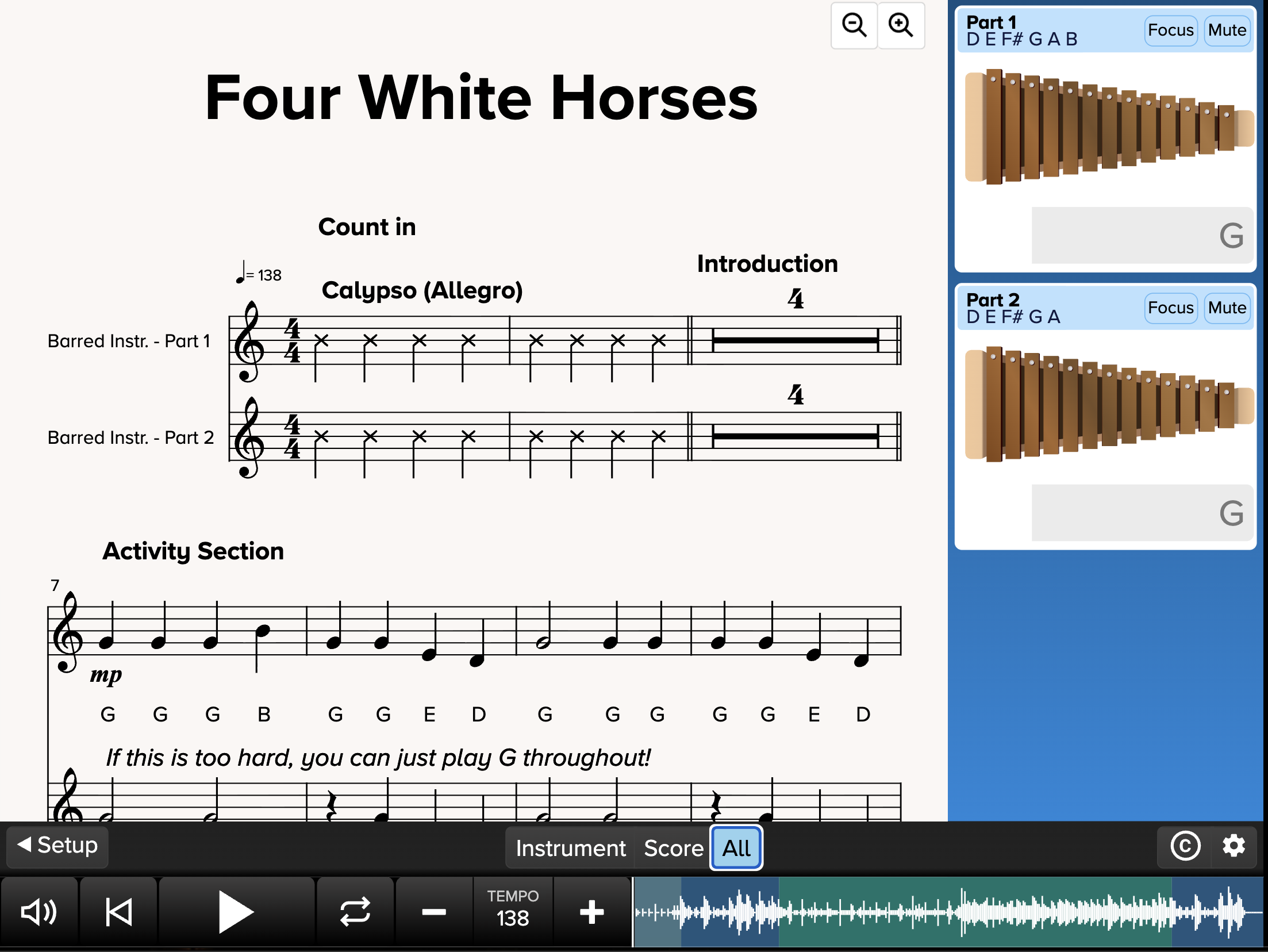
All View
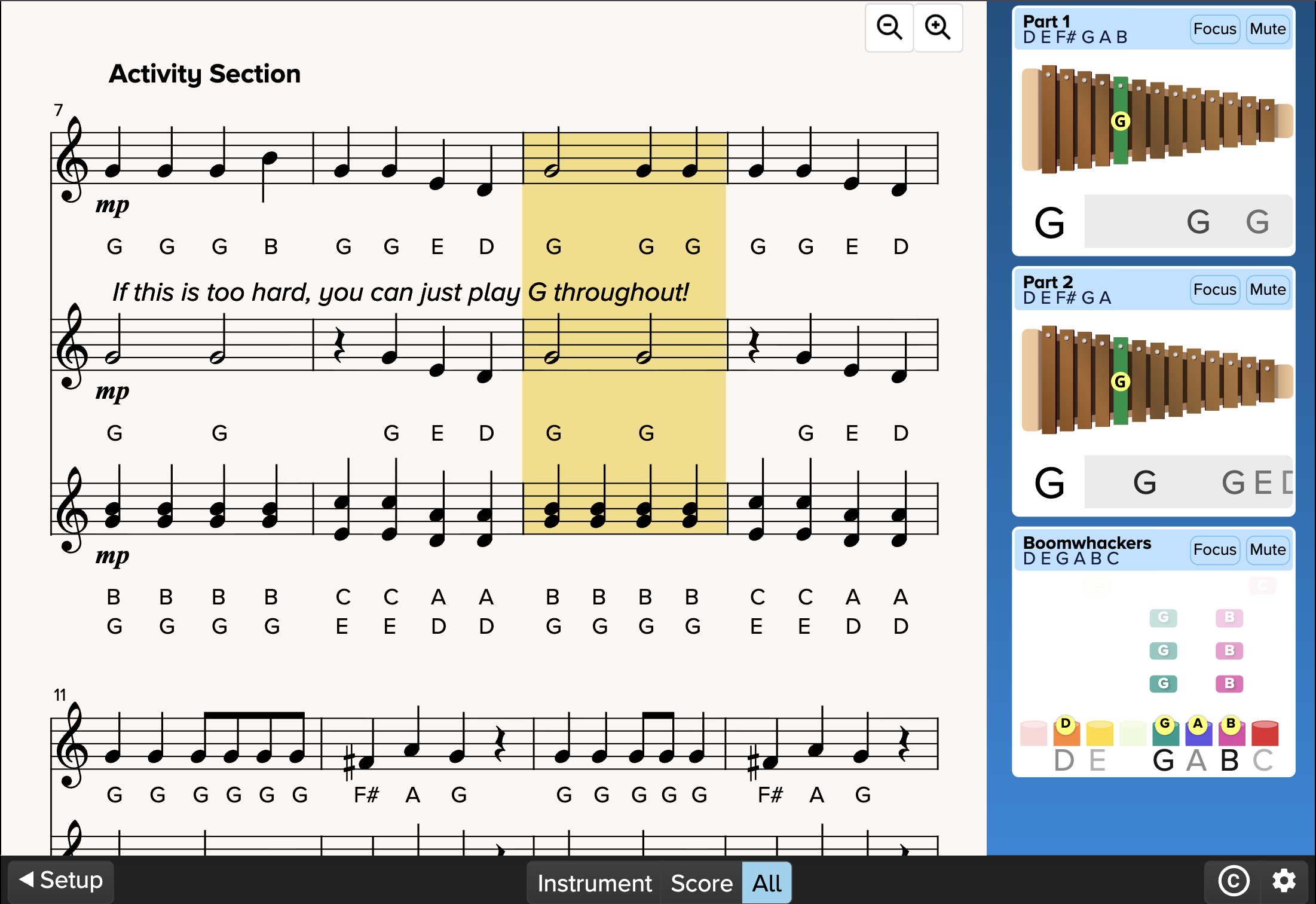
The barred-instrument app also provides multiple ways for students to follow the music.
In the Instrument View, students see the instrument bars light up as each pitch is played. This visual support can help beginning players locate the correct bars and keep their place in the music.
In the Score View, students follow the same piece using traditional notation. This gives students an opportunity to strengthen their music-reading skills while they perform.
Teachers can also display the notation and the instrument together in the All View, giving students the freedom to choose the visual support that helps them perform most successfully.
Two Barred-Instrument Parts
The barred-instrument activities include two different parts.
Part 1 provides an additional challenge for students who are ready for it. Part 2 offers another way to participate in the same performance.
This makes differentiation feel natural. Students can perform together as an ensemble while playing parts that reflect their individual experience and comfort levels.
Combine Barred Instruments and Boomwhackers
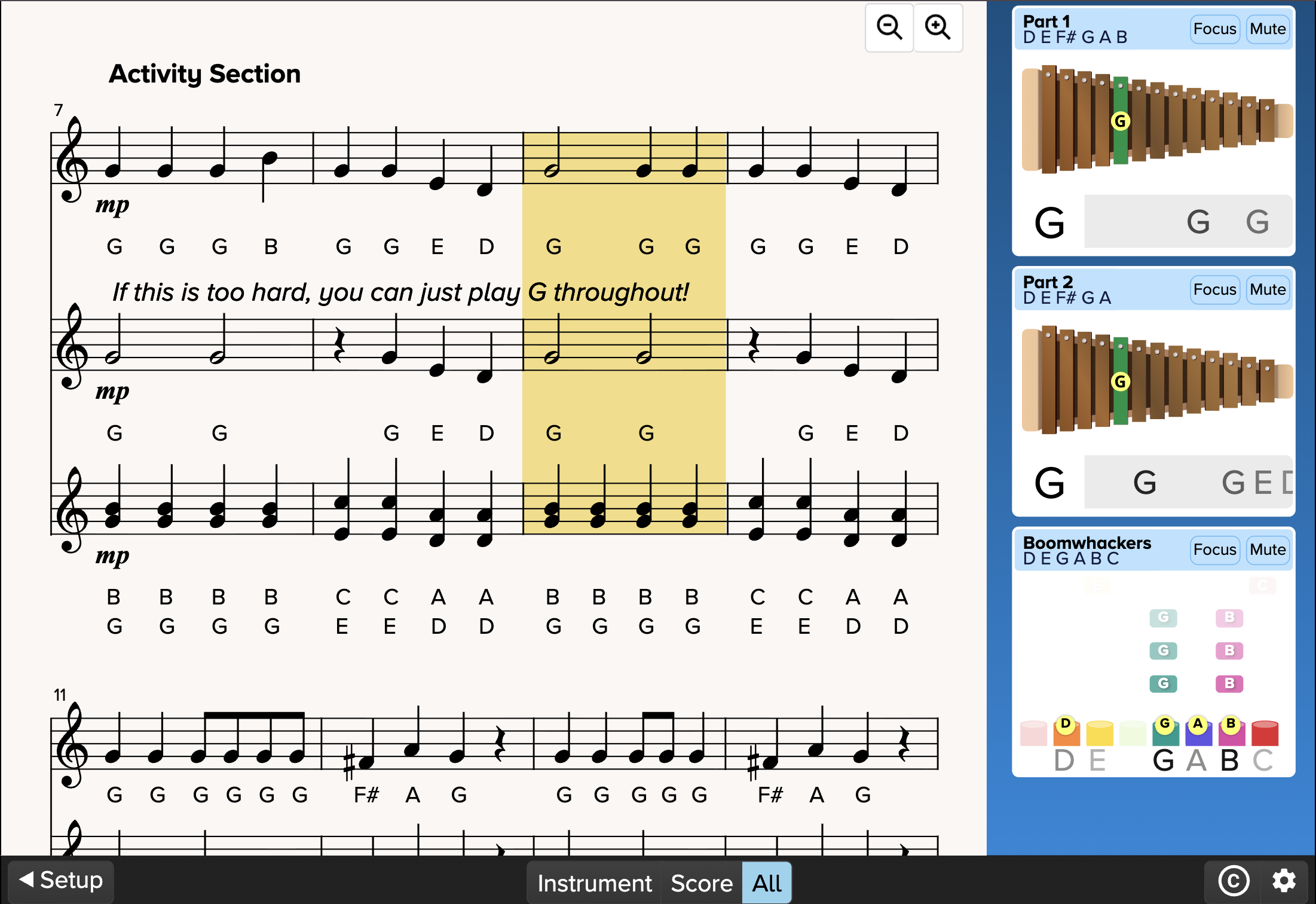
All View for all three instrument parts
One of my favorite features is the ability to combine the barred-instrument and Boomwhacker parts in one performance.
This is especially helpful if your music classroom has limited access to xylophones, metallophones, glockenspiels, or other pitched percussion instruments. Some students can perform the barred-instrument parts while others play Boomwhackers—and everyone can participate in the same piece.
Students can follow:
Barred-Instrument Part 1
Barred-Instrument Part 2
Boomwhacker parts
Traditional notation
Instrument play-along views
Combining these options can also create a fuller ensemble experience while giving students meaningful choices in how they participate.
One Activity, Many Ways to Learn
These new apps offer much more than colorful play-alongs. They allow teachers to:
Introduce chords with a vertical Boomwhacker view
Strengthen music reading with horizontal notation
Help beginning players by showing the instruments light up
Challenge experienced students with a more advanced barred-instrument part
Adjust the audio so the instrument part is easier to hear
Combine Boomwhackers and barred instruments when classroom instruments are limited
Give students a choice of visual supports
Most importantly, these options help more students experience success while performing together.
More MFE Updates Are Coming!
The Boomwhacker and barred-instrument apps are only two of the new additions to MusicFirst Elementary. Next week, I will highlight the new ukulele app, including its differentiated parts, video demonstrations, Interactive Score View, and printable music.
Try It Out Today!
Would you like to explore these play-alongs with your students?
Sign up for a free trial of MusicFirst Elementary and discover new ways to get your elementary musicians playing, reading, and creating together!