#TeacherTipTuesday: Make a Free Karaoke Video for Your Music Class
Have you ever found the perfect song for your concert, then searched YouTube for a sing-along that matches the version you’re actually teaching? That was me with Campana sobre campana. I shortened the recording for my younger students, so I needed a lyric video that followed our version of the song.
I wanted the words to change color as we sang, giving students a visual cue for where we were in the music. I made it with two free tools, a Microsoft account and Microsoft Clipchamp. If you’d rather read the steps than watch my 15-minute walkthrough, here’s how I did it!
1. Open Clipchamp and add your audio
Open Clipchamp in Chrome or Edge and sign in with a free personal Microsoft account. Select Create a new video, import your audio under Your media, and click the + on the audio file to add it to the timeline.
Use the exact recording your students will rehearse with, including any cuts you’ve already made. I also keep a copy of the lyrics open in another window so I can paste in one musical phrase at a time.
Open Clipchamp · Microsoft’s Clipchamp sign-in guide
2. Put the song title over the introduction
Play the recording and pause where the singing begins. Go to Text, add a plain text clip above the audio, and type the song title. Drag the right edge of the text clip so it ends where the first sung phrase begins. In my example, that gave me about 16 seconds for the title.
A large, centered title and a simple background work beautifully. I added a gradient and a fly-in animation in the demo, but you can keep this as simple as you like.
3. Add your first phrase with Karaoke Title
Under Text, look for Karaoke Title. Add it above the audio where the singing begins. Zoom in on the timeline if you need a closer look, then drag the edges of the clip so it covers the first sung phrase.
Double-click the karaoke clip and paste the lyrics into the text field in the side panel. This is the step I kept forgetting in the demo! Then choose a large font and a highlight color that students can see clearly against the background.
Play the phrase with the audio. If the color starts moving too late or too early, adjust Offset start. If the color finishes before or after the singing, adjust Offset end. Replay the phrase after each change. I listen for the entrance and the last sung word so students can follow the phrase.
4. Duplicate the clip for the next phrase
Here’s the part that saves me the most time. Once the first phrase looks the way you want it to, select the clip and press Command + D on a Mac or Ctrl + D on Windows or Chromebook. You can also right-click the clip and choose Duplicate.
Clipchamp puts the copy immediately after the original. Your font, size, and colors come with it. Move or trim the copy to match the next phrase, replace the lyrics in the side panel, and check the two offsets again. Repeat until you’ve covered the song. If you spot a tiny gap between clips where the lyrics should flow continuously, hover over the gap to remove it.
Microsoft’s guide to duplicating clips
5. Export and try it in your classroom
Watch the whole video once before clicking Export. I like to check that each phrase appears in time for students to enter and that the words are big enough to read from across the room. Clipchamp’s free plan supports watermark-free exports up to 1080p. For rehearsal, you can play the exported MP4 right from your computer.
One more tip for younger singers. Add a simple picture below the lyrics to cue a key word or remind students which phrase comes next. That way, children who are still learning to read have something to follow, too.
Have fun with this! If you make a karaoke video for your music class, I’d love to hear what song you tried and how it went with your students.
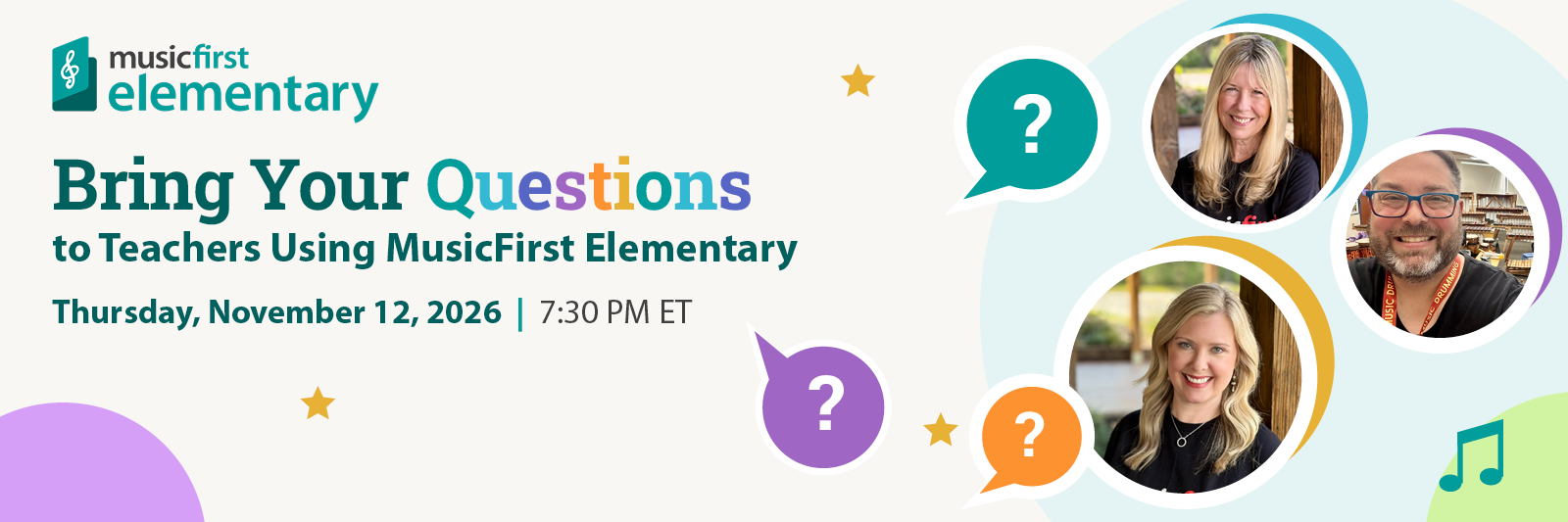
Don't Forget! Bring your MusicFirst Elementary questions
Join me, Mary Birkner, and Eric Young on Thursday, November 12, 2026, at 7:30 p.m. ET for a live panel on StreamYard. Bring your questions! We’ll show you some of our favorite parts of the curriculum and talk about how you might use them in your music room.