Countdown to 2026: 10 short activities that you can use when you return from break - #8 Coding Your Own Game
#8 Coding Your Own Game (Yes—You Can Do This!)
I know what you’re thinking: Coding a game? In elementary music?!
Stay with me—because if you have the free educator version of Canva (https://www.canva.com/education/), this is far more doable than it sounds.
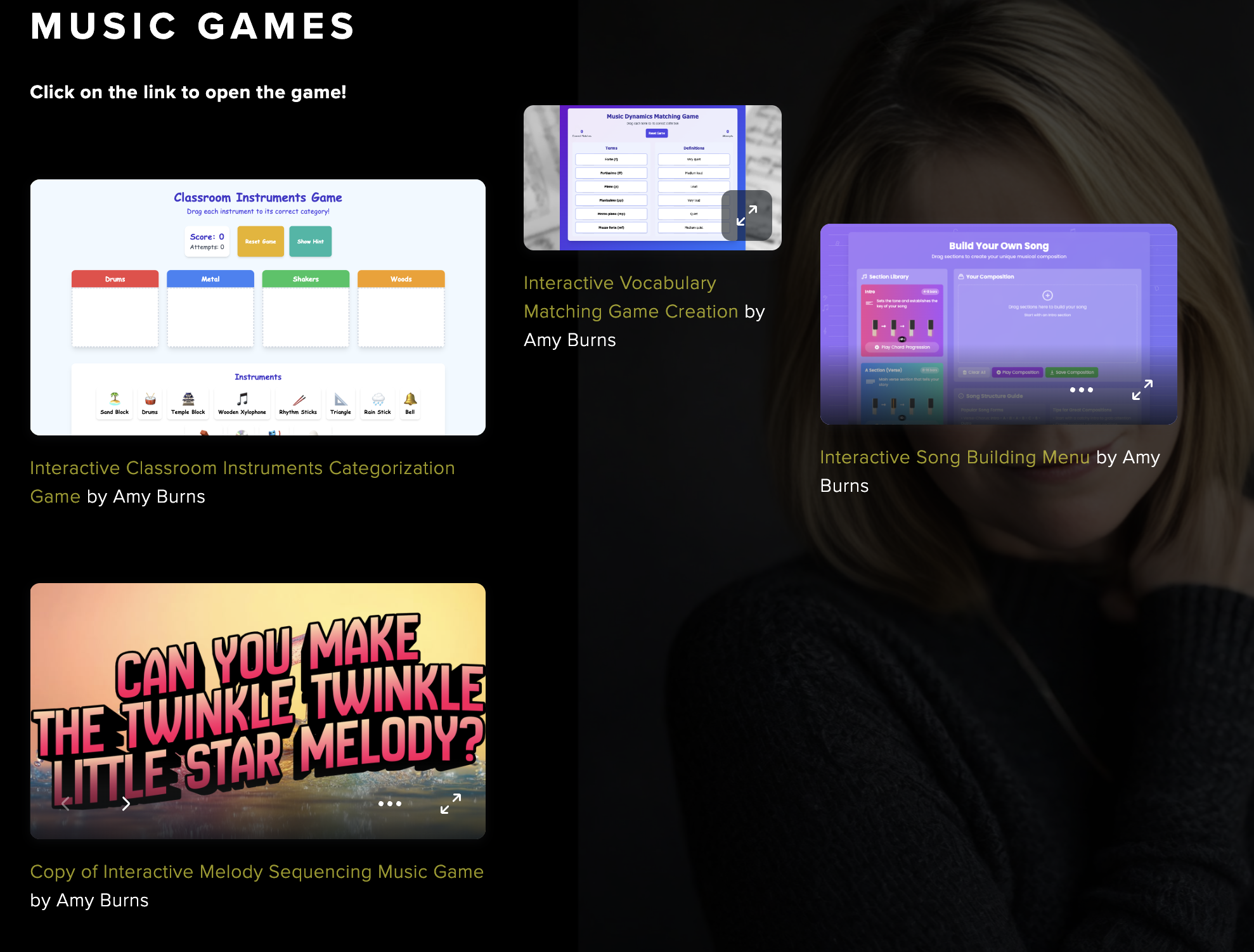
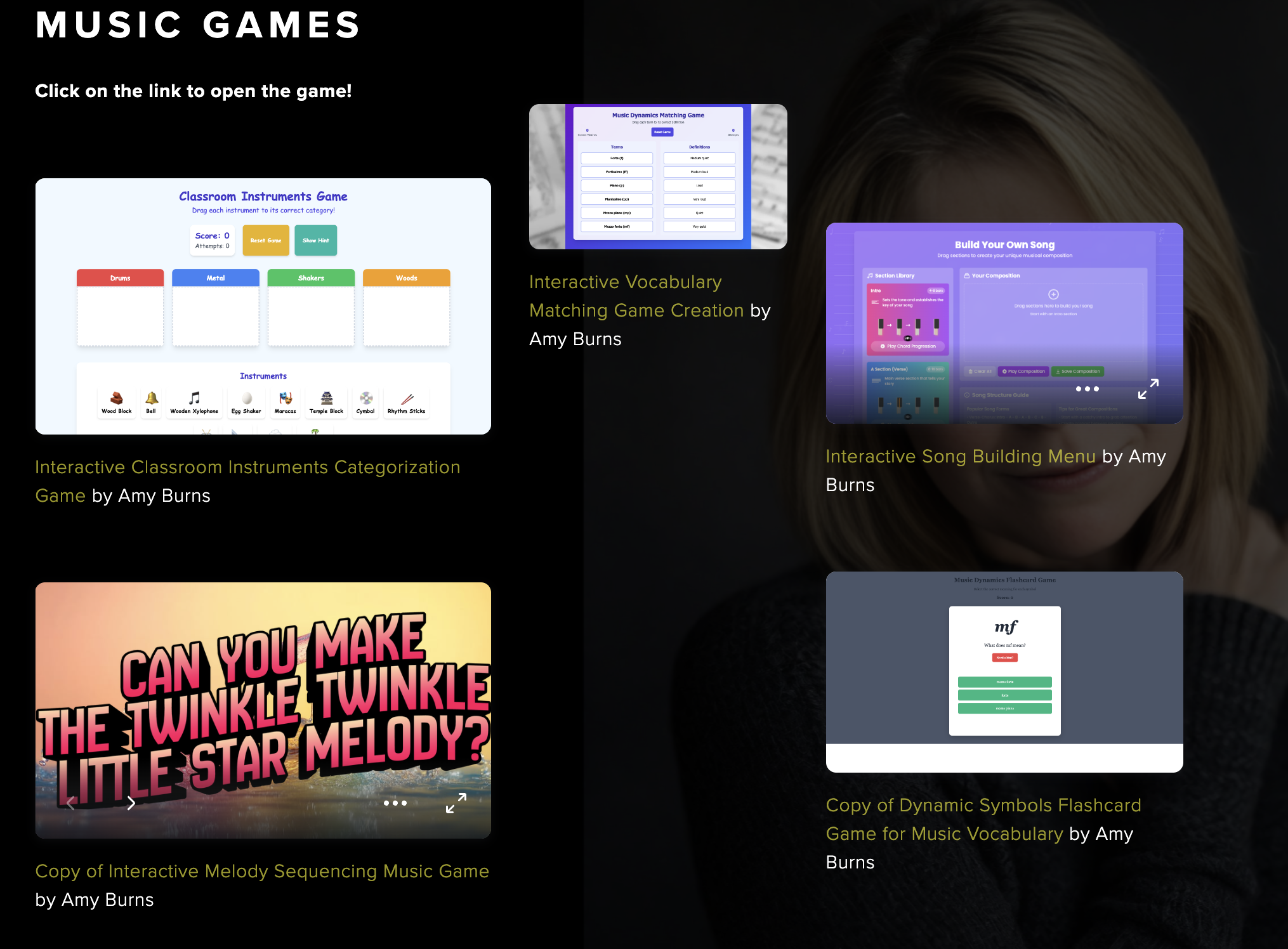
In fact, the four games shared earlier in this series were all created inside Canva. They work beautifully as station activities, early finisher tasks, or quick retrieval practice—and once you see how this works, you may want to try building one yourself.
What Kind of Games Can You Make?
These are simple, classroom-ready games, not complex video games. Using Canva’s built-in AI tools, you can create:
🎵 Instrument sorting games (https://www.canva.com/design/DAGkj9OuoVE/Qb9YdVm4jBOTD9pDh_jiXw/view?utm_content=DAGkj9OuoVE&utm_campaign=designshare&utm_medium=embeds&utm_source=link)
🎵 Vocabulary matching games (https://www.canva.com/design/DAGkkTdSVRQ/v7qO4K0u-5vDF-Dj0X4w-g/view?utm_content=DAGkkTdSVRQ&utm_campaign=designshare&utm_medium=embeds&utm_source=link)
🎵 Song-form or “build the song” activities (https://www.canva.com/design/DAGkk6a8-2Q/vJFJlBoU46msXXzvl0n1Mw/view?utm_content=DAGkk6a8-2Q&utm_campaign=designshare&utm_medium=embeds&utm_source=link)
🎵 Melody-ordering games (put the phrases in the correct order) - https://www.canva.com/design/DAG8YrKGDnE/ZkOv9tZIspqs9DKnS6mn_A/view?utm_content=DAG8YrKGDnE&utm_campaign=designshare&utm_medium=embeds&utm_source=link
🎵 Interactive flashcards
In the video tutorial that accompanies this post, I focus on interactive flashcards, since they’re incredibly versatile for elementary music concepts.
How to Get Started in Canva
You can follow along with the video below, or use these steps:
Open Canva
Click Canva AI
Use the Filter tool and select Code
Browse the game templates Canva suggests
I chose a “fun, memory, matching game”, which includes a helpful example description. That example becomes your jumping-off point.
What to Type Into Canva AI (The Magic Part ✨)
Here’s the exact prompt I used to create a dynamics flashcard game:
Create an interactive flashcard game for vocabulary learning. The students are learning about dynamics. The terms will be mf (mezzo forte / medium loud), mp (mezzo piano / medium soft), p (piano / quiet), pp (pianissimo / very quiet), and ff (fortissimo / very loud). The game should present a symbol (such as “f”) and ask, “What does f mean?” Students may ask for a hint. The hint would be “loud.” Provide multiple-choice answers such as forte, piano, or fortissimo. If the student selects the correct answer, they earn 5 points. If incorrect, they must try again and earn 2 points. Repeat for all symbols listed.
Then… Canva does the coding for you. 🤯
A Quick Teacher Tip
When I tested the game, I noticed the correct answer always appeared first. Easy fix! I simply followed up with:
“This is great! Can you make sure the correct answer is not always listed first?”
Canva immediately updated the game and randomized the answers.
Publishing Your Game (Yes, You Can Share It!)
Once the game was finished, I wanted students to access it outside of Canva.
Here’s how I did that:
Turn the game into a Design (I chose a Presentation)
Click Share → More (⋯) → Embed
Copy the HTML code
Paste it into a page on your website
Test it
Publish it
Done!
You can see the finished game embedded here:
👉 https://www.amymburns.com/websitesresources
And here’s the direct Canva link if you want to explore it yourself:
👉 https://www.canva.com/design/DAG8Y5c02hQ/smjxcMNt_HJ4UeHrM5AAbQ/view
Final Thoughts
If you’ve ever wished for one more engaging way to reinforce vocabulary, form, or melodic thinking—this is it. No prior coding experience required. Just your music teacher brain, Canva, and a little curiosity.
You might surprise yourself with what you create 🎶
Come back tomorrow for #7 as we are getting closer to 2026.