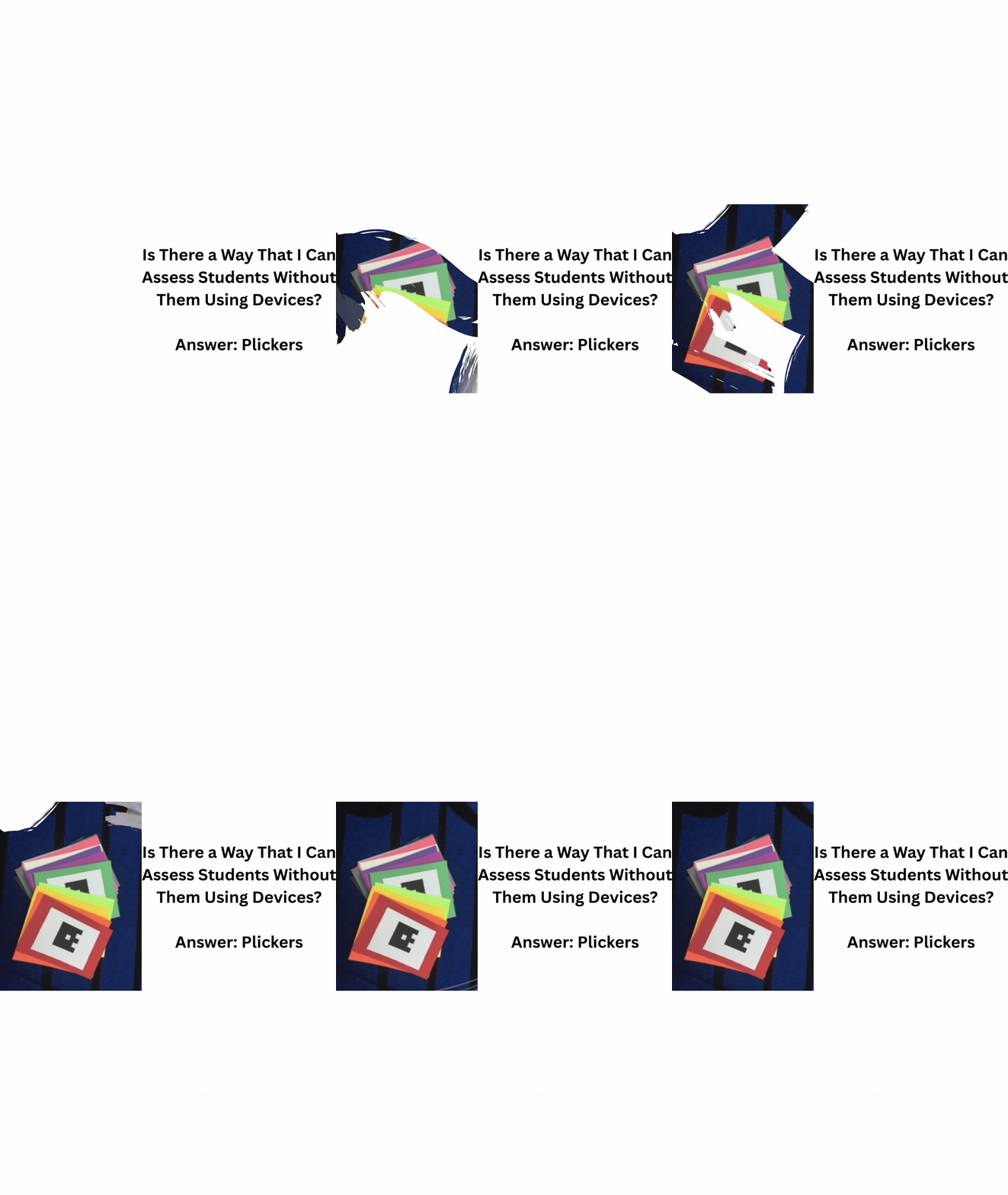
Is There a Way That I Can Assess Students Without Them Using Devices?
It's #teachertip and #techtiptuesday and this one comes again from Katie Argyle's Ultimate Free Music Tech Resources Guide 2025-2026! Today, we’re focusing on assessment—specifically for younger students, those without devices, or those who may require accommodations. Plickers is an excellent tool for quickly and easily collecting data, all while keeping your students engaged. Let’s dive in!
What is Plickers?
Plickers is a free, easy-to-use educational tool that utilizes special paper cards with codes (similar to QR codes) for quick, instant, technology-free student responses to questions. Here’s how it works:
You project a question onto the board.
Students hold up their Plickers cards, showing the corresponding answer letter (A, B, C, or D) facing up.
Using a mobile device (smartphone or tablet) with the Plickers app (Google or iOS), you quickly scan the cards, and the app automatically records each student's answer.
The best part? You don’t need to provide every student with a device, making this a great option for classrooms with limited technology access. Additionally, data collection is instantaneous!
How Do I Use It in the Classroom?
Plickers is super easy to get started with—here’s how you can set it up in your classroom:


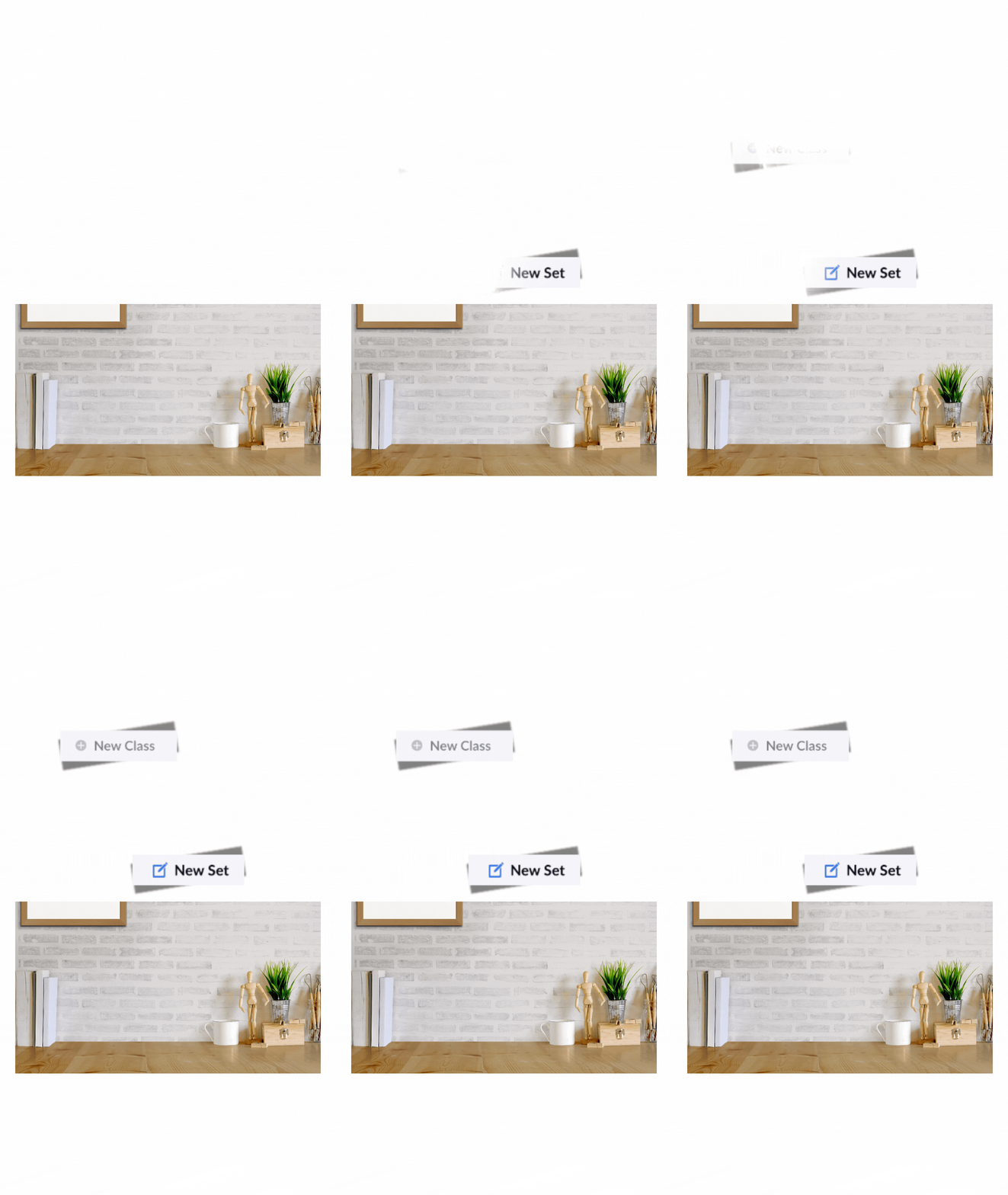

Create a Free Account: Visit Plickers.com and sign up for a free account. TIP: Take a moment to review their privacy policy (it's always good to check with your IT department before using new tech tools).
Create a Class: Add students by typing in their first names, initials, or nicknames. Simply click the "+ New Class" button to get started.
Create Questions: The free version allows you to create up to five questions. Click the "New Set" button to create the questions. The questions can include text, images, GIFs, and even YouTube videos (edit them to the perfect length).
Assign the Set to Your Class: Once your questions are ready, assign them to the class you’ve created.
Print the Plickers cards: You can print your own set of cards or order stickers to mount on any flat surface from Amazon. For durability, I recommend using jumbo cards mounted on construction paper, but avoid laminating them, as this can make scanning more difficult.
Distribute the Cards: When your students enter class, hand out their Plickers cards. Don’t forget to keep a list handy since each student is assigned a numbered card.
Practice with Simple Questions: To help students get the hang of using the cards, start with easy questions, such as, “True or False: My name is [insert your name].” This will help them learn how to hold the card upright with the answer facing up.
Scan and Collect Data: Open the Plickers app on your device and scan the room (it’s just like taking a picture!). As you scan, Plickers records their answers in real-time, providing you with instant feedback.
Examples of How to Use Plickers:
Check-ins: I love using Plickers for quick emotional check-ins at the beginning of class. Ask a simple question like, “How are you feeling today?” and use a short soundbite from Plickers to set a time limit for responses.
Engaging Activities: I’ve also used this Plickers set of check-in questions outside my classroom door, where students “clap their feelings,” and I have to name it based on their claps. It’s an interactive way to start the day!
Instrument Unit Review: After completing a unit on instruments, I use Plickers for pre- and post-assessments to gauge student growth. I also have different sets for different grade levels—upper elementary students might have more challenging questions like, “Which note on the recorder is played with the left hand?”
Real-Time Data:
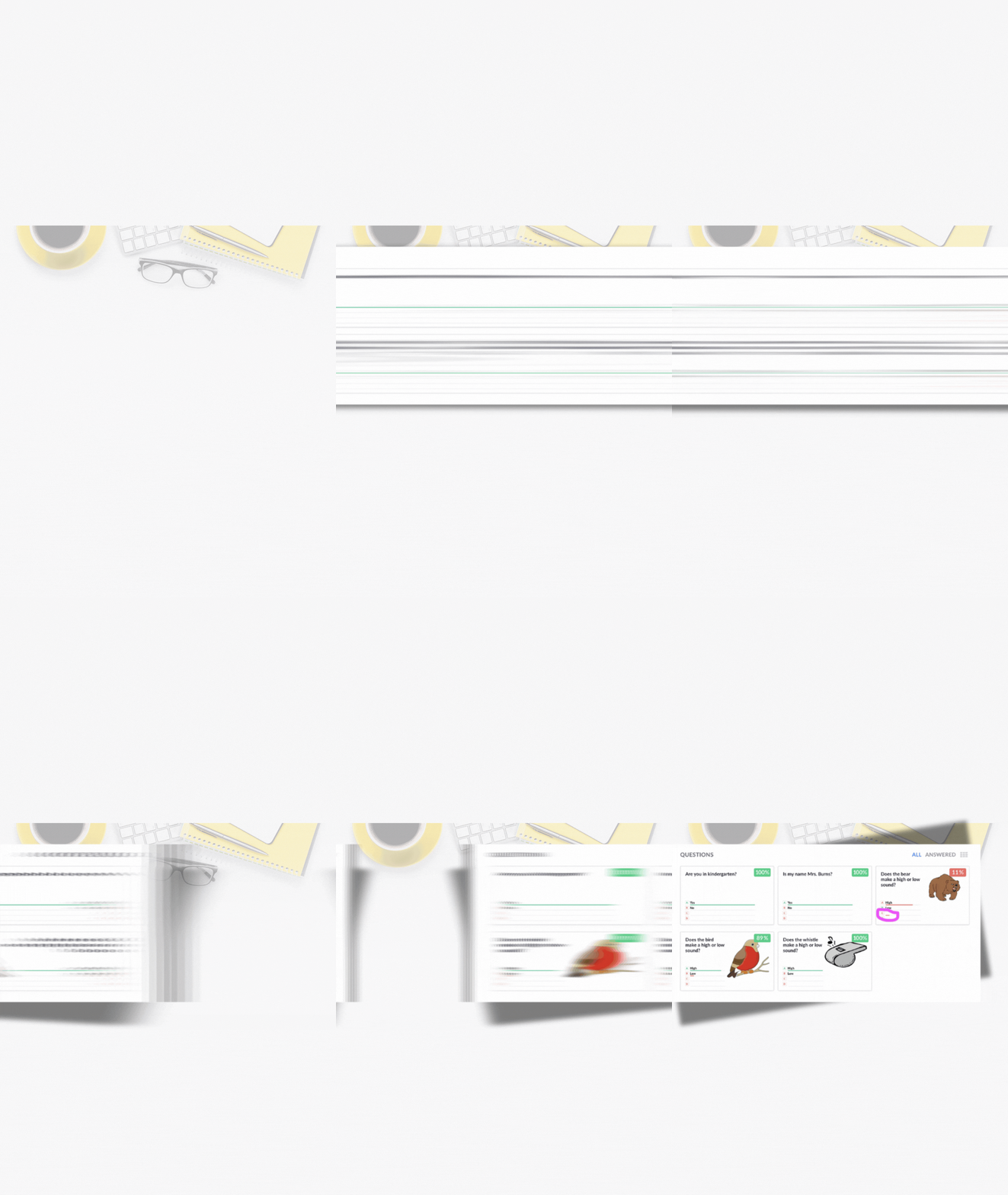
As you can see from this example, Plickers gives me instant feedback. Sometimes, students may accidentally choose a non-answer (like 'C' when there’s no 'C' option), but the app will highlight this in real time, and you can guide the student to correct it.
By using Plickers, I can assess my students without requiring them to have a device, and I can easily track their learning in a comfortable manner. Plus, it's an excellent tool for helping students feel successful, even when they’re just learning new concepts.
Need Help?
Plickers offers a helpful guide if you need step-by-step assistance getting started with the app. I highly recommend it as a versatile and easy-to-use assessment tool, especially for younger students, those without devices to access, or those who may require extra support.