Teacher Tip Tuesday: How to Quickly Enhance Your Google Slides
Sometimes a Google Slides lesson works perfectly—the song, questions, graphics, and learning goals are all there—but the slides themselves could use a little visual enhancement. Rebuilding the entire presentation is probably not how any of us want to spend our planning time or weekends!
For this Teacher Tip Tuesday, I am sharing a quick way to update an existing presentation with Enhance this slide, a Gemini-powered feature built into Google Slides.
In the video, I opened a fall lesson deck that was created for Who Took My Candy Corn? from Music K–8, Vol. 35, No. 1. I already liked what they gave me. However, I wanted to see whether Google Slides could reorganize each slide into a cleaner, more polished layout—without my having to redesign it from scratch.
How to Enhance a Slide
Open your presentation in Google Slides on a computer.
Select the slide you would like to update.
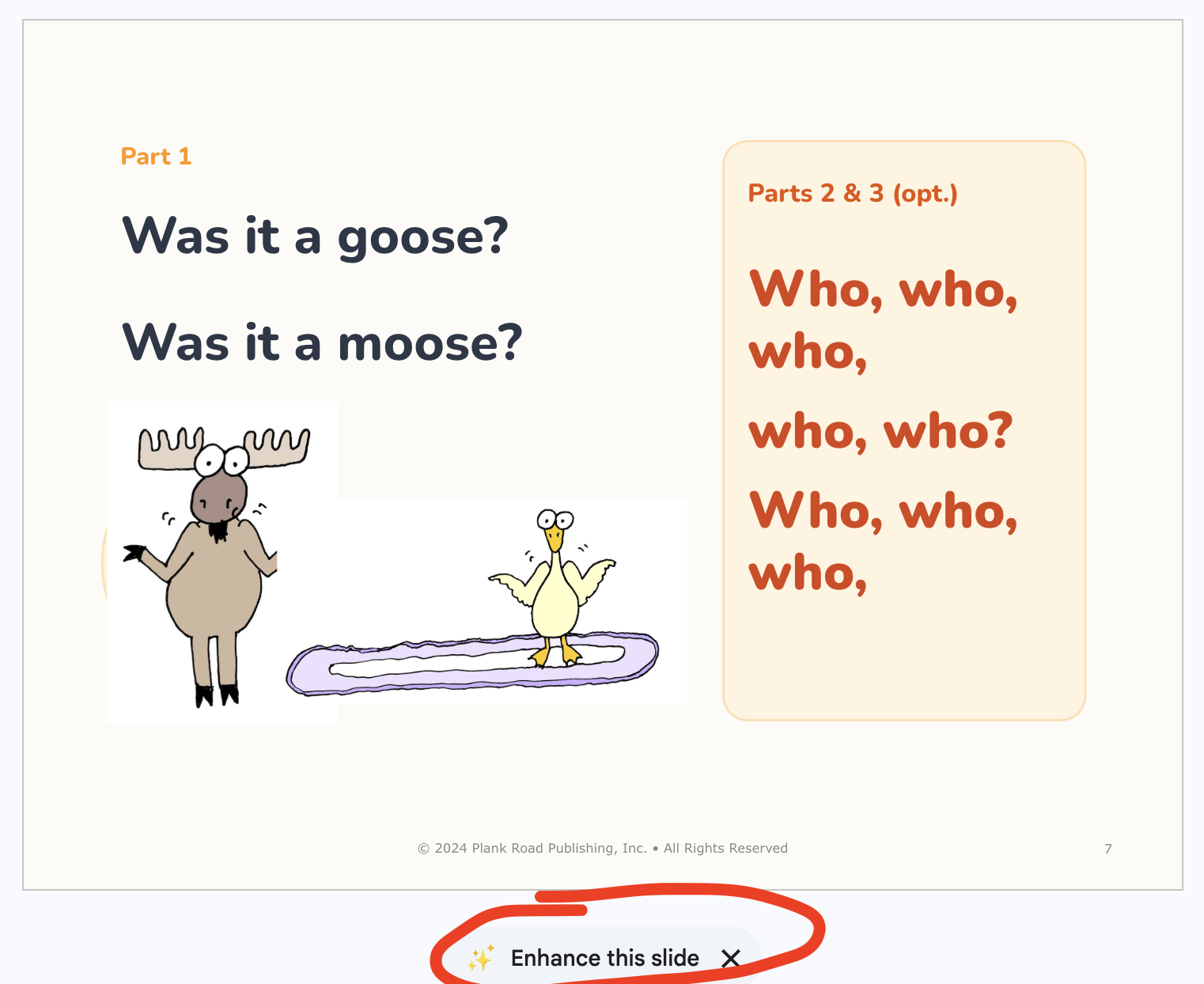
Click Enhance this slide near the bottom of the slide (does not always appear).
Give Gemini a moment to create a redesigned preview.
Carefully review the suggestion.
Click Replace to use the new design, or close the preview if you prefer your original slide.
Move to another slide and repeat as needed.
Google also places a small arrow beside Replace. According to the Google Slides Help Center, you can use that menu to insert the redesigned version as a new slide instead of replacing the original. That is very helpful when you want to compare both versions before deciding.
Why This Can Be Helpful
We often create and reuse lesson presentations for songs, listening maps, movement activities, rhythmic reading, instrument parts, and concert preparation. The teaching content may remain strong for years, even when the visual layout begins to feel dated.
The enhancement feature can quickly:
create a clearer visual hierarchy;
balance text and graphics more effectively;
coordinate fonts, colors, and spacing;
make a crowded slide easier to follow; and
give an older lesson deck a fresh look.
Google says Gemini can create fully editable layouts and can use the existing deck to help match its visual style. The company introduced the current Create and Enhance this slide options in its April 2026 Google Workspace update.
Keep Your Eyes on the Final Design
This is a wonderful time-saver, but it is still important to review every suggestion before using it with students. Google notes that AI-generated suggestions may be inaccurate, so I would check the following:
every lyric, direction, label, and question
rhythmic or melodic information so that they remain in a specific order
the placement of notation, solfège, instrument parts, and visual cues
font size and color contrast when the slide is projected across the music room
whether audio, video, animations, and hyperlinks still function as intended
whether the new design supports the musical goal of the activity.
Gemini may understand what to do, but it does not know why. That decision-making still belongs to the teacher.
I also suggest duplicating the presentation before you begin or inserting each enhanced design as a new slide while you experiment. This makes it easy to compare the options and return to the original.
A Quick Note About Access
If you do not see Enhance this slide, the feature may not be included with your account. Google currently says slide generation requires an eligible Google Workspace or Google AI plan and is available on desktop in English. You can review the latest requirements in the Google Slides Help Center.
A Small Tool That Can Save a Lot of Time
What I appreciate most about this feature is that it does not require me to start over. The musical content, instructional sequence, and student goals are still mine. Gemini simply offers another possible visual arrangement.
For many of us, that can turn an older but valuable presentation into something that feels classroom-ready again—in just a few clicks.
Have you tried Enhance this slide yet? I would love to know whether it helped refresh one of your music lessons!
P.S. Can You Find the Match? 🎶
If you missed Sunday's post, here is one more quick classroom idea! In Music Makers Match! Instrument Edition, students study two cards, find the one instrument they share, point to the match, and celebrate—just like this!

Image is bigger than the actual product.
Each edition can begin as a simple matching game and then be leveled up by asking students to name the matching instrument. The activity is available in three grade levels—PS/K, Grades 1–2, and Grades 3–5—with color and grayscale cards and teacher keys. Print, cut, and laminate the cards, and they are ready for partners, stations, small groups, whole-class play, early finishers, or a substitute plan.
Find it, name it, and celebrate the match! Visit Music Makers Match! A Fun Way to Practice Instrument Recognition to learn more and check out the Instrument Editions. 🎉