
Have to Create a Quick Google Slideshow for Sub Plans? Here’s a Fast, Teacher-Friendly Fix
A Simple System That Saves Time
When I need to put together sub plans quickly, I rely on a reusable Google Slides template. If my substitute can log into Google Slides (using a school-created sub account), everything is ready to go.
Here’s how it works:
I update one title slide with the day’s schedule
Each grade level is clickable and links to its lesson
The substitute simply clicks and teaches—no guessing
Students follow along with activities like:
Boomwhacker play-alongs
Rhythm games
Composition “creative blocks”
Songs with lyrics + audio
And more
It keeps the day structured and familiar for students—even when I’m not there.
The Real Problem: Time + Messy Slides
Let’s be honest—sometimes we’re building or tweaking these slides at the last minute. That’s when things can look cluttered or unclear for the sub.
My title slides used to look… functional, but not exactly clean or easy to read.
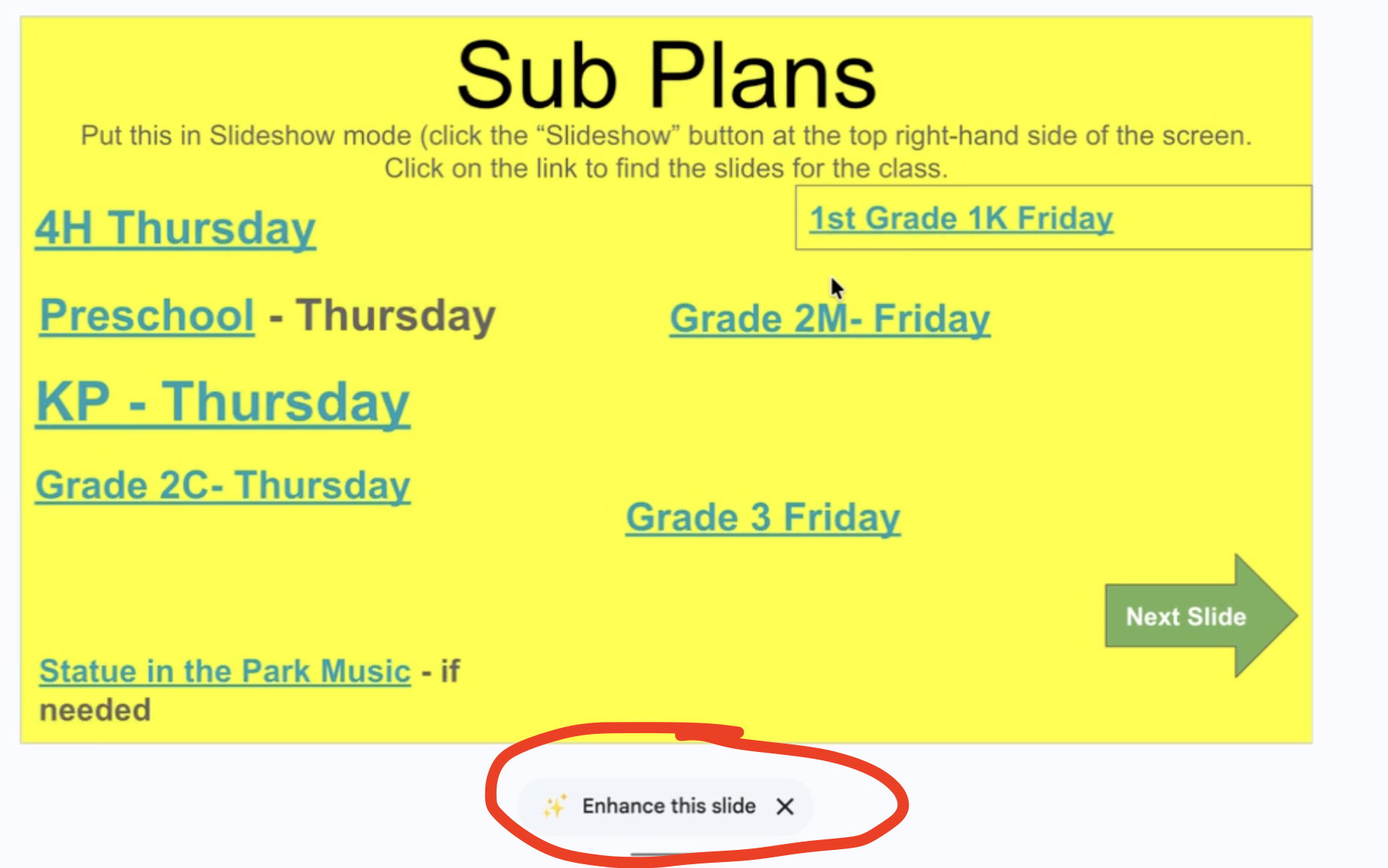
The Game-Changer: “Enhance This Slide”
A few months ago, I noticed the “Enhance this slide” option at the bottom of the screen in Google Slides.
One click—and suddenly:
The layout was cleaner
Text spacing improved
Visual hierarchy made sense
All my links stayed intact
It instantly made my sub plans more organized and easier to follow.
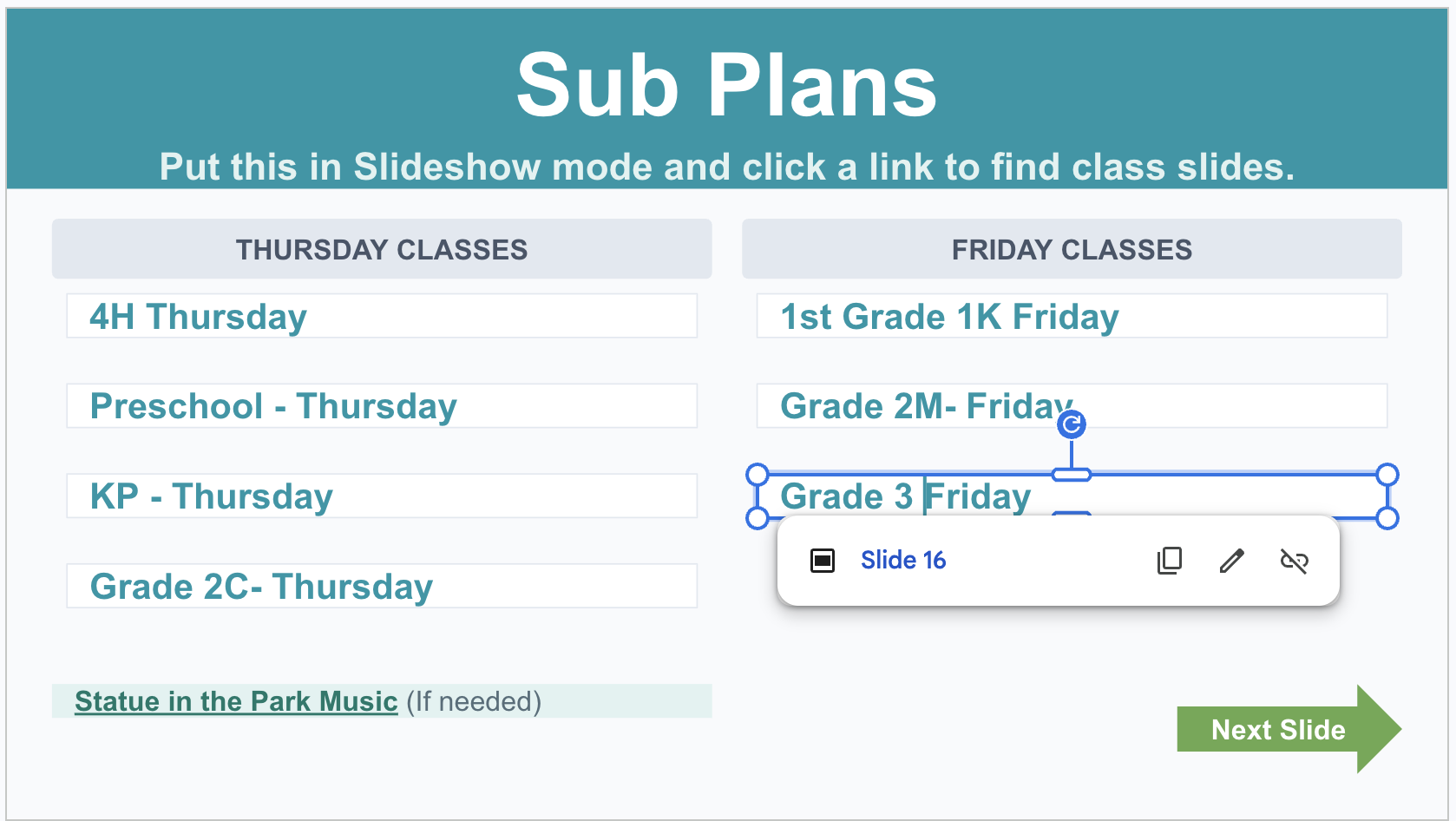
Bonus Tool: The “Visualize” Feature (🍌 Icon)
Not every slide has the “Enhance” option—but there’s another powerful tool.
At the top toolbar, look for the “Visualize” tool (the little banana icon 🍌 in Google Slides).
With it, you can:
Generate new layout ideas
Reformat messy slides
Type prompts like “beautify this slide”
This uses built-in AI (powered by Google Gemini) to redesign your slide while keeping your content and style consistent.

Why This Matters for Music Teachers
If you’re using Google Slides for:
Manipulatives
Centers
Sub plans
Play-along activities
These tools can:
Save valuable prep time
Make directions clearer for subs
Keep your classroom running smoothly
Quick Takeaway
If you’re in a rush:
Build or reuse your slide template
Update your schedule
Click “Enhance this slide” or try “Visualize” → “beautify this slide”
Done ✔️
Clean, clickable, and ready for your sub—without starting from scratch.