3 Easy Ways to Convert a PowerPoint to a PDF
If you create your own slides for music class—rhythm patterns, instrument visuals, recorder fingering charts, or movement prompts—you’ve probably needed to turn a PowerPoint into a PDF at some point. PDFs are easier to share, upload to learning platforms, print, and post for students and families.
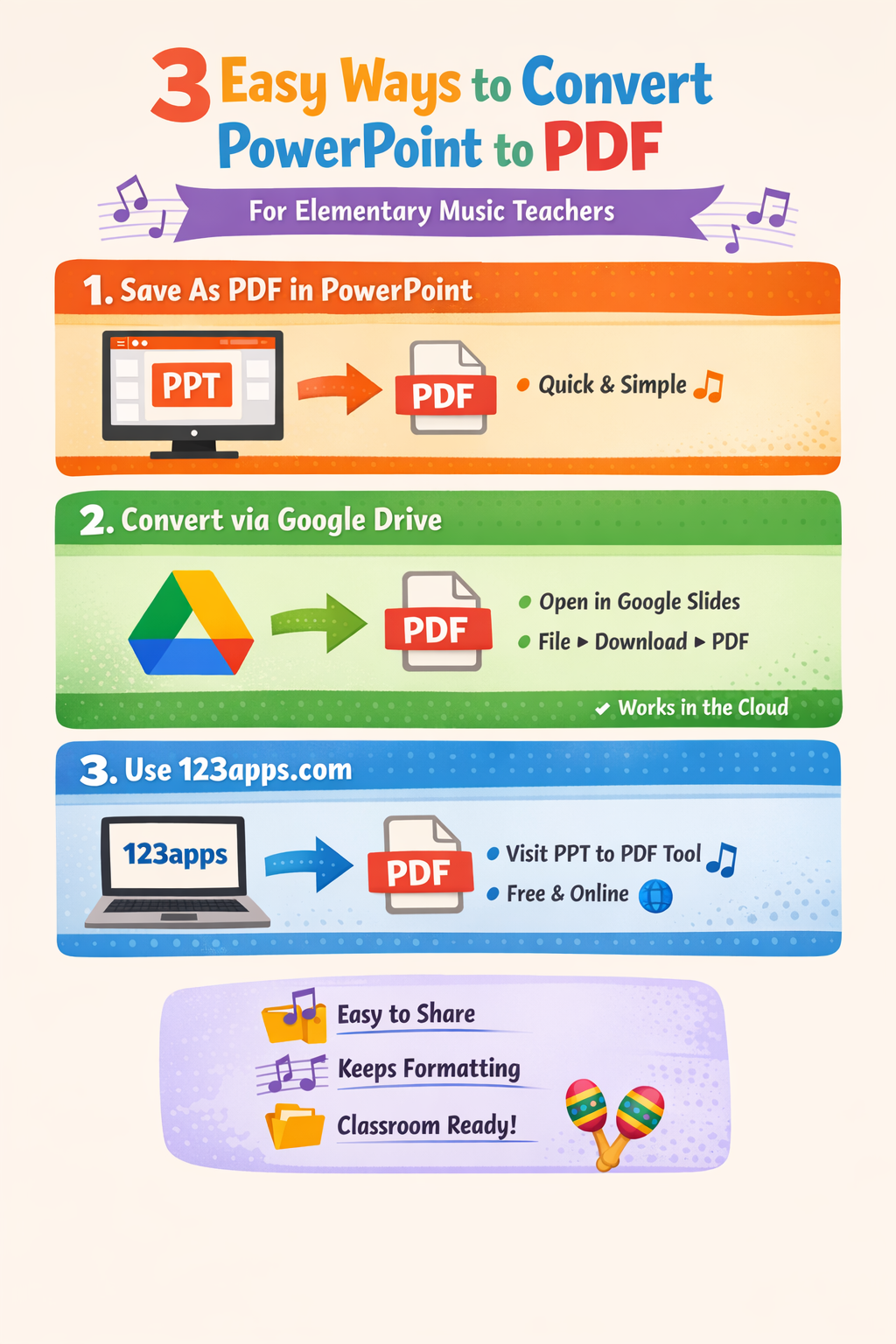
Below are three simple, reliable ways to convert a PowerPoint (PPT) into a PDF. Each option works well for music teachers, depending on the tools you already use.
Option 1: Save the PowerPoint Directly as a PDF (Fastest Method)
This is the quickest option if you already have PowerPoint on your computer.
How it works:
Open your PowerPoint file.
Click File.
Select Save As (or Export, depending on your version).
Choose PDF as the file type.
Click Save.
Why music teachers love this option:
Keeps your formatting intact (important for notation and visuals)
No internet required
Perfect for handouts, manipulatives, or sub plans
Option 2: Use Google Drive to Convert PPT to PDF
This is a great option if you use Google Drive, are using a Chromebook, or prefer to have everything stored in the cloud.
How it works:
Upload your PowerPoint file to Google Drive.
Right-click the file and open it with Google Slides.
Click File in the menu.
Scroll down to Download.
Select PDF (.pdf).
Why music teachers love this option:
Easy sharing with colleagues
Works on any device
Ideal for collaborative planning or curriculum writing
Option 3: Convert with 123apps.com (Free Online Tool)
This option is helpful if you don’t have PowerPoint installed or need a quick conversion from any device.
How it works:
Go to 123apps.com.
Scroll down and select PPT to PDF.
Upload your PowerPoint file.
Wait for the file to convert.
Download and save the new PDF.
Why music teachers love this option:
No software required
Works on Chromebooks
Great for quick fixes at school or home
Which Method Should You Use?
Need it fast? → Save as PDF in PowerPoint
Working in Google Drive? → Convert using Google Slides
On a Chromebook or shared computer? → Use 123apps
No matter which method you choose, converting your PowerPoints to PDFs makes your music teaching resources more flexible, shareable, and classroom-ready.
If you’d like more quick tech tips like this—especially designed for elementary music teachers—check back often. These small tools can make a big difference in your teaching day.